If you have ever tried bulk editing products, integrating apps, or syncing inventory in Shopify, you have probably needed a Shopify product ID at least once. Many merchants pause right there. It is not visible on the product page, it is not the SKU, and Shopify never explains where to find it.
The truth is, understanding Shopify product IDs can save you hours of manual work and prevent costly data mistakes. This guide will show exactly all you need to know about product IDs, and teach store owners on Shopify how to find product ID. Let’s start.
Basic Understanding of Shopify Product ID
Before diving in deeper, it’s crucial to understand what Shopify product IDs are and why they matter for your store management.
What is the Shopify product ID?
Shopify product ID is a unique number Shopify assigns to every product in your store. Think of it as an invisible fingerprint: no two products share the same ID, and it stays constant even if you change the product name, SKU, or handle. Shopify and third-party apps use this ID to track, update, or sync your products accurately.
For example, if you have a “Red T-shirt” and later rename it to “Crimson Tee,” the product ID remains the same, ensuring apps or integrations still link to the correct product.
Why do we need product IDs?
Product IDs play a major role in how Shopify and external tools recognize and manage your products. These situations are where they become truly important:
- Ensure accurate bulk product edits: When you upload a file to update product data, whether via Shopify’s default or third-party apps, Shopify must know exactly which product to change. Product IDs prevent errors that occur when updates are accidentally applied to the wrong item. This is critical for stores managing hundreds or thousands of SKUs.
- Protect product data integrity: You can update titles, descriptions, or handles to improve SEO without affecting system-level product tracking. The product ID quietly keeps everything connected under the hood.
- Simplify error tracking and troubleshooting: When Shopify or an app throws a “product not found” or “failed sync” error, product IDs help support teams locate the problem faster. They act as the backbone of product indexing, making issue resolution much easier.
How to Find Product ID in Shopify Manually: 3 Ways
Manual methods are ideal when you only need product IDs for a handful of items. Shopify gives you a few hidden spots where these IDs appear, each with different advantages depending on what data you are checking. Let’s explore where to find Shopify product ID manually.
In the Shopify Admin URL
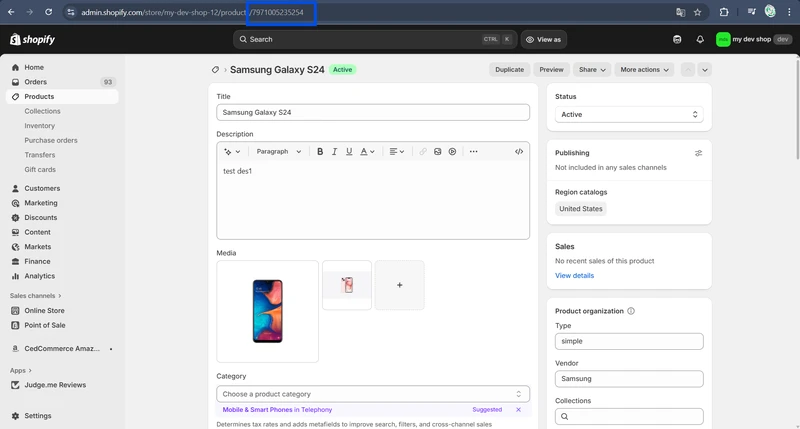
The Admin URL is the simplest and most beginner-friendly place to find Shopify product ID. Product IDs are embedded directly in the page URL when you edit an item. This method is perfect when you only need to grab IDs occasionally while doing updates.
Here is how to find product ID on Shopify URL:
- Log in to Shopify Admin > Products.
- Select the product you want to find the ID for.
- Look at the browser’s address bar. The number after /products/ is your product ID.
In product JSON data
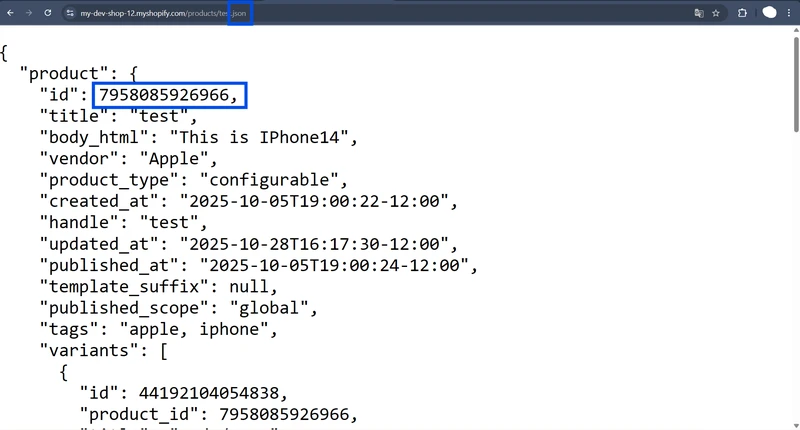
Shopify JSON data reveals everything about a product: ID, handle, variants, metafields, descriptions, etc. This method works well if the admin URL doesn’t clearly show the ID or if you want to confirm product-level data for accuracy. Here is how to find product ID Shopify JSON:
- Go to the product page of the product you want to find the ID.
- Click the browser URL and add: .json. Press Enter to load the raw data file.
- Look near the top for “id” which represents the Product ID.
In the variants JSON data
When you need to find a lot of IDs at once, multiple products or variants, this method helps you pull lists of IDs in one place. It’s ideal for larger stores or when preparing bulk exports. Here is how to get Shopify product ID with variant JSON.
- Go to your store website.
- Click the browser URL and add: /admin/variants.json. Press Enter to load the raw data file.
- You will see the details of multiple products. Look near the top of each product for “product_id” which represents the product ID.
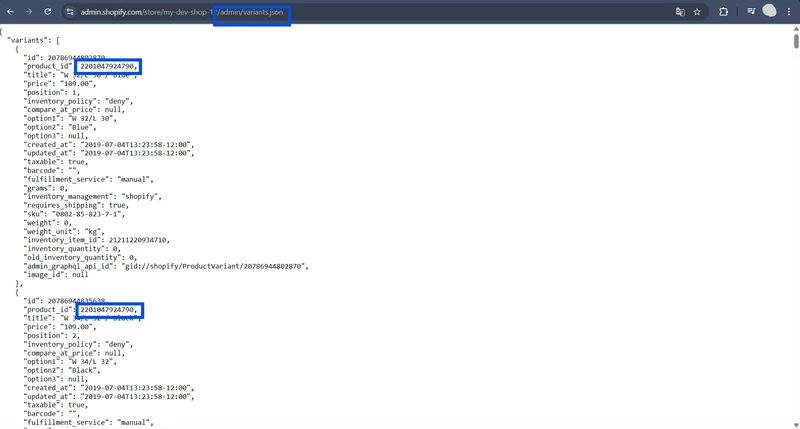
While the variants JSON data method is useful for quickly checking a few products, it comes with clear limitations. Shopify only displays data for up to 50 products per page, which makes it impractical for large catalogs.
The JSON format itself is also difficult to read or interpret without technical knowledge; it’s designed for developers, not store managers. Editing or extracting information from it can easily lead to mistakes if you’re not careful.
How to Find Shopify Product ID in Bulk with BulkFlow
For merchants who need to view or export product IDs in bulk without dealing with messy code, product importer apps like BulkFlow offer a much faster and cleaner solution. You can export thousands of products, including their IDs, into a readable spreadsheet format in just a few clicks.
Here is how to find product ID Shopify with BulkFlow:
- Step 1: Connect your Shopify store
- Step 2: Create an export feed
- Step 3: Customize your export settings
- Step 4: Export and download the file
Export Shopify Product IDs Effortlessly
With BulkFlow, you can easily bulk export hundreds or thousands of Shopify product IDs, along with details like titles, prices, and SKUs – no manual work needed.
Step 1: Connect your Shopify store
You should start Shopify get product ID by creating a BulkFlow account and connecting it to your Shopify store. Or, you can use a more direct method – install the BulkFlow app right in the Shopify App Store and grant it the required authorization. After authorization, BulkFlow will be able to access your product data for export.
Step 2: Create an export feed
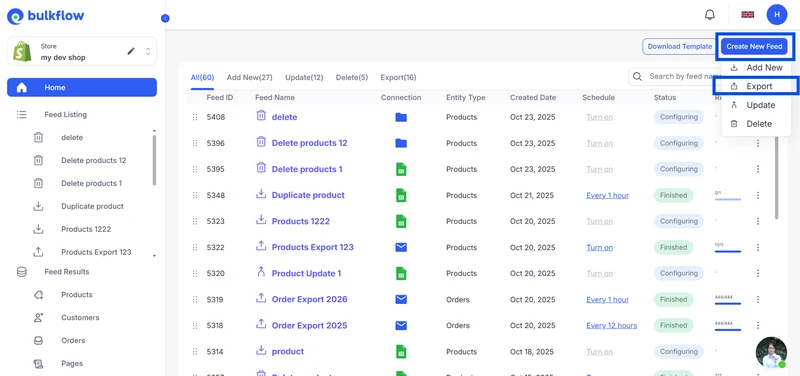
In the BulkFlow dashboard, you can create a new export product feed by clicking Create new feed > Export.
Then, give your feed a name and choose where you prefer to export your data to. BulkFlow can send the result file to your email or to your FTP/SFTP server.
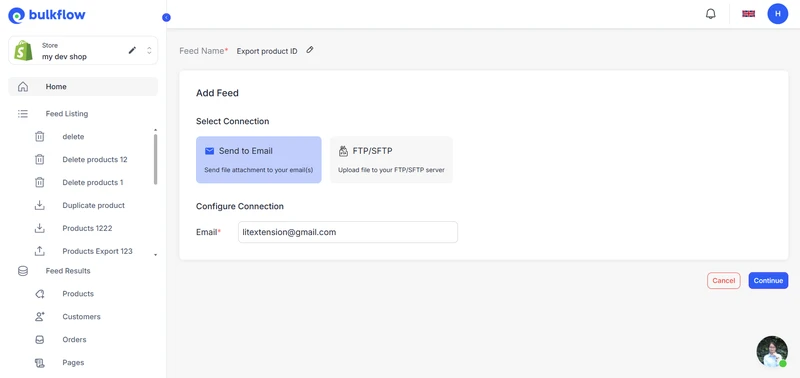
Once you’ve finished, click Continue to move on.
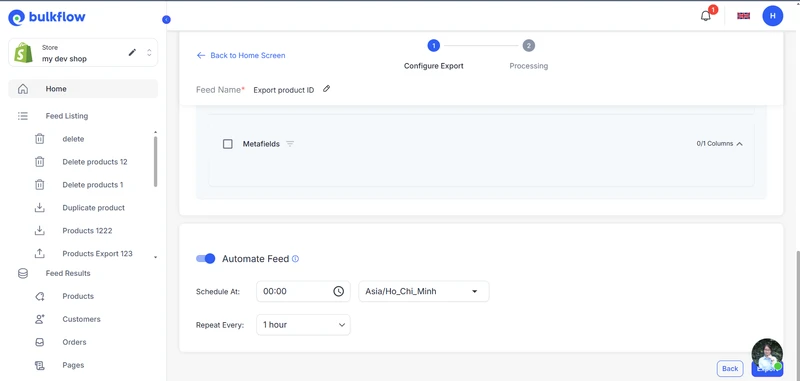
Step 3: Customize your export settings
In this step, you will customize your settings and data for the product export -including your Shopify product IDs.
First, you can choose your export file format between Excel and CSV. You can also save your export settings as a preset to reuse later.
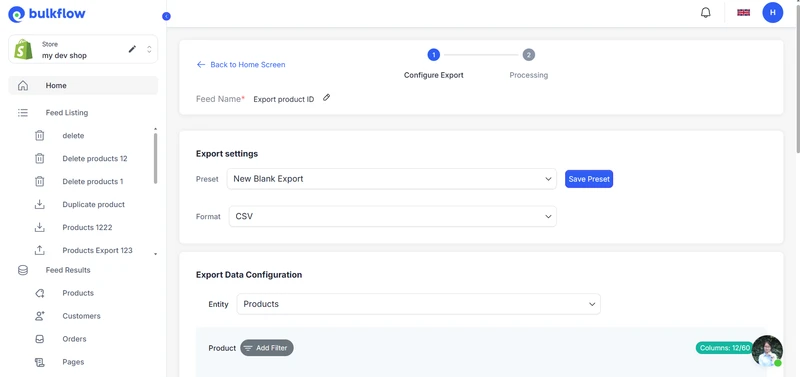
Next, choose Product as the data entity, and BulkFlow will list out all the fields you can export.
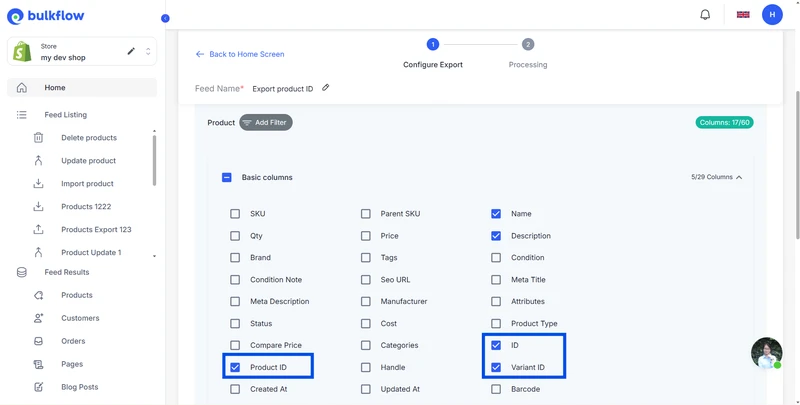
You can customize your export by narrowing down your product list with the filter or selecting only what fields you need. Make sure you select product IDs.Finally, you can also set up the Automatic Feed feature if you want to export these product IDs again in the future.
Step 4: Export and download the file
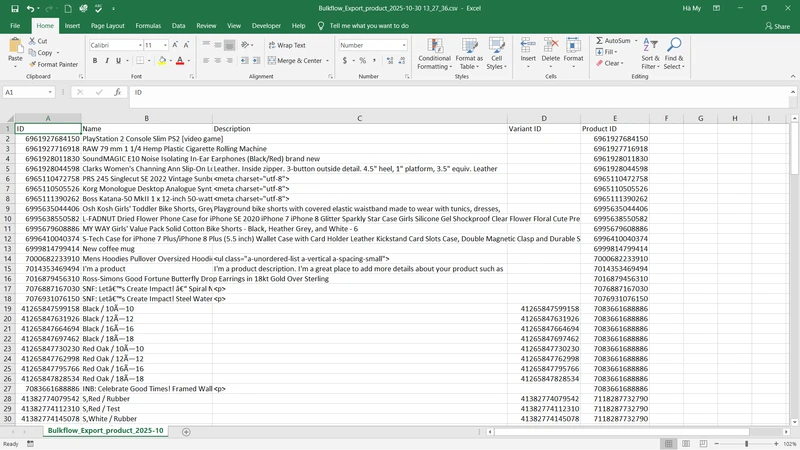
When you are done, click Export, and BulkFlow will start the product export process. Your file will be sent to your chosen destination; you only need to download your file from your email or open it in your FTP/SFTP server.
Open the file, and you will have a clean spreadsheet file that includes your product ID in Shopify, organized in an easy-to-read format.
Common Pitfalls When You Find Product ID Shopify
How to get product ID in Shopify is usually straightforward, but some merchants run into issues that make the IDs appear missing or incorrect. Understanding these common problems will help you avoid confusion and save troubleshooting time.
Permissions and access
You cannot find product ID Shopify if your Shopify user role doesn’t have permission to view or manage products. Store owners and staff accounts with Products access will be able to locate IDs easily. If IDs seem hidden or URLs don’t load, you should ask the store owner to adjust your access level.
Product visibility
Hidden, archived, or draft products still have product ID Shopify, but they may not show up clearly in the admin list view. You should double-check the product’s status and filters. Viewing the product directly through the admin URL or exporting it with BulkFlow ensures that the ID is always visible, even if the product is not published online.
Browser or cache problems
Sometimes the admin interface doesn’t update correctly due to browser cache issues. If URLs look incorrect or your admin behaves unexpectedly, you can try:
- Refreshing the page
- Opening Shopify in another browser
- Switching to an incognito or private window
- Clearing the browser cache.
Product ID and other product identifiers
Shopify uses several identifiers to track products and their variants. Each one serves a different purpose. Knowing how they relate will help you avoid mix-ups during imports, app integrations, and bulk edits.
| Identifier | What It Is | Who Uses It | Can You Change It? |
| Product ID | Internal system ID for a product | Shopify + Apps + API | No |
| Variant ID | Internal system ID for each option of a product | Shopify + Apps + API | No |
| SKU | Seller-defined stock and inventory code | Your fulfillment + inventory systems | Yes |
| Handle | Human-readable URL identifier used for SEO | Shopify + visitors | Yes |
Variant ID
A variant ID identifies each purchasable item under a product, such as different sizes or colors. You can have one product ID Shopify, but multiple variant IDs linked to it. If you update the inventory or price for one specific option, you should use the variant ID.
SKU
SKU (Stock Keeping Unit) can be created and customized by you to match internal inventory systems or warehouse labeling. Although SKUs help you track stock, they are not guaranteed to be unique unless you enforce that rule manually.
Handle
A Handle is the part of the product URL that describes your product in text format. For example: yourstore.com/products/black-classic-tee. The Handle here is black-classic-tee.
You can edit handles to improve SEO and readability, but changing them can break existing URLs unless redirects are set up. Handles are not safe for automation because they can change over time.
FAQs – Shopify Product ID
Is the product’s ID number the same as the SKU?
No. The product ID is a permanent internal number Shopify assigns automatically. The SKU is a code you create for inventory tracking. Even if you change the SKU, the product ID stays the same.
Can I change the product ID Shopify?
You cannot change a product ID. Shopify generates it when the product is created, and it remains fixed. This ensures that apps and automations always reference the correct product, even after editing product details.
How to export product ID in Shopify?
You can export product IDs using apps or automated tools, such as BulkFlow:
1. Open BulkFlow and connect your Shopify store
2. Choose Create new feed > Export. Give it a name and choose the export destination.
3. Select Product entity and choose the fields you want to export, including Product ID.
4. Run the export and download your file
Can my customers on Shopify find product ID?
Customers cannot see Product IDs in your storefront. Shopify hides them to keep internal identifiers secure and prevent confusion. If you want to show an identifier to shoppers, SKUs or model numbers are better choices.
Conclusion
Shopify product ID might seem like a small detail, but they are the foundation of clean product data, smooth integrations, and scalable Shopify operations. Once you know where to find product ID in Shopify, tasks like bulk editing, troubleshooting, and marketplace syncing become far easier and far less risky.
If your store is growing or you manage a large catalog, manually collecting product IDs is no longer practical. BulkFlow gives you a smarter way to export all of them in seconds, so you can focus on running your business, not digging through admin pages.
Try BulkFlow today and make product management faster, cleaner, and more automated!


