Ever wondered why some Shopify stores feel effortless to browse while others feel chaotic?
The secret lies in Shopify product taxonomy – the system that organizes every product into clear, searchable categories. Recently introduced in 2024, this taxonomy is Shopify’s solution for making your store easier to navigate, more SEO-friendly, and data-consistent.
In this guide, you’ll learn what it is, why it matters, and how to build one that helps customers find your products faster and easier.
Simplify your product management with BulkFlow
Managing hundreds of product categories can be time-consuming. With BulkFlow, you can import, edit, and structure your Shopify product in just a few clicks – no complicated templates or manual updates.
Understanding Shopify Product Taxonomy
What is Shopify product taxonomy?
Shopify product taxonomy is the system that defines how your products are grouped, labeled, and connected across your store. It acts like a digital shelf layout that helps both shoppers and search engines understand the relationship between different products. Unlike product type, category taxonomy follows a standardized system with a defined hierarchy.
For example, a structured taxonomy tells Shopify that a “cotton t-shirt” belongs under Apparel & Accessories > Clothing > Clothing Tops > T-Shirts, while “smart phones” fit under Electronics > Communication > Telephony > Mobile & Smart Phones. This logical hierarchy keeps your catalog tidy and ensures every product can be found easily through filters, menus, or searches.
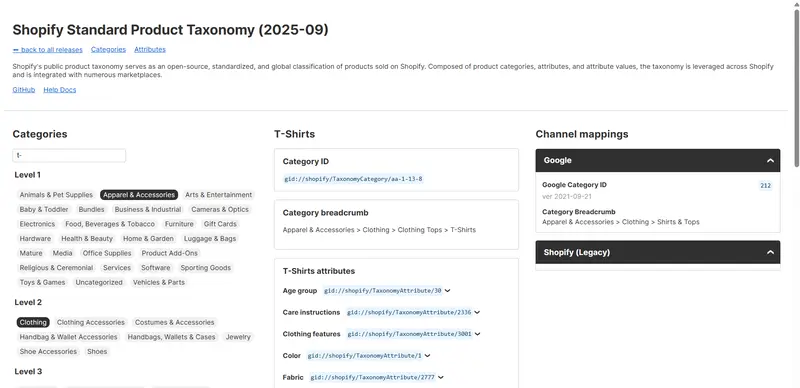
Shopify provides a standard Shopify product taxonomy list that includes more than 10,000 predefined product categories and over 1,000 attributes recognized across Shopify and integrated platforms. This ensures your product data remains clear, uniform, and compatible with integrations like Google Merchant Center or Facebook Marketplace.
Some examples of product taxonomy in Shopify
Before we dive in deeper, let’s look at how major brands use product taxonomy to organize their online stores effectively. These examples show how a well-structured taxonomy helps customers navigate intuitively – while staying consistent with Shopify’s standard product hierarchy.
Fashion taxonomy
Uniqlo focuses on simplicity and usability. Its main navigation features broad categories like Women, Men, Kids, and Baby, which expand into intuitive subcategories such as T-Shirts, Sweats & Fleece > T-Shirts, Bottoms > Jeans, or Outerwear > Coats. Shoppers can further filter by size, color, and price.

This approach keeps browsing smooth, gives customers control, and allows the taxonomy to evolve seamlessly as new products are added.
Food and cookware taxonomy
Sous Chef’s taxonomy is designed to reflect real customer shopping behavior, organizing products by practical use cases such as Ingredients, Cookware, Tableware, or Gifts. Each main category expands into practical subcategories – for example, within Ingredients, you’ll find Baking Supplies & Equipment, BBQ & Smoking, orCocktail Making & Barware.
This structure enhances product discoverability, enables precise filtering, and aligns seamlessly with Shopify’s standard hierarchy – improving both on-site search performance and multi-channel listings.
Home and décor taxonomy
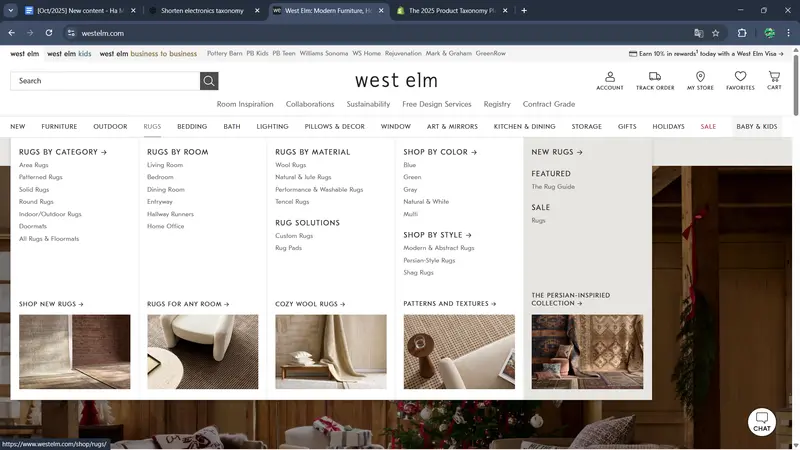
West Elm uses a flexible navigation structure. Its main categories mix room‑based and product‑type labels. Subcategories are even more flexible, combining product types, rooms, materials, and colors. This approach serves multiple browsing goals: it guides shoppers who think in terms of rooms, those who think in terms of product type, and those inspired by color or material.
Why do we need Shopify product taxonomy?
Having a clear product taxonomy isn’t just about neatness; it offers you and your store numerous advantages. Here are some of them:
- Better navigation: Logical categories and filters help shoppers find products faster, improving customer experience and reducing bounce rates.
- Stronger SEO: Each category offers keyword opportunities, boosting visibility on Google search.
- Faster management: Consistent naming and categories make bulk edits, imports, and updates quick and effortless.
- Easier integration: Shopify’s standard taxonomy syncs smoothly with platforms like Google Shopping, ensuring correct product display and better ad performance.
How to Add Shopify Product Category Taxonomy: 3 Methods
Depending on your store size and workflow, you can build or update product categories using different methods. Below are three practical ways to add your taxonomy.
1. Create Shopify standard product taxonomy manually
For small catalogs or testing new taxonomy changes, adding categories manually is simple and intuitive. This method gives you full control and helps you understand how Shopify’s product structure works before scaling up.
Shopify also supports you with Shopify Magic, an AI-powered feature that can automatically suggest the most accurate standard category for your product. Based on your product title, description, and media, Shopify Magic analyzes keywords and context to recommend the best-matching taxonomy option.
Here are the steps:
- Go to Shopify admin > Products and click Add product if you want to add new products to Shopify. For existing products, just select the product you want to add a category to.
- Scroll to the Category field. Shopify will show an AI-generated recommendation from Shopify Magic. Click Suggested if it matches, or manually search and choose the correct category.
- Next, in the Variants section, when you click the Add option, Shopify will give you some suggestions based on your category. Select the ones you need and add variant details.
- Similarly, the Category metafields section also gives you multiple suggestions. You just need to click Accept all or click each of them to accept. You can also flexibly add your own metafields.
- Save the changes. Repeat for other products as needed.
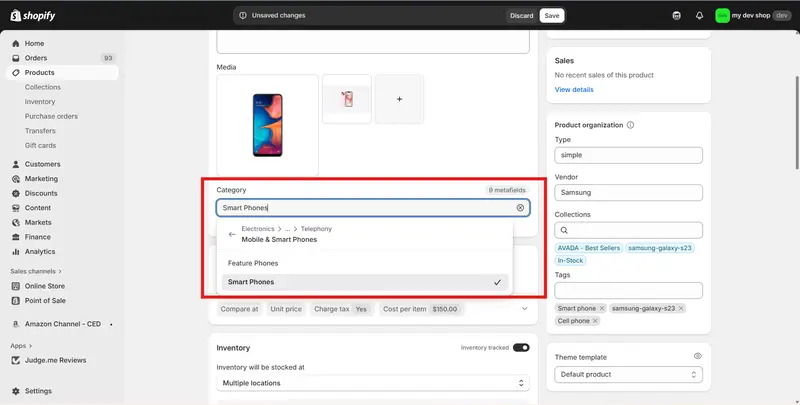
Also, when reviewing your existing product categories, if you find that a product has been placed in an outdated or incorrect category, simply follow the same steps above to switch it to a more accurate one. For larger updates, you might prefer using bulk editing or CSV import.
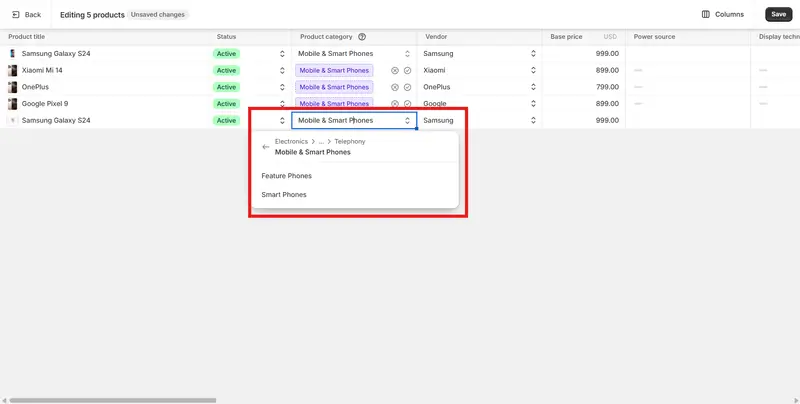
2. Add product taxonomy Shopify in the bulk editor
Shopify’s built-in bulk editor strikes a balance between flexibility and control. It’s most effective for medium-sized stores that need to make quick Shopify product edits, including category taxonomy, across several products at once.
Here are the steps:
- In Shopify admin > Products, select all the items you want to edit. Click Bulk edit to open the bulk editor.
- Click Columns and add the Product category columns if they’re not already visible.
- Locate Product category columns. When you click a cell, you will see a best-match category suggested by Shopify. You can choose to accept it or search for another taxonomy option.
- Click Save to apply all updates at once.
3. Import Shopify product category taxonomy via CSV file
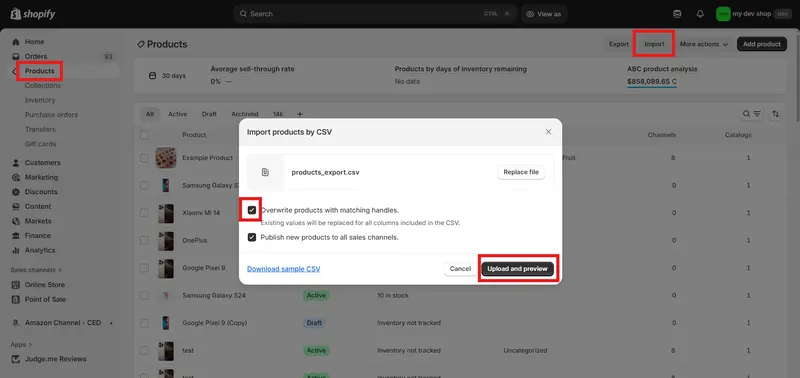
For medium to large-sized catalogs, Shopify’s native CSV import tool offers an efficient way to update taxonomy. It works well when you already maintain your product data in spreadsheets.
Here are the steps:
- Go to Shopify admin > Products to export your products from Shopify for reference.
- Edit your Product Category columns in the exported CSV.
- Return to Products. Click Import and upload your updated CSV.
- Check the import preview. When you’re done, click Import to start the process.
2 Best Practices for Shopify Product Taxonomy
Shopify’s product taxonomy is created to make categorizing your products faster, more consistent, and optimized for integrations across platforms. Here are some best practices to help you make the most of Shopify’s taxonomy and keep your store running smoothly.
Keep it simple and manageable
When you create your own taxonomy, you don’t have to go all the way down to the deepest subcategory if it’s not necessary. Using too many layers might overcomplicate your structure – especially for small or mid-sized stores. You should only stick to the category level that clearly defines your product without making navigation feel overwhelming.
Maintain consistency across your catalog
One of the biggest benefits of using the standard taxonomy is uniformity. Make sure your entire catalog follows the same structure: if one product in a line is under “Apparel & Accessories > Shoes,” keep the rest aligned. This consistency helps with inventory management, reporting, and syncing across marketplaces.
Review and update regularly
Shopify frequently updates its taxonomy to include new categories and reflect market changes. You should review the taxonomy every few months, especially if you’ve added new products. Staying updated ensures your listings stay compliant with Shopify’s ecosystem and external sales channels.
Bonus: Shopify Standard Product Taxonomy Open Source
If you want to see how Shopify organizes every type of product, you can explore the Shopify Standard Product Taxonomy, which is now available as an interactive, open-source tool. It allows you to browse all official product categories, subcategories, and attributes used across Shopify and connected marketplaces like Google Shopping.
You can access it here: Shopify Product Taxonomy (2025-09 Release)
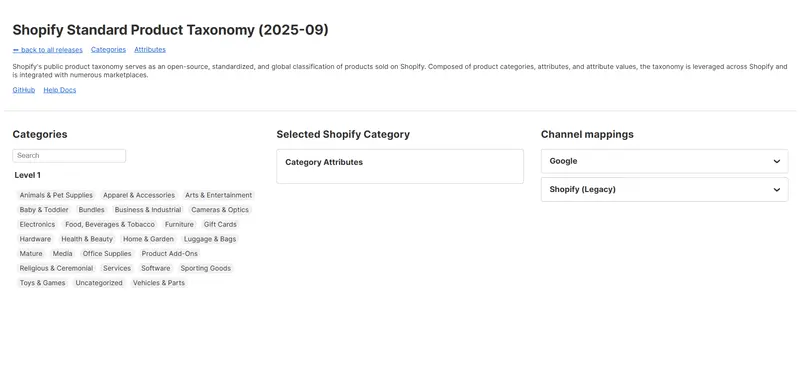
Following Shopify’s official taxonomy can make your store more consistent with Shopify’s ecosystem and external channels such as Google Shopping. It can also help your products show up in the right searches and recommendations, since Shopify uses this taxonomy to power features like product categories, collections, and filters.
Because it’s an open-source project, Shopify continues to update this taxonomy regularly. You can check the release page periodically to stay current with any new categories or naming standards. Aligning with these updates can help your store remain accurate, professional, and SEO-friendly as your catalog grows.
Shopify Product Taxonomy – FAQ
What are the pros of product taxonomy?
Product taxonomy helps you organize your store in a clear and logical way, making it easier for customers to find what they’re looking for. It also improves internal management, SEO performance, and multi-channel consistency, especially when selling across platforms like Google or Meta.
How to create Shopify product taxonomy?
Shopify provides a standard taxonomy that you can follow rather than creating one from scratch. However, you can still customize it to fit with your store’s purposes and goals.
Here are the steps to create your own product taxonomy on Shopify:
1. Conduct product and customer research
2. Define categories and subcategories
3. Assign product attributes
3. Test and refine your taxonomy structure
How to assign product categories in bulk?
You can assign categories in bulk by uploading your products through tools like BulkFlow. Here are the steps:
1. Create a BulkFlow account
2. Create a new update feed
3. Connect and map your file
4. Update and review
What is the difference between product categories and types?
Product categories represent your product’s position in your store’s hierarchical taxonomy – for example, Apparel & Accessories > Clothing > Dresses. You can use Shopify’s standard categories or create custom ones that fit your catalog, as long as they follow a clear hierarchy.
Product types, on the other hand, are single-level custom labels used for internal organization, reporting, or filtering. They don’t follow any hierarchy and serve more flexible, store-specific purposes.
Conclusion
A well-built Shopify product taxonomy isn’t just about organization – it’s the foundation of a smooth shopping experience. When your product category taxonomy is clear, both search engines and customers can navigate your store with ease.
If you’re managing a large catalog, keeping everything structured can be challenging. That’s where tools like BulkFlow come in. You can upload, edit, and manage your product categories in bulk – without endless manual work.
Take the time to build your taxonomy right from the start, and your Shopify store will stay scalable, discoverable, and ready to grow.