Imagine having dozens of products that are no longer available, yet deleting them feels risky. What if you need the data later? What if they return next season? Shopify archive products solves this exact problem for growing stores.
Instead of permanently removing items, archiving lets you hide away products while keeping everything intact. This guide breaks down why we need to archive products and provides a step-by-step guide on how to do it.
Why Do We Need Shopify Archive Products?
What does an archive product mean on Shopify?
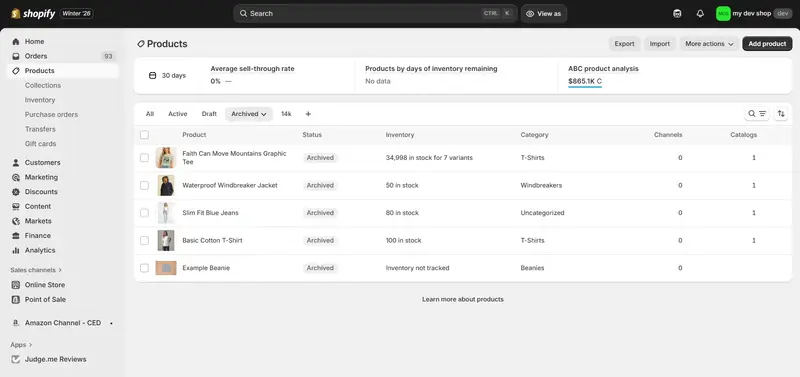
Shopify archive products are products that are hidden from your store and cannot be purchased by customers, but still exist in your Shopify admin. All product information, such as variants, images, pricing, and sales history, is preserved.
Archiving products helps you temporarily remove items without permanent loss. It allows you to reuse product pages later, maintain accurate reports, and manage seasonal or unavailable products efficiently. This approach is especially useful for stores that rotate inventory or frequently update collections.
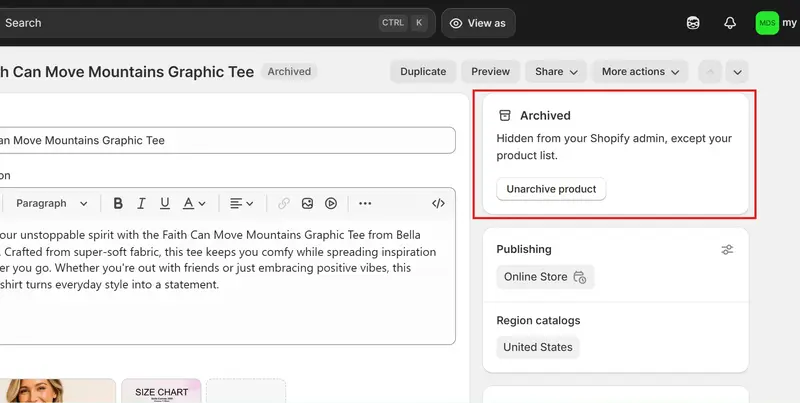
Archiving products vs. deleting products
When deciding how to remove products from your Shopify storefront, it’s important to understand that archiving and deleting are not interchangeable. Choosing the wrong method can lead to permanent data loss or unnecessary work later on.
The table below highlights the key differences when you delete and archive products Shopify to help you decide which option fits your situation.
| Feature | Deleted Products | Archived Products |
| Visible to customers | ❌ | ❌ |
| Can be restored | ❌ | ✔️ |
| Sales history kept | ❌ | ✔️ |
| Product data saved | ❌ | ✔️ |
| Recommended for | Products never needed again | Temporary or seasonal items |
Deleting products
Deleting should only be used when a product is permanently discontinued and no longer valuable for reporting or SEO. Once deleted, all product data and history are lost, and the product URL is removed permanently, which can impact analytics and organic traffic.
Archiving products
Archiving is ideal to hide away a product that is not currently available but may return in the future. It keeps all associated data intact, allowing you to reactivate the product instantly without rebuilding it from scratch. This makes archiving a low-risk, flexible option for most Shopify merchants.
Read more: How to Hide Products in Shopify: 2025 Ultimate Guide
How to Archive Products in Shopify Manually
Shopify allows you to archive products directly from the admin dashboard without using any third-party apps. This method works well if you only need to archive a small number of products and want a quick, built-in solution.
Archive one product on Shopify
Archiving a single product is useful when an item becomes temporarily unavailable or needs to be removed from your storefront immediately.
Here is how to archive products in Shopify manually:
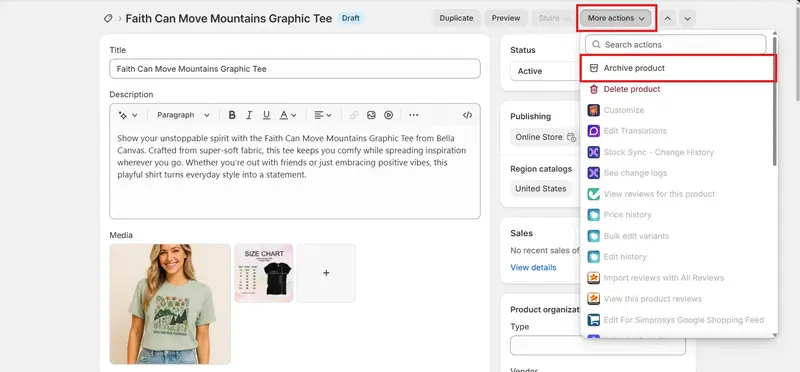
- Go to Shopify Admin > Products. Open the product you want to archive.
- Click More actions in the top-right corner. Select Archive product.
- Confirm the action
Archive multiple products on Shopify
If you need to archive several products at the same time, Shopify’s bulk action feature helps reduce repetitive work, although it’s best suited for smaller batches.
Here is how to archive multiple products on Shopify:
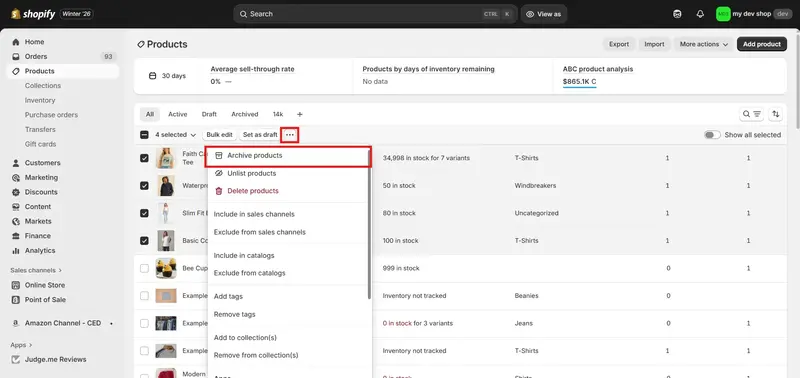
- Go to Shopify Admin > Product. Use the checkboxes to select all the products you want to archive.
- Click the three-dot icon (…). Choose Archive products.
- Confirm your action
Shopify Archive Products with BulkFlow: 5 Steps
When your store contains hundreds or even thousands of products, Shopify’s built-in archiving methods can quickly become inefficient and time-consuming. This is where a product importer like BulkFlow becomes a practical solution.
BulkFlow allows you to bulk archive Shopify products with ease and confidence. Instead of clicking through the admin repeatedly, you can prepare your data once and let BulkFlow handle the rest of the work, saving the time you could use for other tasks.
Here is how to archive products in Shopify with BulkFlow
- Step 1: Set up before Shopify archive products
- Step 2: Create a new feed
- Step 3: Connect and map your file
- Step 4: Upload and review results
Step 1: Set up before Shopify archive products
Before you begin archiving products, you need to set up your BulkFlow account.
One option is to install BulkFlow directly from the Shopify App Store, which automatically creates an account for your store. Another option is to sign up on the BulkFlow app and then connect your Shopify store.
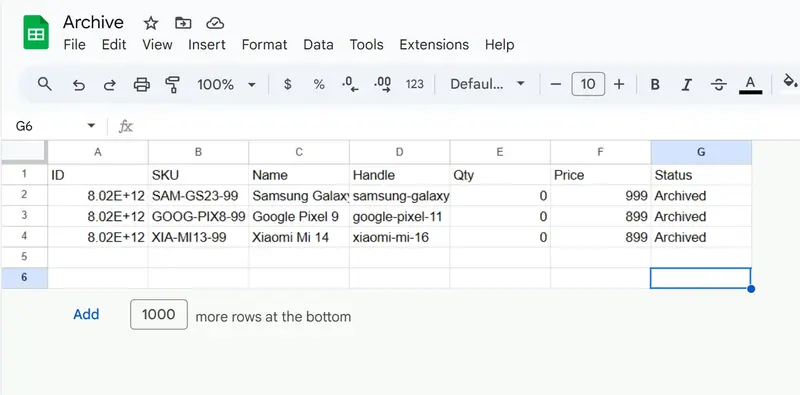
After your account is ready, the next step is preparing your data file. BulkFlow works with spreadsheets (CSV, Excel, Google Sheets,…), allowing you to bulk edit product data efficiently in one place. You may use your existing data file, export your existing product data from Shopify, or start from scratch with the BulkFlow product template.
In your file, locate the Status column. For each product you want to archive, replace the current value with Archived. Once all changes are made, you can save the file and use it for upload.
Remember: Aside from the Status column, make sure your file includes at least one identifier (ID, Handle, SKU, Barcode) to match correctly with Shopify.
Step 2: Create a new feed
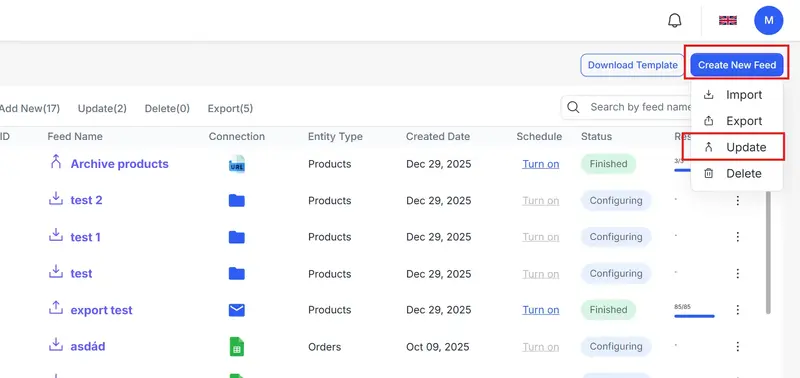
Once logged into the BulkFlow dashboard, you can create a new feed by clicking Create new feed and selecting Update. This type of feed is used to modify existing products rather than create new ones.
Then, give the feed a name, select Product as the data entity, and choose a connection method for your data file. BulkFlow supports multiple connecting options, including file upload, file URL, Google Sheets, Google Drive, Dropbox, OneDrive, and FTP/SFTP server. This flexibility allows you to use the data source that best fits your workflow.
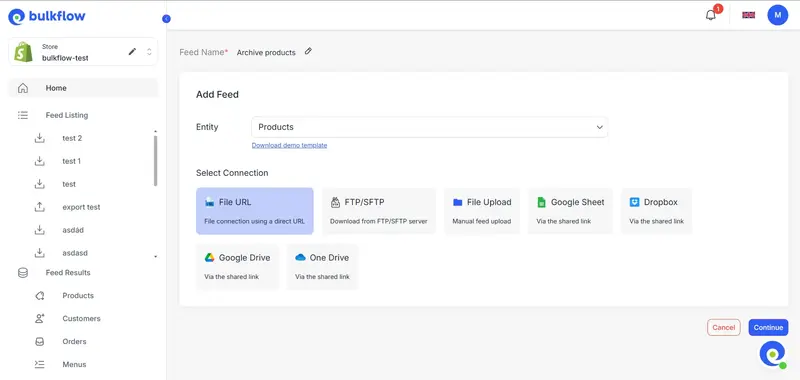
When you’re done, click Continue to proceed to the next step.
Step 3: Connect and map your file
After choosing a connection method, you can upload your data file based on your chosen connection method:
- File upload: Upload the file directly from your computer.
- Shared connections (cloud storage or file URLs): Paste the file URL and click Test connection.
- FTP/SFTP: Enter the server information and verify the connection.
Once the file is uploaded, BulkFlow will ask you to map fields. The first thing you need to do is select the product identifier you use in your file in the Identifier Field. Then, if you use the BulkFlow template, fields will be mapped automatically using a fixed structure.
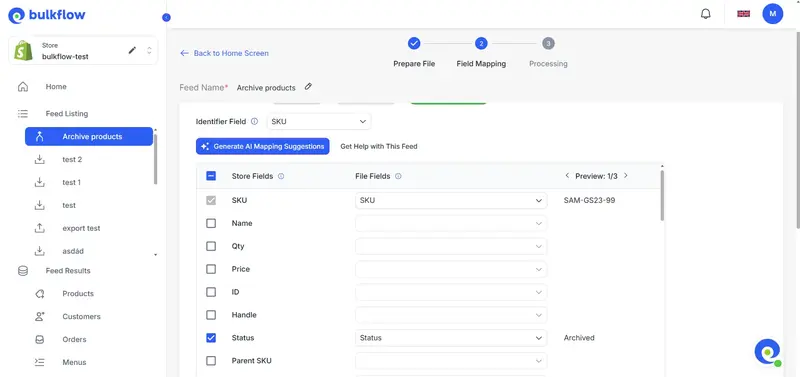
In another case, if you upload your own file or a file export directly from Shopify/via BulkFlow, BulkFlow will attempt to map as many fields as possible. You may review and adjust the mappings, or use the AI mapping suggestion feature to speed up the process.
After that, you should also check the Status mapping section to confirm that the status values are correctly mapped.
Step 4: Upload and review results
After field mapping is complete, you can click Next step to start archive products Shopify. BulkFlow will process the feed and apply the archived status to the selected products in your Shopify store.
When the upload finishes, you may review the results inside BulkFlow’s activity log to see which products were updated successfully. You can also verify the changes directly in your Shopify admin by filtering products with the Archived status.
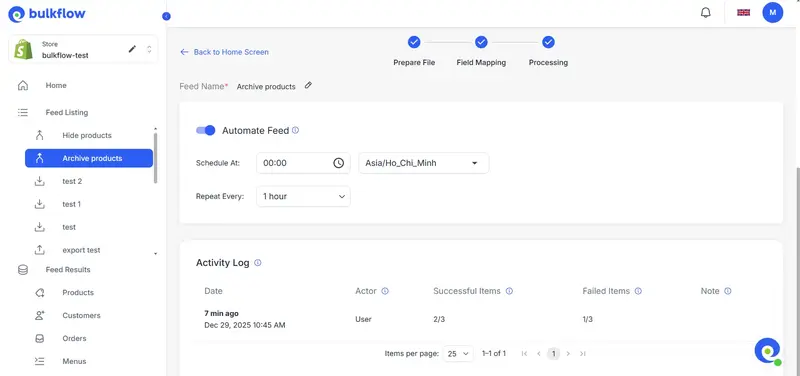
If you plan to archive products regularly, you may set up feed automation to repeat this process automatically in the future.
| Ready to Simplify Shopify Product Archiving?BulkFlow helps you turn Shopify product archiving into a repeatable, structured process using feeds and automation.Start using BulkFlow from today |
How to Unarchive a Product on Shopify
Shopify Admin allows you to unarchive products, but only one product at a time. This approach may work for occasional updates, but it quickly becomes ineffective when you need to restore many products at once. For stores with large catalogs, bulk unarchiving requires a more scalable solution.
BulkFlow makes it possible to unarchive products in bulk, saving you tons of time and effort. Instead of manually opening each product, you can restore visibility to multiple items in a single workflow.
Here are the steps to unarchive Shopify products with BulkFlow:
- Prepare your data file: Export your product data or use the same file you used for archiving. In the status column, change the value from Archived to Active or Draft. Save the file.
- Create a new feed: In the BulkFlow dashboard, click Create new feed > Update. Give it a name, select Product as the data entity, and choose your preferred connection method.
- Connect and map your file: Connect your data file based on the selected method. Review the field mapping to ensure the fields are mapped correctly.
- Upload and review results: Click Next step to start uploading. After completion, review the activity log in BulkFlow and check your Shopify admin to confirm the changes.
Best Practices for Archive Products Shopify
Archiving products is a part of how you manage your catalog, customer experience, and long-term store data. Using Shopify archive products correctly can help you stay organized while avoiding SEO or operational issues.
Below are several best practices to follow when archiving products on Shopify, especially for stores with frequently changing inventories.
1. Consider SEO and traffic
Before archiving a product, it’s worth checking whether the product page receives organic traffic or has valuable backlinks. Archived products are removed from public view, which means search engines and customers can no longer access those pages.
If a product performs well in search results, you may want to create redirects to a relevant category or a similar product. This helps preserve SEO value and prevents users from landing on missing or inaccessible pages.
2. Keep backups of products
Although archived products are not deleted, keeping backups of your product data is still a good habit. Exporting product information regularly ensures you can restore or reuse product details quickly if needed.
Using bulk tools to manage exports and imports can make this process easier, especially when working with large catalogs or frequent updates.
3. Review inventory regularly
Archive products Shopify should not be ignored indefinitely. Setting a regular schedule to review archived items helps you decide whether products should be reactivated, updated, or permanently removed.
Regular reviews also help you identify trends, such as seasonal demand or discontinued items, allowing you to manage your catalog more strategically over time.
Shopify Archive Products – FAQ
Can customers find archived products through search or a direct link?
No, customers cannot find archived products through search or a direct link. Archived products are completely hidden from all Shopify sales channels. Customers cannot access them through on-site search, collections, or direct product URLs.
Is product archiving on Shopify permanent?
No, archiving products on Shopify is not permanent. You can unarchive a product at any time and restore it without losing product data or sales history.
Can I unarchive Shopify products in bulk?
Yes, you can bulk archive Shopify products, but not directly within Shopify. Shopify only allows unarchiving one product at a time, so bulk tools like BulkFlow are needed to unarchive multiple products efficiently.
Should I delete or archive products Shopify to keep my SEO?
Deleting and archiving have the same effect on your SEO. Still, archiving is the better option. Deleting products permanently removes URLs and data, while archiving keeps product information intact and gives you more flexibility for future SEO management.
Conclusion
Successful Shopify stores don’t just add products; they manage their entire product lifecycle. Archiving is a key part of that process, helping you hide products without sacrificing data, SEO, or future flexibility. That’s why Shopify archive products should be a deliberate strategy, not an afterthought.
When your store reaches hundreds or thousands of SKUs, bulk control becomes essential. BulkFlow gives you a reliable way to archive products at scale. It’s a smarter, safer approach for merchants who want structure today and flexibility tomorrow.