At some point, every Shopify store ends up with products that shouldn’t be visible – draft items, discontinued SKUs, or test products. The problem isn’t having these products, but figuring out how to hide products in Shopify without deleting them or creating a mess in your store.
Shopify doesn’t offer a single “hide” button, and that’s where confusion starts. Different hiding methods affect search results, storefront visibility, and admin access in different ways. This guide walks you through each method step by step to help you hide products efficiently.
3 ways to hide products in Shopify by default
Shopify provides several built-in ways to hide products, but each one controls visibility in a different place. Choosing the right method depends on why you want to hide the product.
- Hide from search results
- Hide from specific sales channels
- Hide from Shopify Admin
1. Hide from search results
This method keeps the product active and accessible via direct links, but prevents it from being discovered through Shopify’s internal search or search engines like Google. It’s useful for products that still need to exist publicly but shouldn’t be searchable yet.
Here is how to hide a product on Shopify from search results manually:
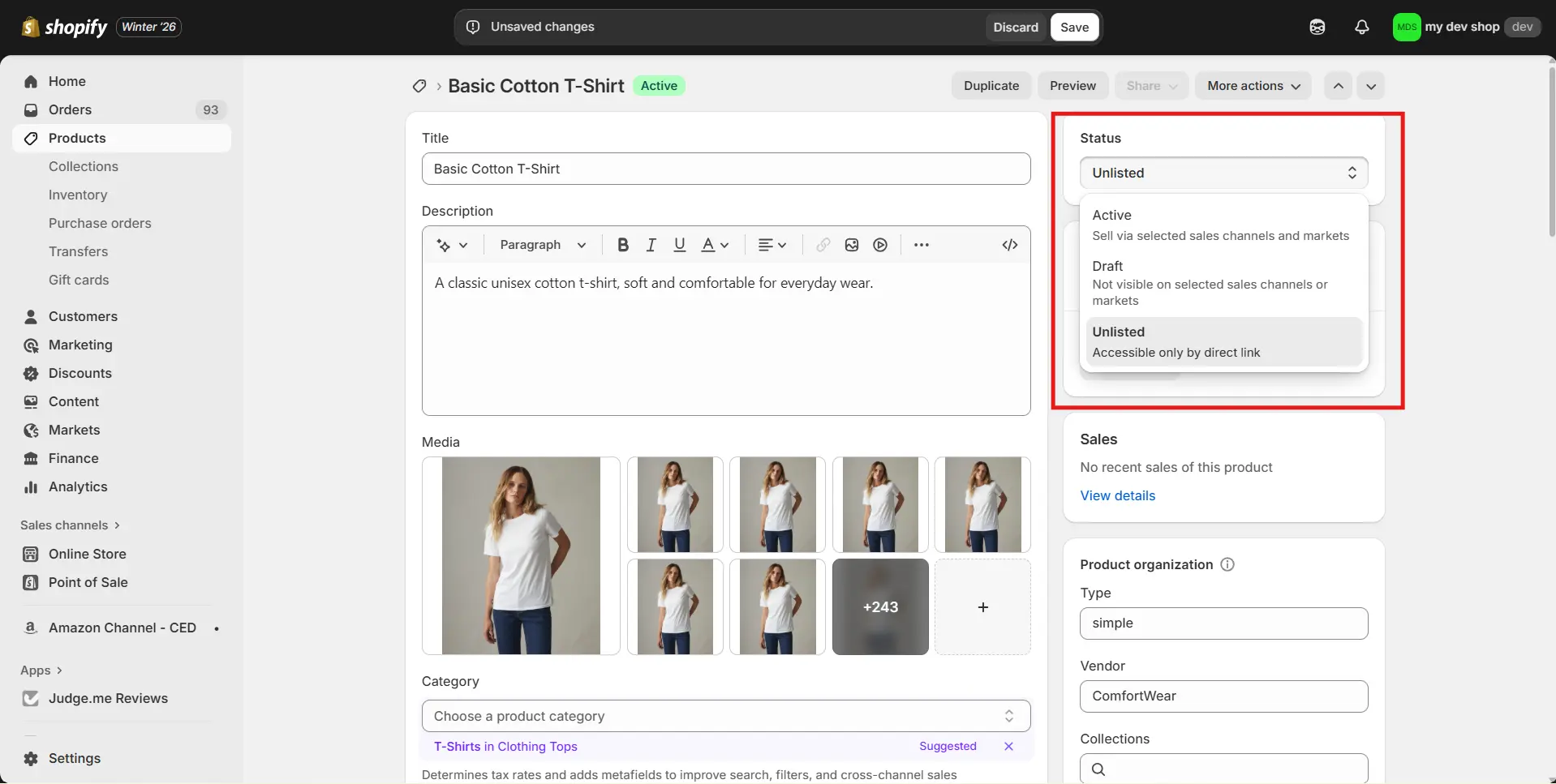
- Go to Shopify Admin > Products. Click the product you want to hide.
- Find the Status section and change the status to Unlisted.
- Click Save to apply your change.
If you’re unlisting several products at once, such as test items or private links, editing each product individually quickly becomes inefficient.
Here is how to hide product from search results in bulk:
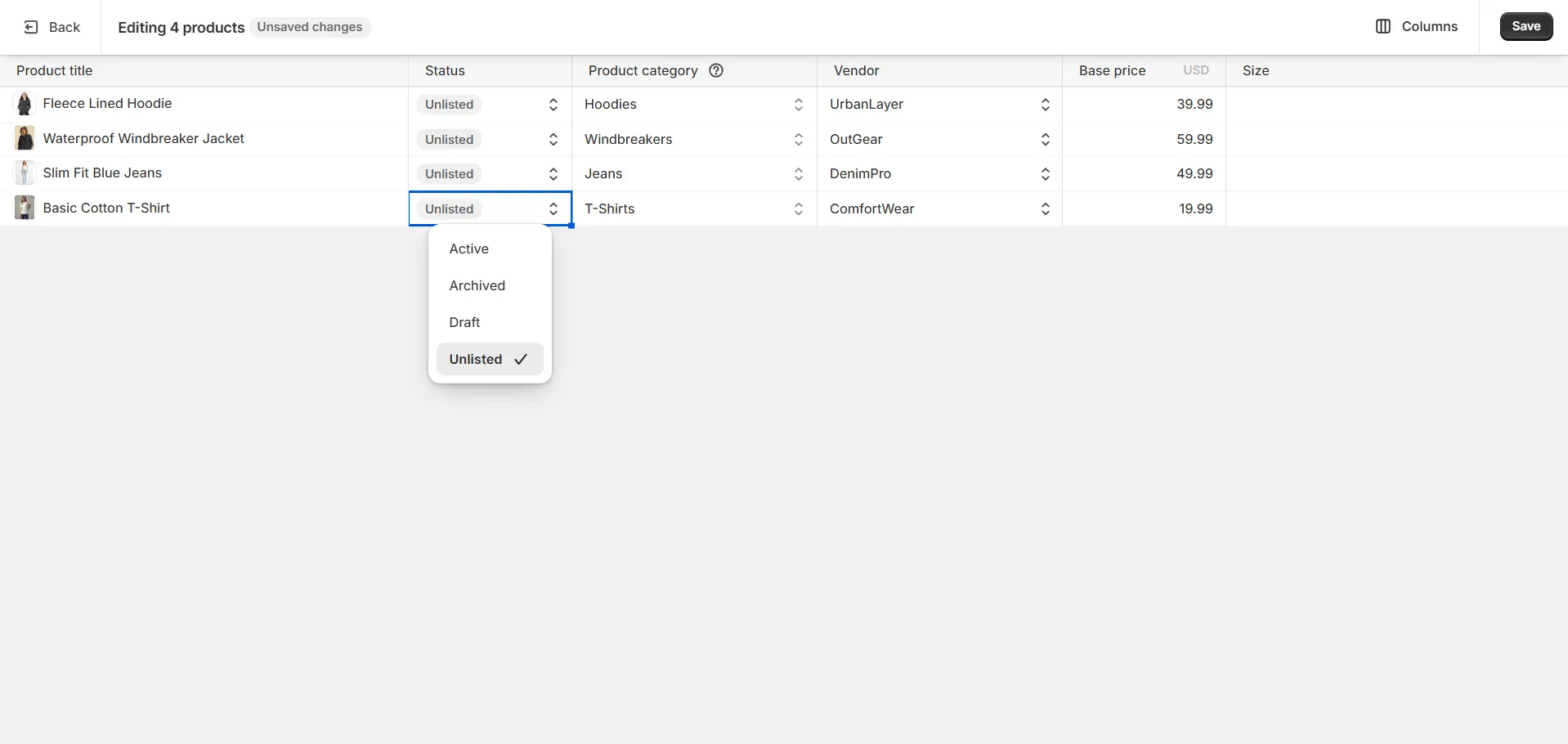
- Go to Shopify Admin > Products. Tick the box next to the products you want to hide.
- Click Bulk edit to open the bulk editor spreadsheet
- Edit the status of your chosen products to Unlisted.
- Click Save to apply your change.
Sometimes, you may want to remove your products completely from your sales channels. If you want to hide products from all sales channels (e.g. sold out products), you can simply set their status to Draft.
Read more: 5 Easy Ways to Shopify Hide Sold Out Products
2. Hide from specific sales channels
If you want to hide products from specific channels only, most commonly the Online Store, while keeping it available in others, you can try a different method.
Here is how to hide products in Shopify from specific channels manually:
- 1. Open Shopify Admin > Products. Select the product you want to hide.
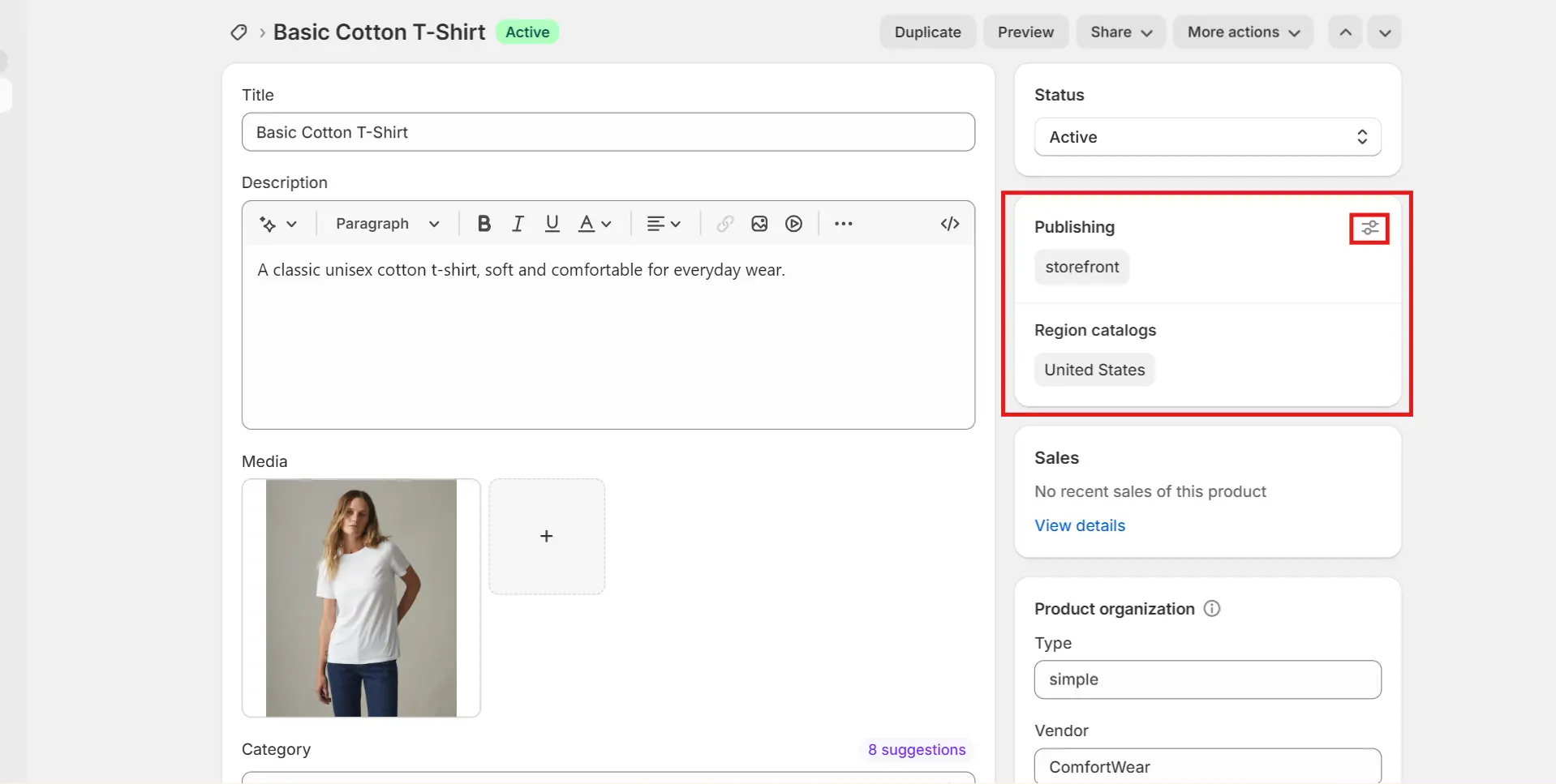
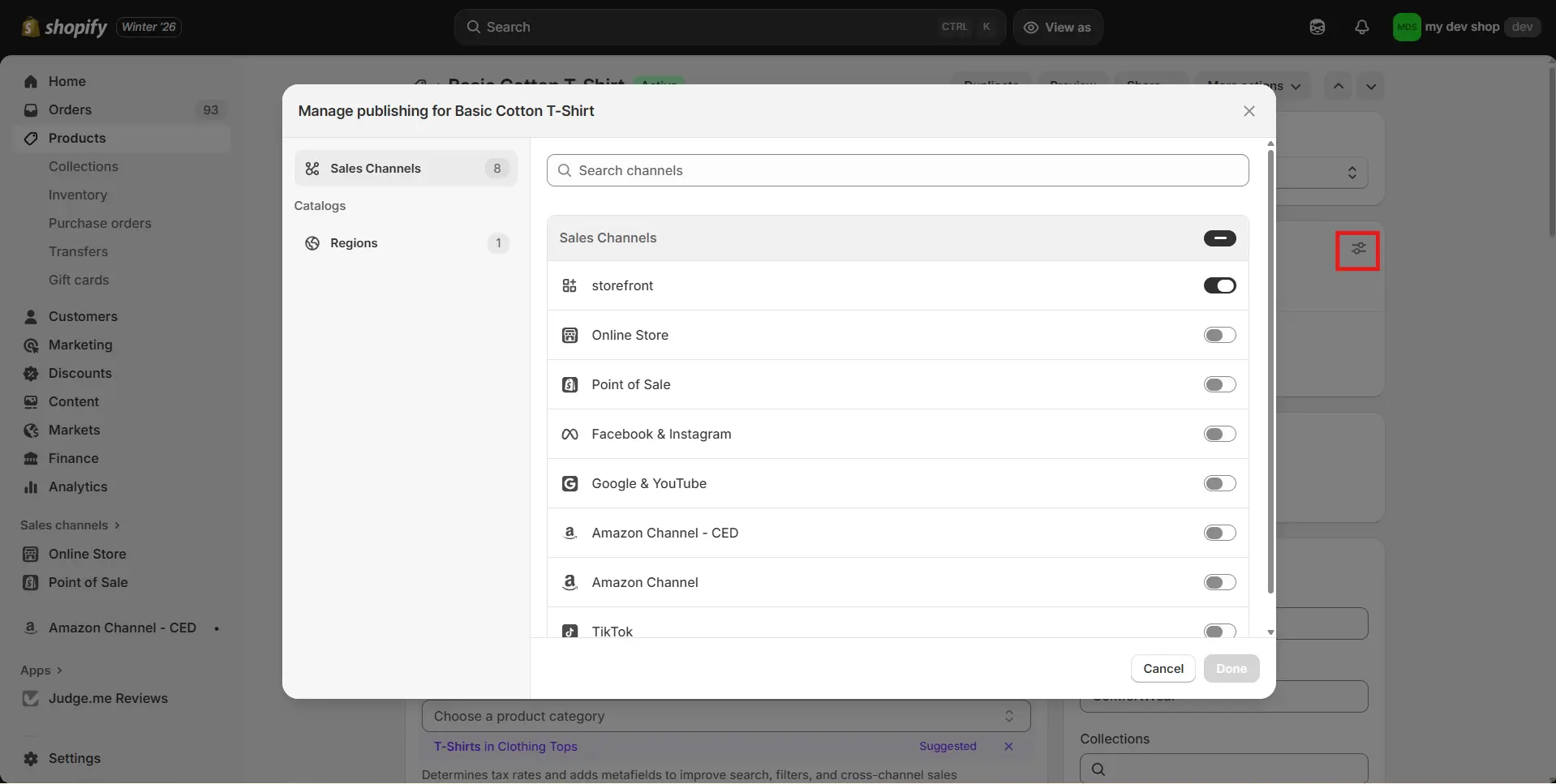
- 2. Find the Publishing section and click the Manage icon.
- 3. Disable all the channels you want to hide your product from.
- 4. Save your changes.
If you’re removing multiple products from your sale channels at once (for example, seasonal items or discontinued lines), using the bulk editor is much faster and reduces mistakes.
Here are how to hide products in Shopify by disable sale channels in bulk:
- Go to Shopify Admin > Products. Select all the products you want. Click Bulk edit.
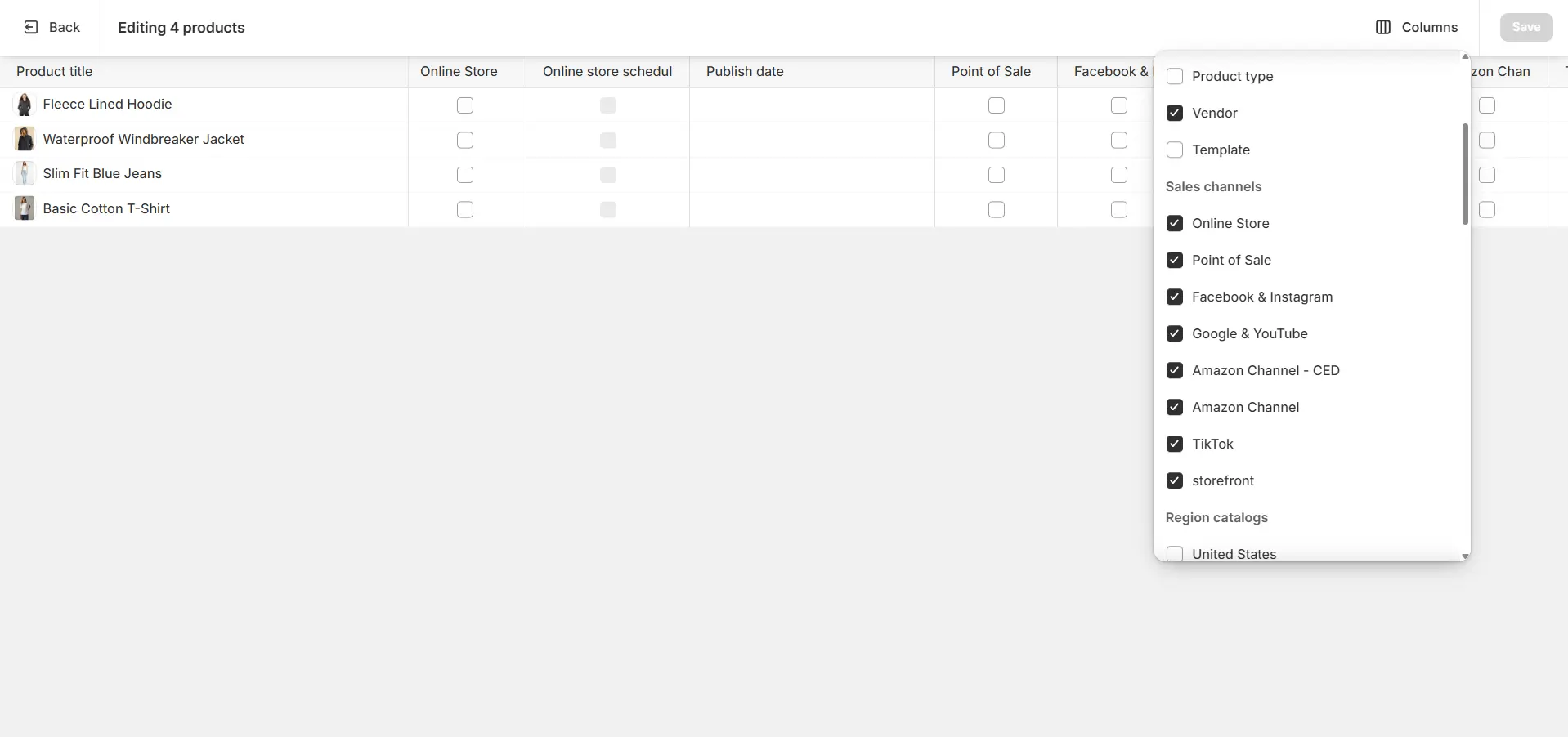
- In the bulk editor, click Column and choose all the channels you want to hide products from.
- Untick the box for each channel of your products.
- Click Save to apply changes.
3. Hide from Shopify Admin
If a product is no longer sold but still needs to exist for reporting or record-keeping, archiving is the final step. This doesn’t affect past orders but removes the product from your active admin view. Here is how to hide Shopify store products from Shopify Admin manually:
- Go to Shopify Admin > Products. Open the product you want to hide.
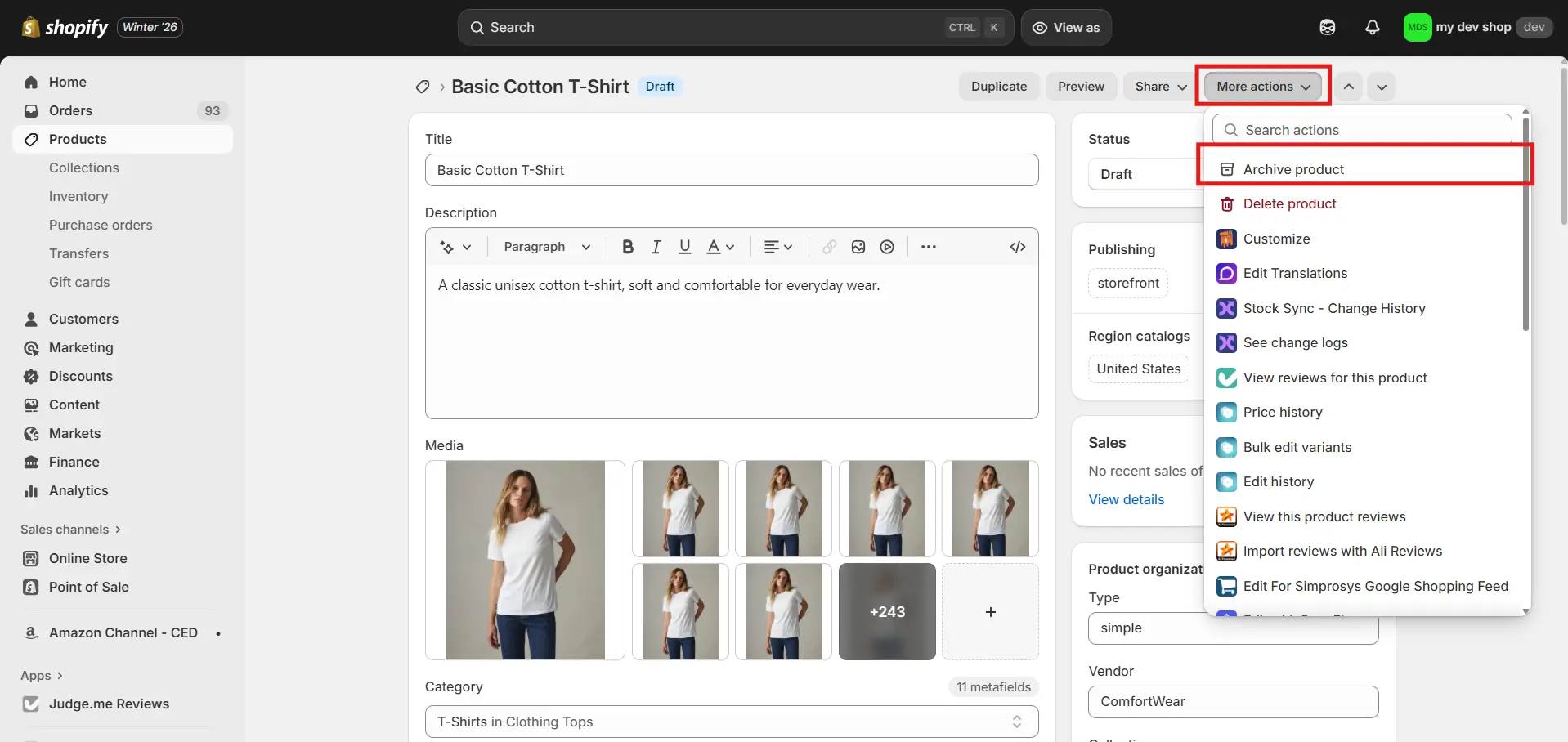
- In the top right corner, click More actions and choose Archive product.
- A pop-up message will appear to confirm your action. Click Archive product to confirm.
If you’re cleaning up your catalog and want to archive many old products at once, you can archive products in bulk.
Here is how to hide products from Shopify Admin in bulk:
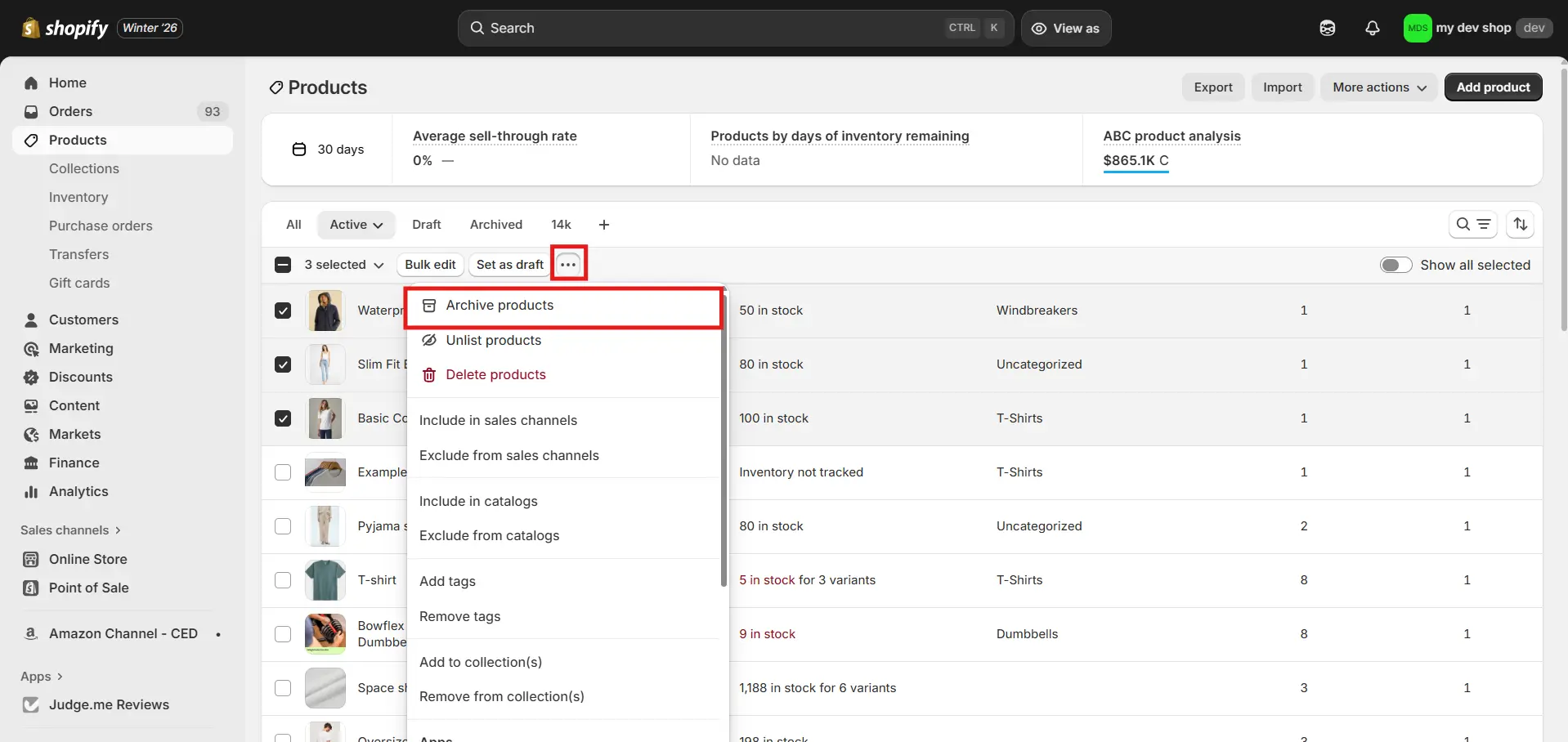
- Go to Shopify Admin > Products. Tick all the products you want to archive.
- Click the three-dot icon and choose Archive products.
- A pop-up message will appear to confirm your action. Click Archive products to confirm.
How to Hide Shopify Store Products with BulkFlow
When you need to hide a large number of products, Shopify’s built-in bulk actions can feel limiting. This is where product importers like BulkFlow come in handy.
BulkFlow is a Shopify product management tool designed to help merchants update large amounts of product data through structured imports, instead of repetitive manual edits. It provides a more structured and scalable way to perform bulk updates on your store’s product data.
To use BulkFlow, you can install BulkFlow directly from your Shopify admin for a quick and seamless setup. Alternatively, you can create an account on the BulkFlow app and then connect it to your Shopify store to get started just as easily.
Below is a step-by-step guide on how to hide products in Shopify using BulkFlow.
- Step 1: Prepare for Shopify hide product
- Step 2: Create a new update feed
- Step 3: Upload your file to BulkFlow
- Step 4: Map your fields with Shopify
- Step 5: Update and review results
Step 1: Prepare for Shopify hide product
To get started, you will need a Shopify hidden product data file that BulkFlow can process. You can start from scratch with BulkFlow product template or export product data from Shopify.
If you choose to export, make sure that your file includes a type of product identifier (ID, SKU, handle, barcode) and the Status column.
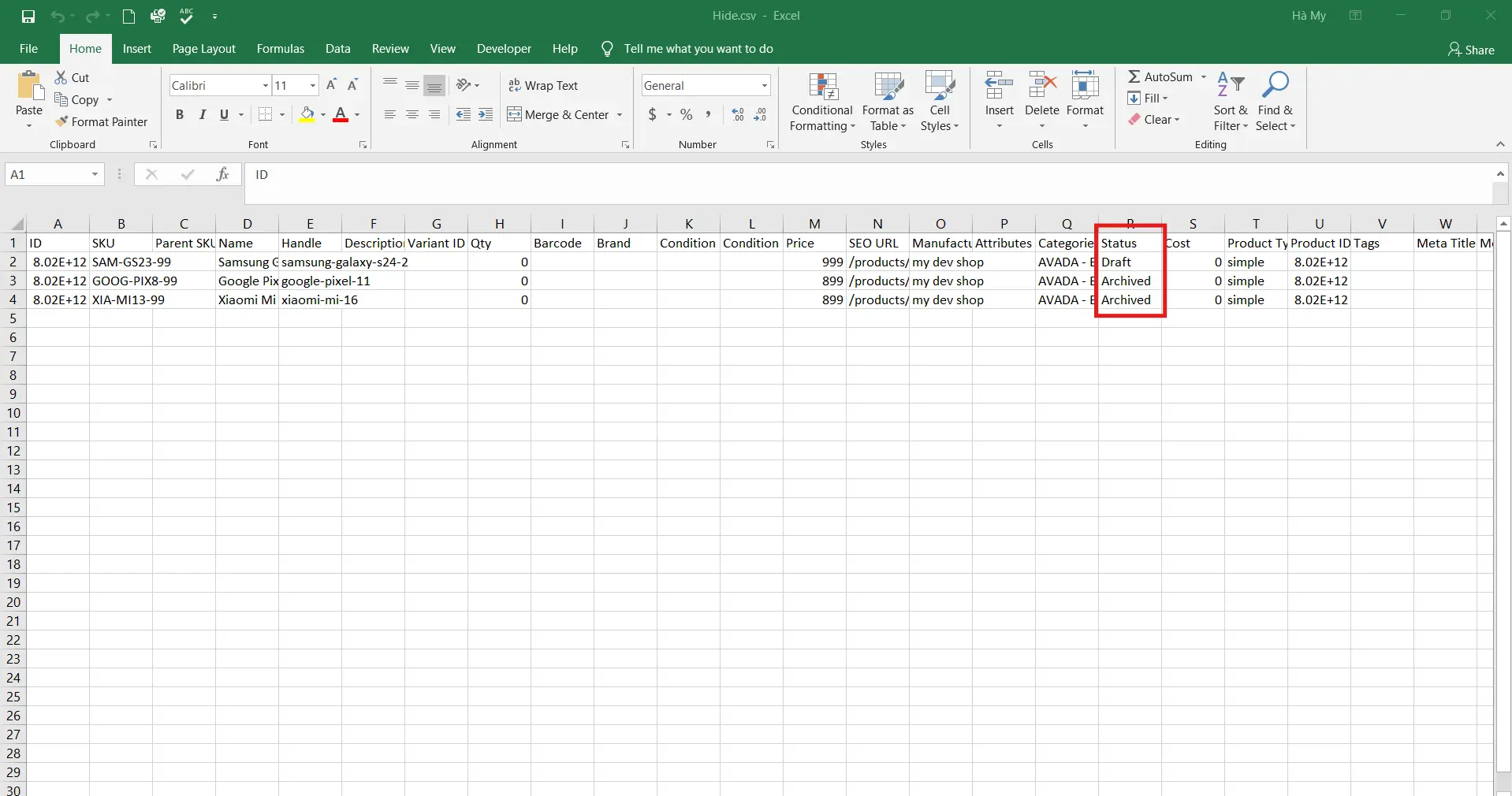
Once you have your file, locate the Status column, as it controls whether a product is visible or hidden.
To temporarily remove a product from all storefronts, you can bulk edit product status from Active to Draft. If the products are no longer needed but should remain for records, change the status to Archived instead.
Before saving your file, it’s a good idea to double-check that only the intended products have been updated. This helps prevent accidental changes when importing the file.
Step 2: Create a new update feed
After preparing your file, you can go to the BulkFlow Dashboard to create a new feed. From there, you select Create new feed > Update.
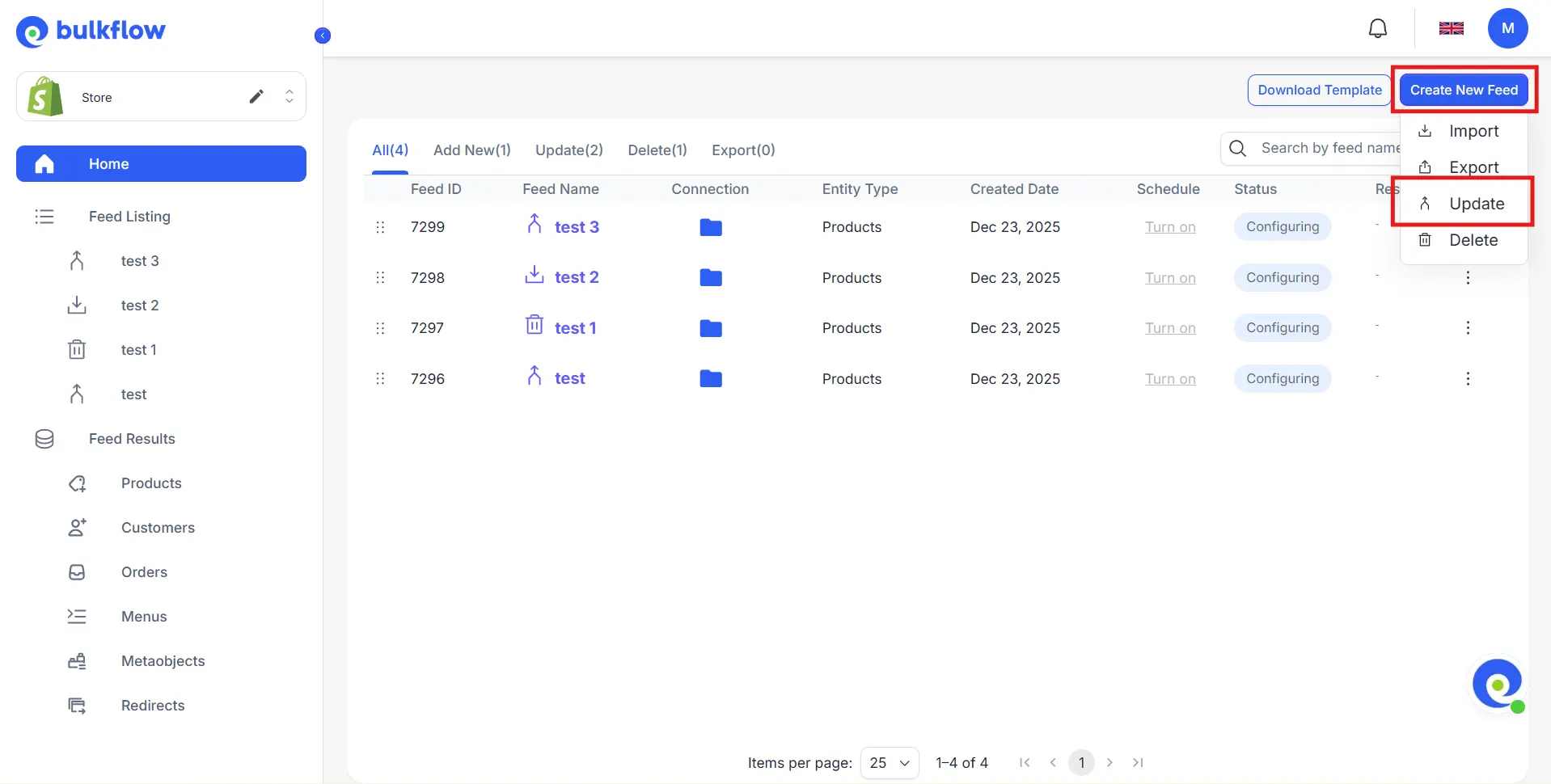
In the feed setup page, give your feed a name, select Products as the entity type, and choose your preferred connection method.
BulkFlow supports multiple connection options, allowing flexibility depending on how you want to upload your file: File Upload, File URL, Google Sheet, Google Drive, OneDrive, Dropbox, or FTP/SFTP.
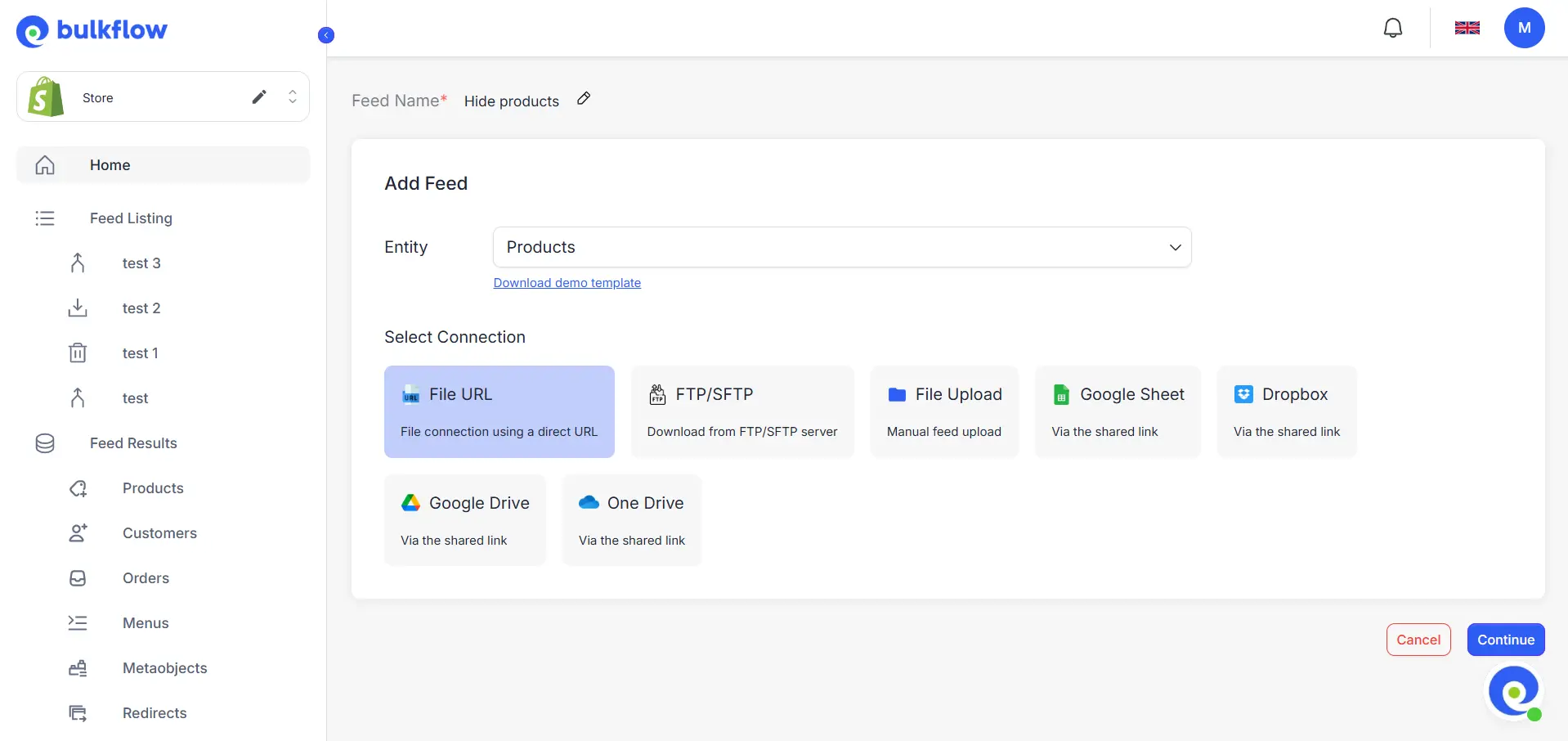
Once you’re done, press Continue to move on.
Step 3: Upload your file to BulkFlow
Once the feed is created, you can proceed to upload your prepared Shopify hidden product file. The upload method will depend on the connection option you selected in the previous step.
- For file upload, you may attach your spreadsheet directly from your device.
- For shared connections like file URL, Google Sheet, Google Drive, OneDrive, or Dropbox, paste your file’s link and click Test connection to verify access.
- For FTP/SFTP server, you need to fill in all your server information. Then, you also need to test the connection.
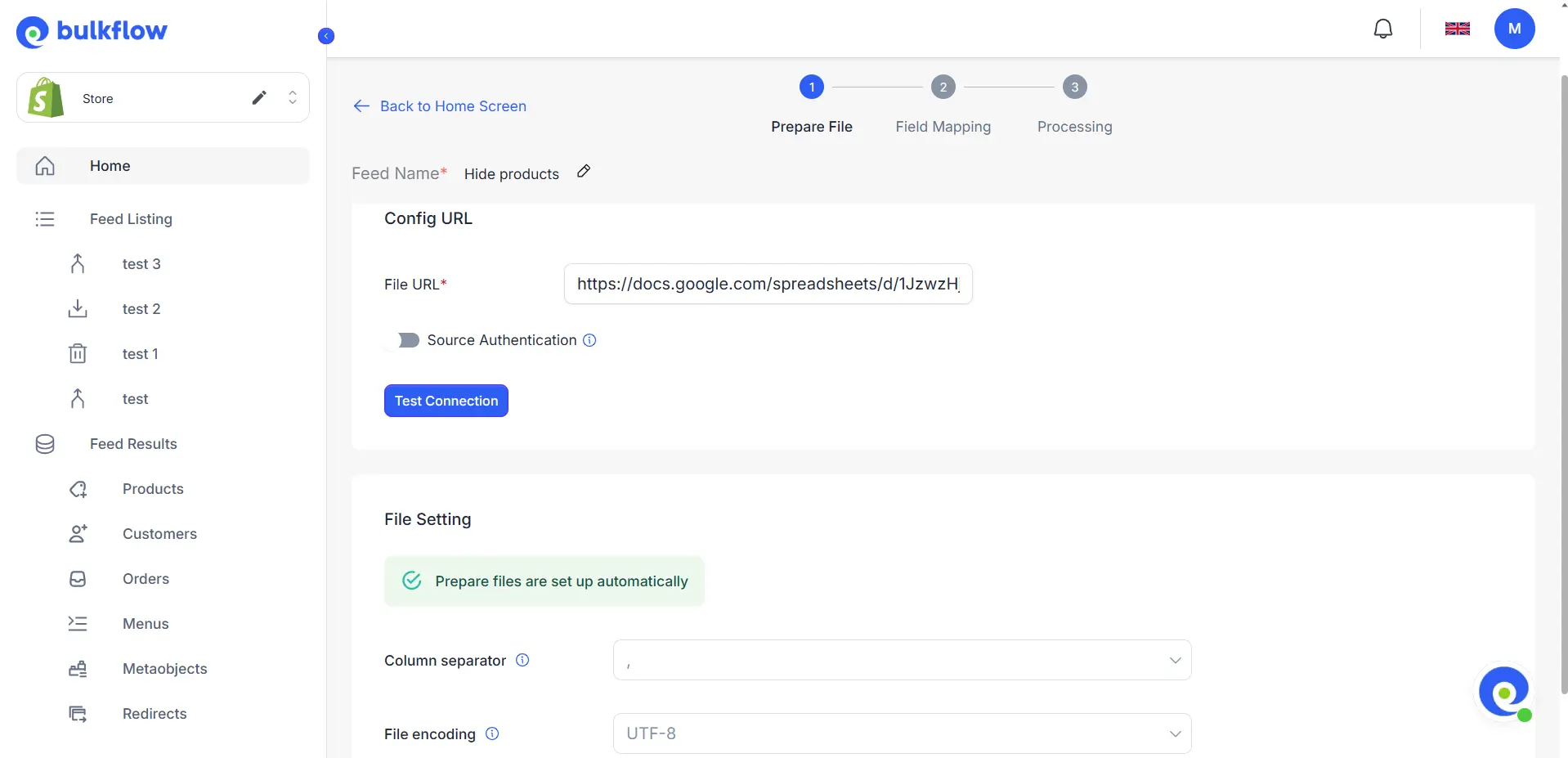
After you finish connecting your file to BulkFlow, click Next step to continue.
Step 4: Map your fields with Shopify
After the file is uploaded, the next step will be mapping your file columns to Shopify product fields. If you use BulkFlow’s template, BulkFlow can automatically map your fields for you.
On the other hand, for product files that you export directly from Shopify or via BulkFlow, BulkFlow will attempt to map your field, but it still lets you make the final decision. BulkFlow also provides a Generate AI mapping suggestion feature that can intelligently suggest suitable field mappings based on your file structure and content.
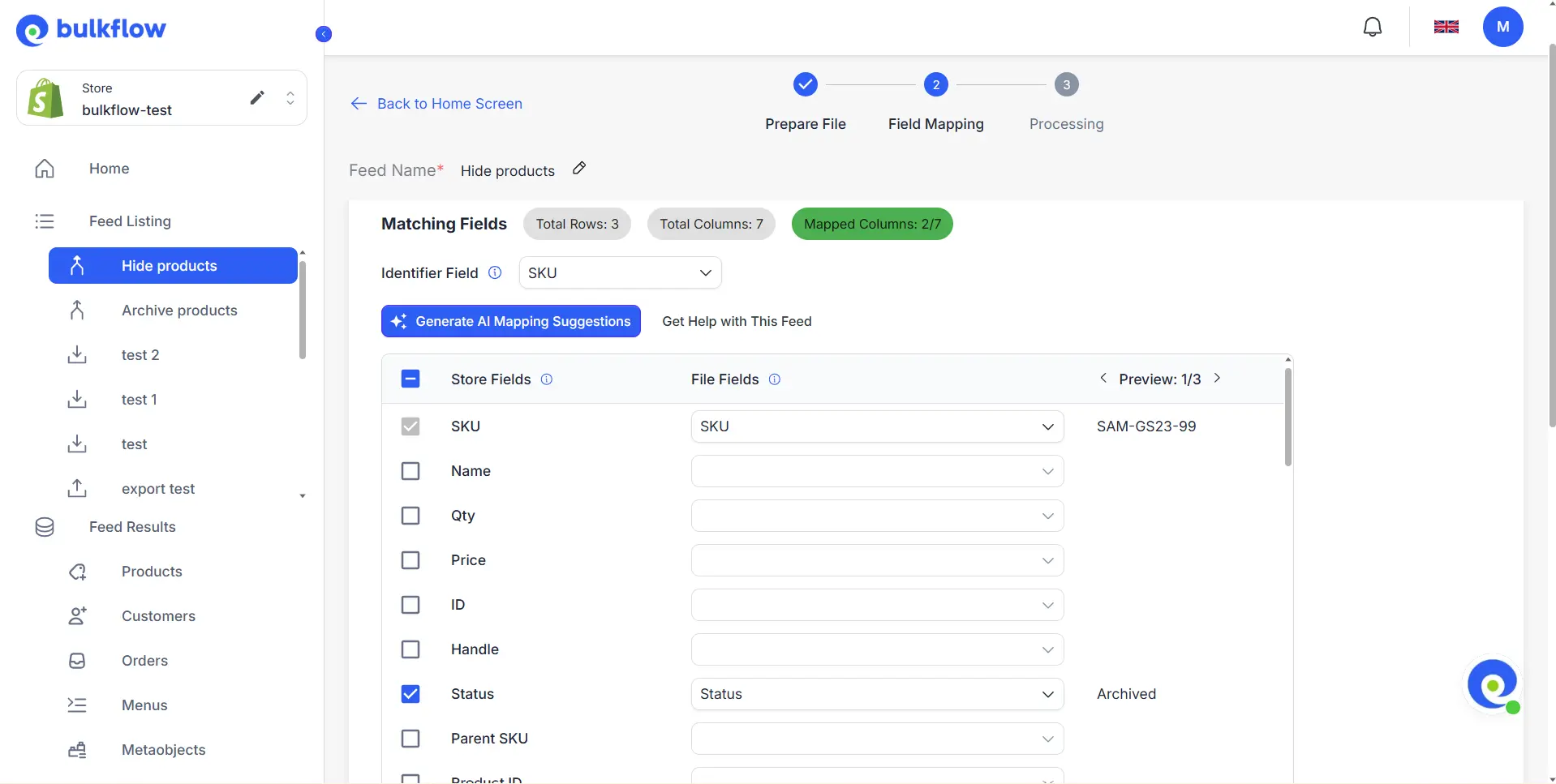
When you map, you also need to look at the product identifier. In Identifier Field, you need to select the type of identifier you use in your file to make sure they are matched correctly to Shopify.
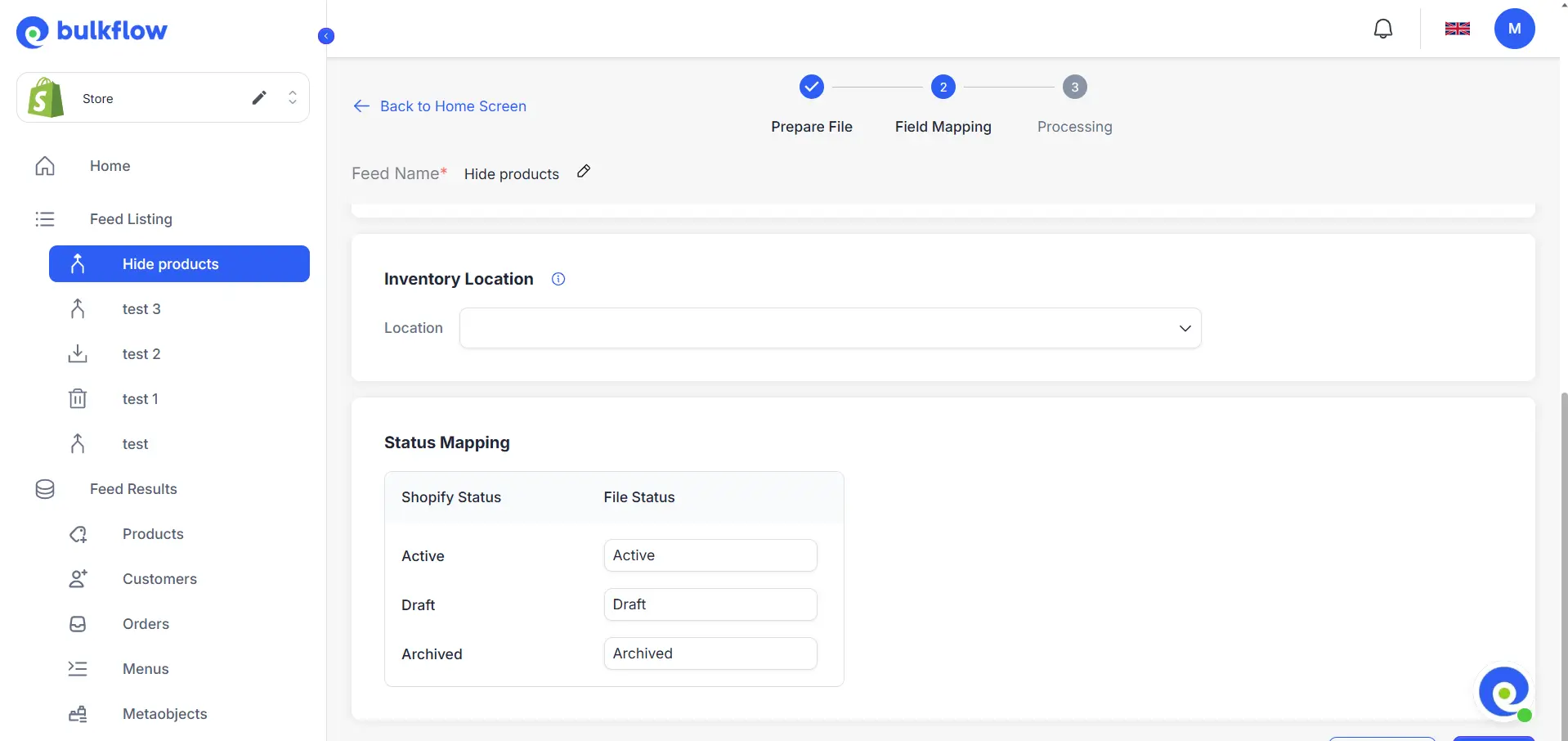
After mapping all your data fields, you should also look at the Status Mapping section. This is to make sure the Status values in your file match with Shopify.
Step 5: Update and review results
Once field mapping is complete, you can proceed with the import by clicking Next step. BulkFlow will apply the updates according to the data in your file, changing product statuses in bulk.
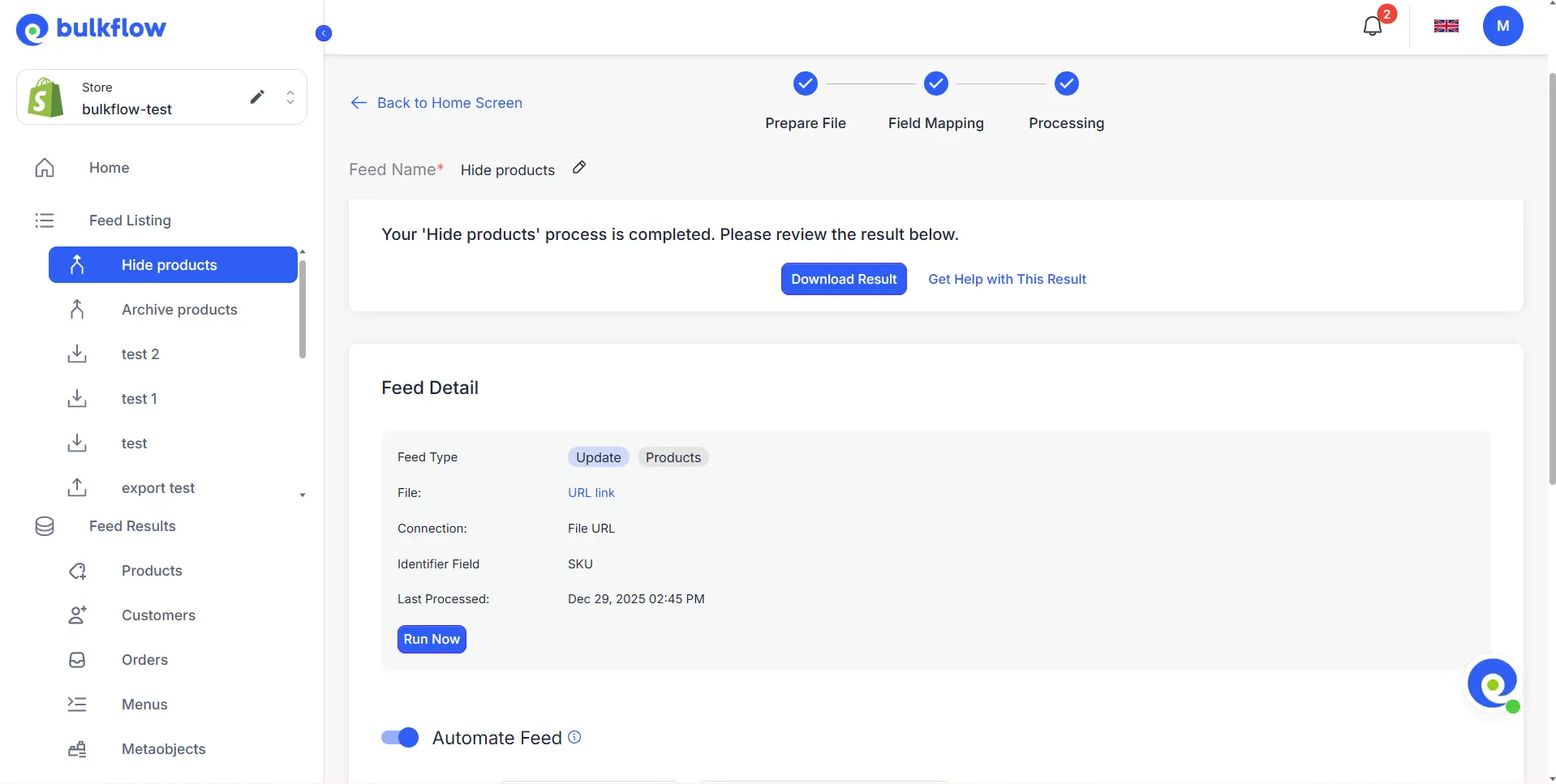
After BulkFlow finishes, it is important to review the results of Shopify hide product. On BulkFlow, you can check the Activity Log to know how many products were updated successfully and how many were not. You should also check your Shopify admin and all your sales channels to make sure your products were hidden correctly.
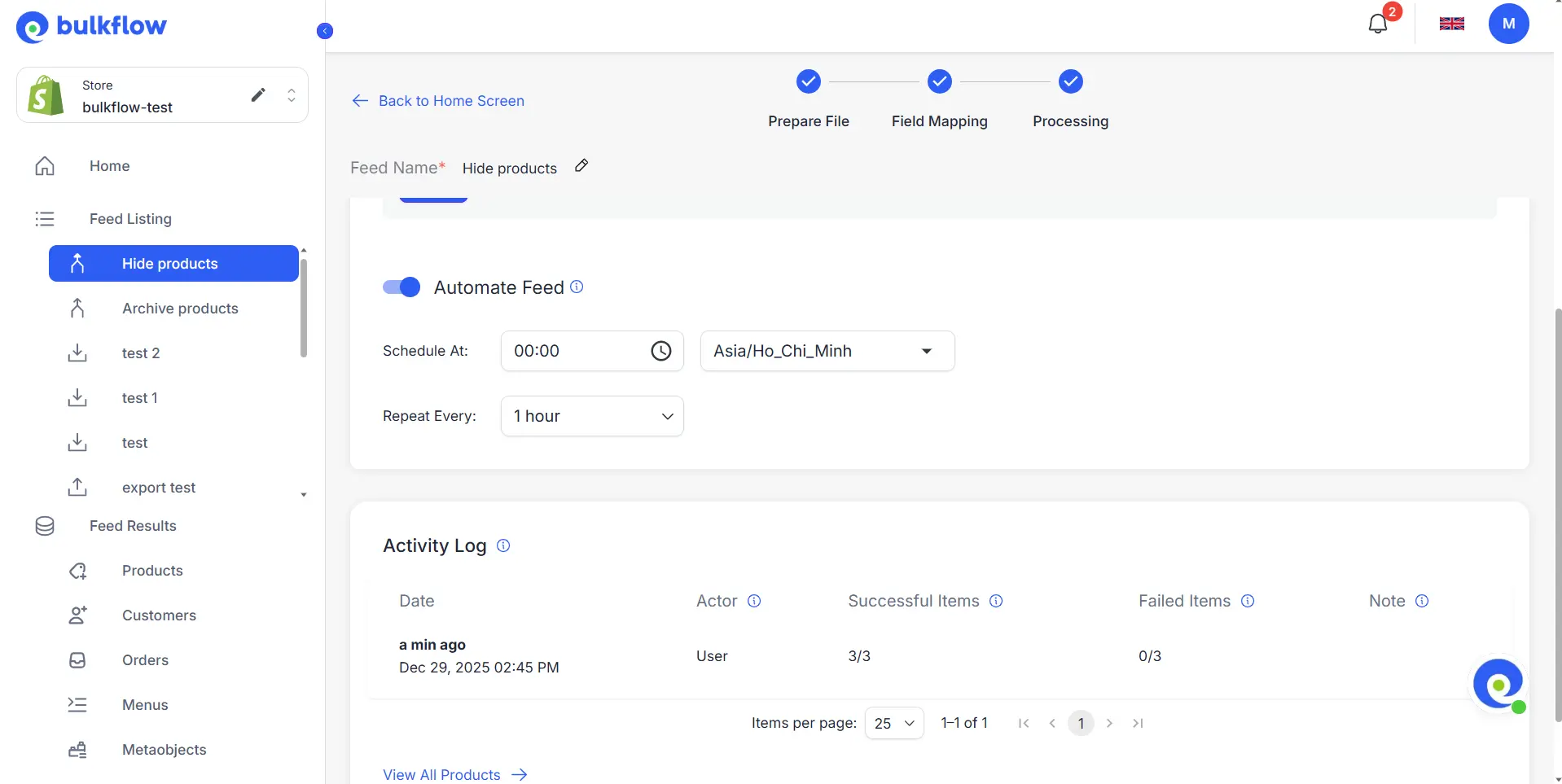
BulkFlow also allows you to streamline your future updates with the Automate feed feature. You can set up the starting time and frequency of each update. This feature is available for all shared connection methods.
Best Practices When Hiding Products on Shopify
Hiding products can be a simple action, but managing hidden products well requires a clear strategy. The way you hide products affects customer experience, internal workflows, and even long-term store maintenance.
The following best practices can help you hide products intentionally, stay organized, and avoid common mistakes as your catalog grows.
1. Choose the right hiding method
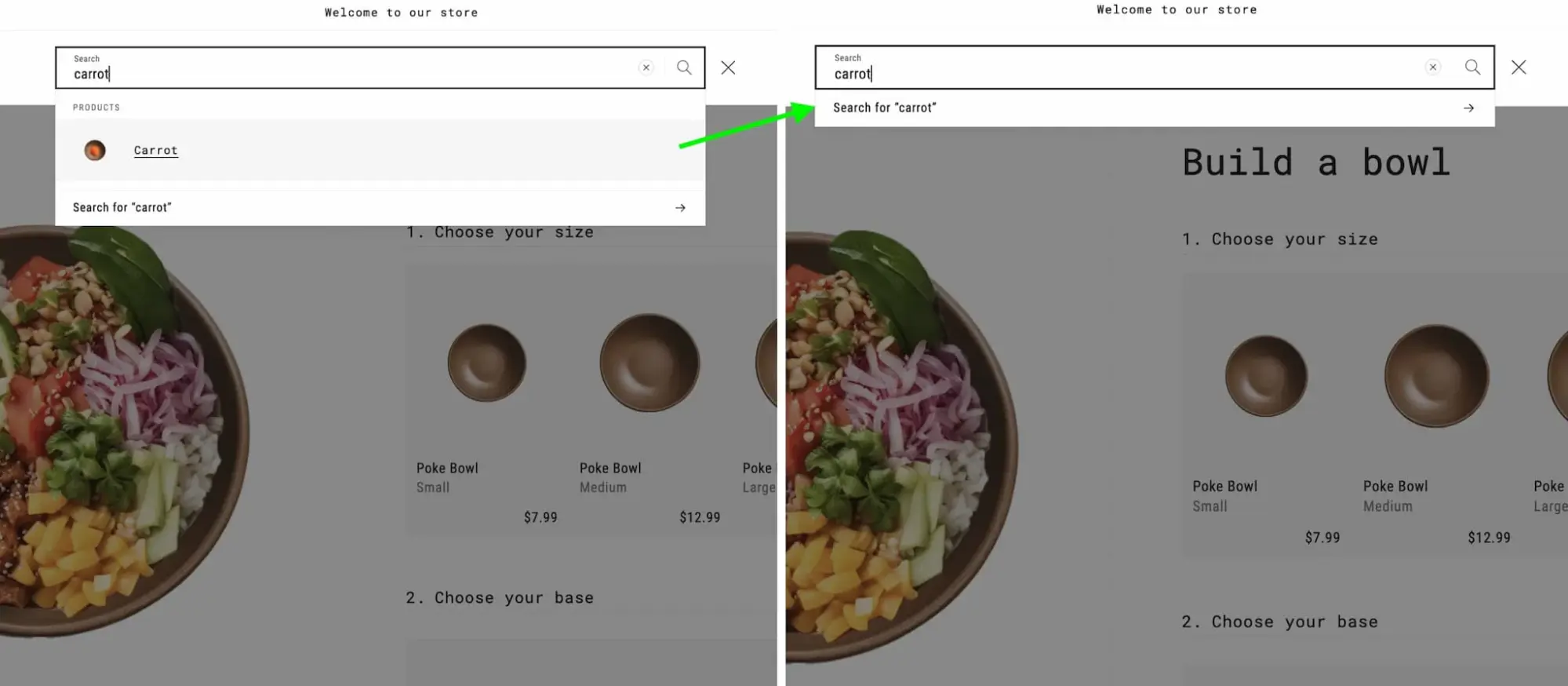
Different hiding methods serve different purposes. For example, unlisting a product from search still allows access via a direct link, while setting a product to Draft removes it entirely from all storefronts. Understanding these differences helps you avoid hiding too much – or not enough.
Before hiding a product, it can be helpful to define your goal clearly. If the product is temporarily unavailable, hiding it from the Online Store may be enough. If it should not be accessed at all, changing its status to Draft is usually the safer option.
Choosing the right method from the start reduces the need for repeated edits and prevents confusion for both customers and staff.
A Shopify hidden product can easily be forgotten, especially in stores with large catalogs. Over time, this can lead to outdated drafts, unused archived items, or products that were hidden for reasons no longer relevant.
Using consistent tags such as hidden, draft, or seasonal can make it easier to filter and review hidden products later. This also helps when performing bulk updates or audits. Regularly reviewing hidden products ensures your store stays clean and that valuable products are not left hidden by mistake.
3. Use bulk tools for large catalogs
Manually hiding products works well for small stores, but it becomes inefficient as your catalog grows. Repeating the same steps across dozens or hundreds of products increases the risk of mistakes.
Using bulk tools such as BulkFlow allows you to apply changes consistently and review them before they go live. This is particularly useful for seasonal changes, mass archiving, or pre-launch preparation.
Bulk workflows also make it easier to undo or adjust changes later, giving you more control over product visibility.
4. Communicate changes with your team
In multi-owner stores, a Shopify hidden product can confuse team members if they are not aware of visibility changes. Someone may accidentally republish a product or assume it was deleted.
Documenting your hiding rules and using clear naming or tagging conventions can help prevent misunderstandings. Sharing these guidelines with your team ensures everyone follows the same process.
Clear communication keeps your store organized and reduces unnecessary back-and-forth when managing products.
FAQs – How to Hide Products in Shopify
Is there any difference between hiding and deleting Shopify products?
Yes, there is a big difference between hiding and deleting Shopify products. Hiding a product keeps its data (variants, images, and order history) intact and allows you to make it visible again later. Deleting a product permanently removes it from your store and cannot be undone. For temporary changes or future use, hiding products is usually the safer option.
Can I hide multiple products at once on Shopify?
Yes. Shopify’s bulk editor lets you hide multiple products at once by changing sales channels or availability in bulk. For larger or more complex catalogs, apps like BulkFlow can make bulk hiding and automation easier.
Can I undo hiding a product?
Yes, hiding a product is fully reversible. You can make the product visible again by changing its status back to Active, re-enabling the Online Store sales channel, or unarchiving it in Shopify Admin. If the product was hidden using a bulk update, you can restore visibility just as easily with another bulk edit.
Yes, you can show a hidden product to certain customers when you unlist that product. Unlisted products will be hidden from your store but still accessible through direct URLs.
Conclusion
Knowing how to hide products in Shopify gives you more control than simply deleting items or leaving unavailable products visible. Whether you are preparing for a launch, managing seasonal inventory, or cleaning up an expanding catalog, the right hiding method helps keep your store organized and customer-friendly.
While Shopify’s built-in tools work well for small and medium updates, they can become limiting as your product list grows. BulkFlow offers a more scalable way to manage product visibility by allowing you to hide, archive, or update products in bulk with a clear review process.
If you regularly work with large catalogs or frequent product changes, using BulkFlow can help you save time, reduce errors, and stay in control of your Shopify store as it scales.