Connect to Woocommerce
To seamlessly migrate your data to Bulkflow without preparing files, you need to connect your WooCommerce store via the REST API. This requires a Consumer Key and a Consumer Secret.
Follow this quick guide to generate them in less than two minutes.
Step 1: Navigate to WooCommerce Advanced Settings
- Log in to your WordPress Dashboard.
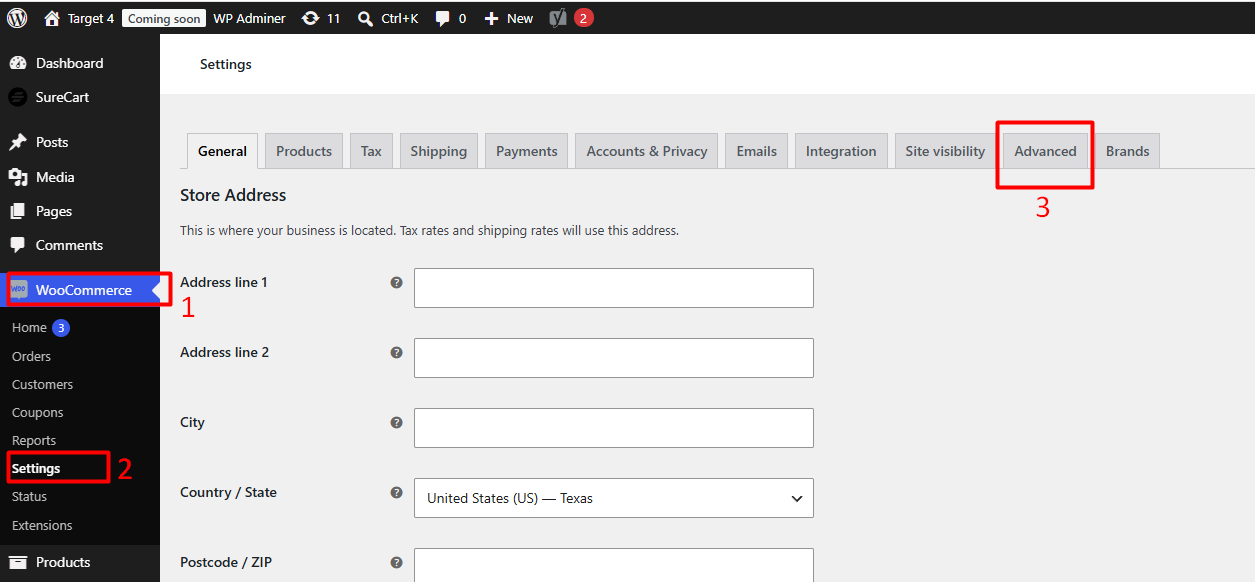
- In the left-hand sidebar, hover over WooCommerce and click on Settings.
- Click on the Advanced tab located on the far right of the top settings menu.
Step 2: Access the REST API Section
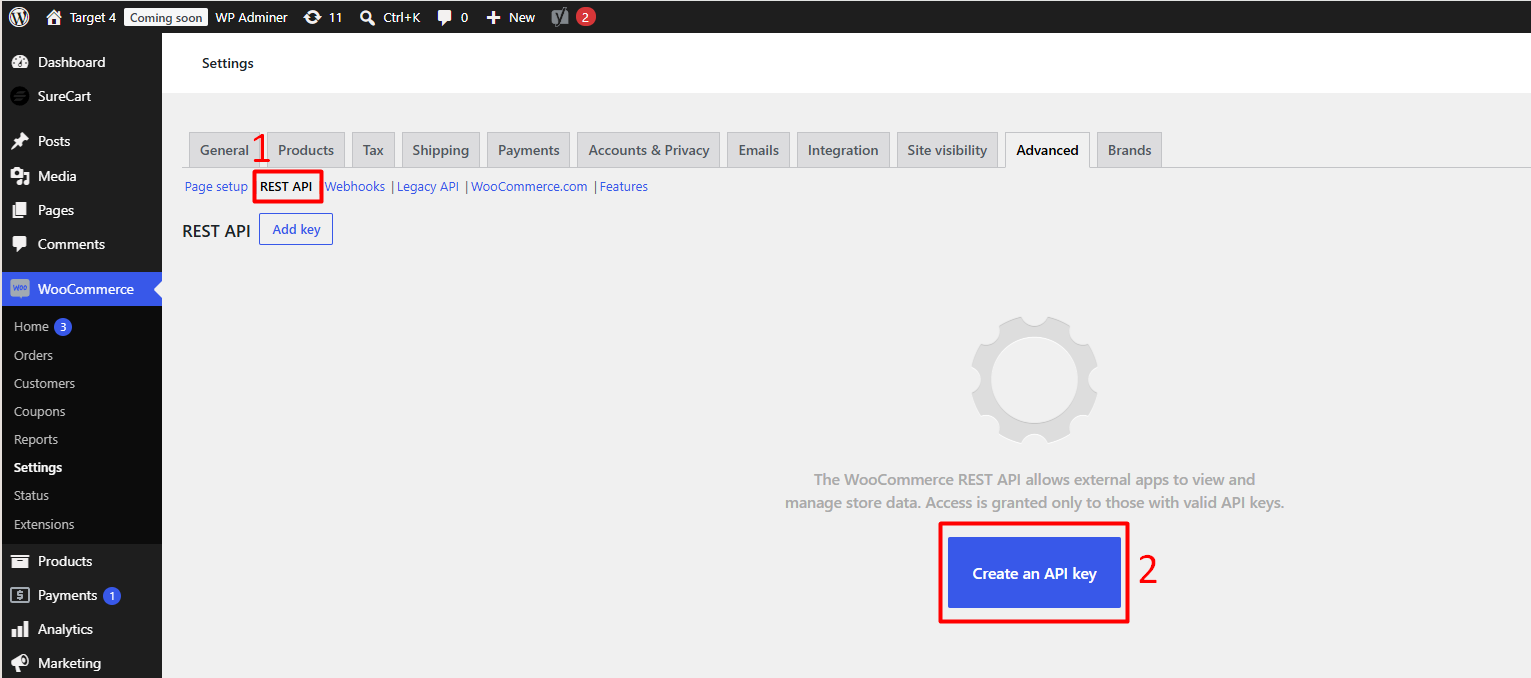
- Under the Advanced tab setup, click on the REST API link (located just below the main tabs).
- Click the Add key button to create a new API key.
Step 3: Configure Key Details
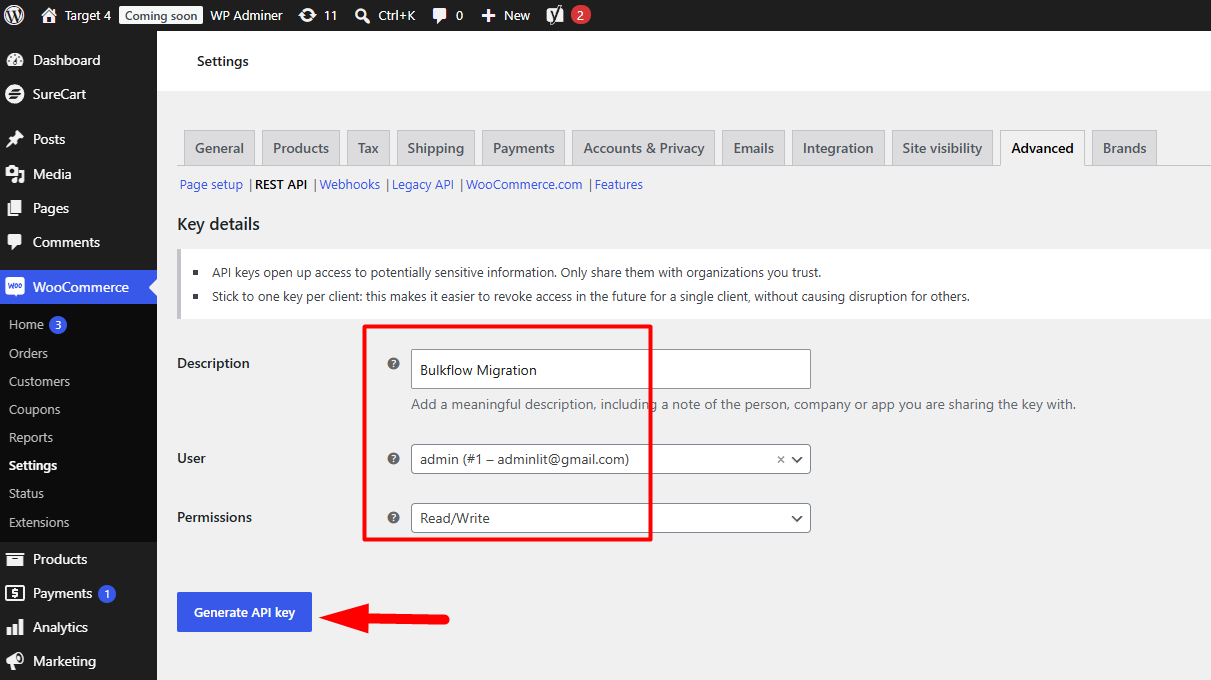
Fill in the following fields to define your new key:
- Description: Enter a name to remember what this key is for (e.g.,
Bulkflow Migration). - User: Select an admin user from the dropdown list (usually your own account).
- Permissions: Change this setting to Read/Write. This is required so Bulkflow can accurately fetch all your product details, categories, and customer data.
Step 4: Generate and Copy Your Keys
- Click the blue Generate API key button at the bottom of the page.
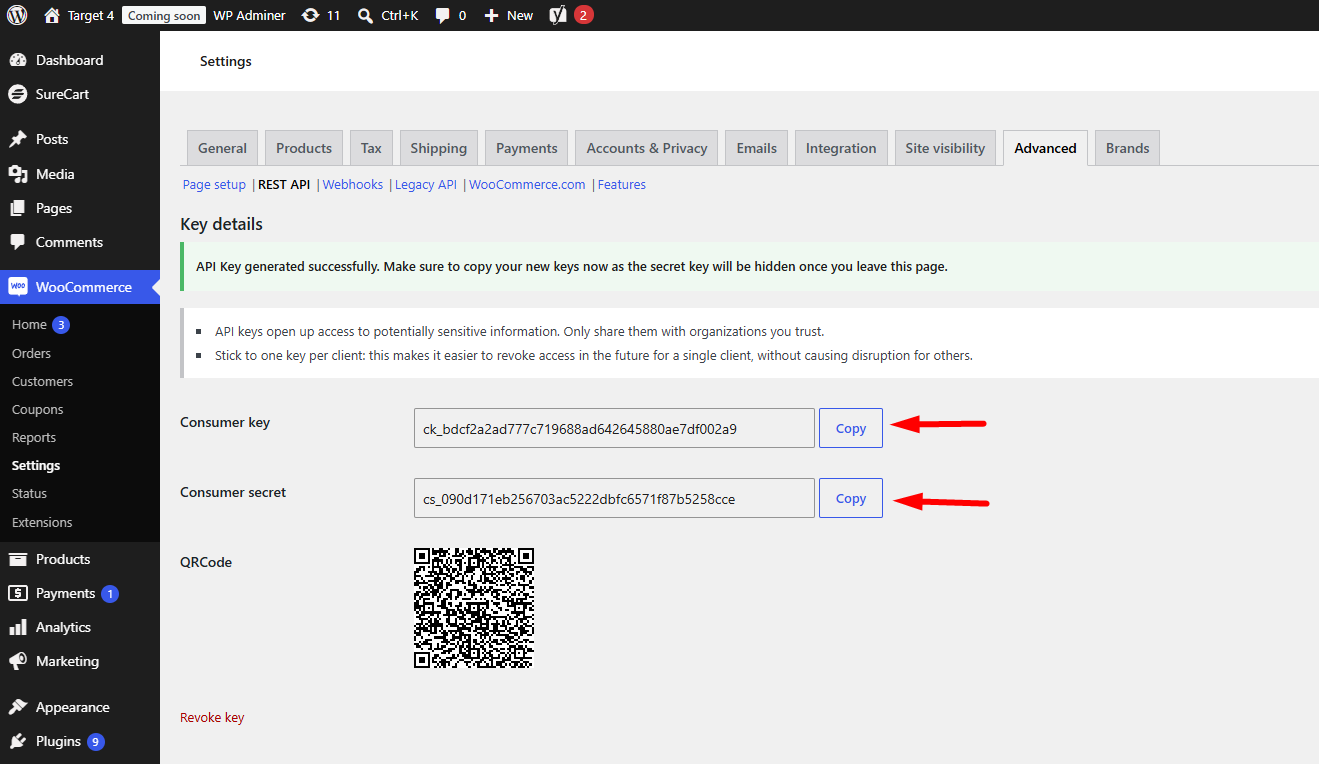
- Your Consumer Key and Consumer Secret will now be visible on the screen.
⚠️ Important Security Note: Copy both keys immediately and paste them into your Bulkflow setup window. WooCommerce will hide the Secret Key forever once you leave or refresh this page. Treat these keys like passwords and never share them publicly.
Next Step
Once you have copied the keys, head back to Bulkflow, select WooCommerce as your source platform, paste your Source Store URL, Consumer Key, and Consumer Secret, then click Connect To My Store to get started!