When you’re managing a Shopify store with multiple product options like sizes, colors, materials, etc., you quickly realize that the default settings aren’t always enough. Maybe you want to add a unique material description for each color, or care instructions for only the linen variant. That’s where Shopify variant metafields become a game-changer.
Instead of showing the same information for every variant, variant metafields let you give each option its own rich, organized, and meaningful data. In this guide, you’ll learn basic information and how to use variant metafields in Shopify efficiently in your Shopify store.
Add hundreds of variant metafields
BulkFlow lets you import, update, and export variant data at scale with zero stress.
What Are Shopify Variant Metafields?
Shopify variant metafields are custom fields that let you store additional variant-level information that Shopify doesn’t include by default. They give each product option – such as a specific color, size, material, or model – its own unique data that goes beyond Shopify’s standard fields.
Like all metafields, variant metafields help you extend Shopify’s standard data model so your store can hold richer, more tailored information. By default, Shopify only lets you store price, inventory, images, shipping details, and purchase options for a variant. But metafield give you more freedom for customization: you can add many data types like rich text, dates, measurements, files, etc.
Read more: How to Bypass the Shopify 100 Variant Limit: A Complete Guide
The key difference is that variant metafields apply only to individual variants, not the whole product. This is especially useful when different variants need different details.
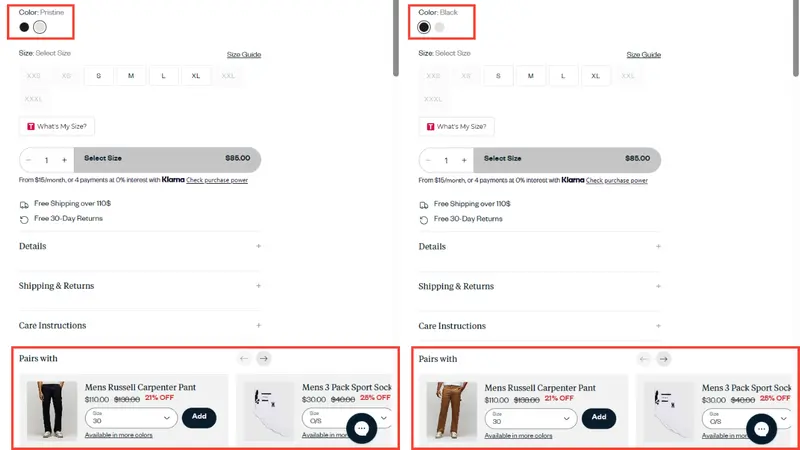
Let’s take an example of a t-shirt with two colors, black and white; each color of this product has its own “pair with” products. Thus, with variant metafields, you can store and display these unique, variant-specific details so customers always see information that matches the exact option they are choosing.
Variant Metafields vs Product Metafields: What’s the Difference?
Product metafields and variant metafields may look similar, but they serve very different purposes. Understanding this difference ensures your storefront displays accurate, relevant information for every shopper.
Product metafields
Product metafields store information that applies consistently across the whole product. They’re perfect for details that never change, or attributes that are identical across all variations. These metafields help keep your product structured and prevent duplication, since you only need to enter this information once.
Understanding product metafields also makes it easier to see their limits. If a detail differs between variants, it should not be stored here. Placing variant-specific information in product metafields often leads to messy layouts or customer confusion because the content remains static even when the variant changes.
Variant metafields
On the other hand, variant metafields give each variant its own set of data. This is critical when different options require different information. With variant metafields, shoppers always see details that match the exact variant they are viewing.
Because Shopify variant metafields update instantly when a customer switches variants, they’re ideal for building dynamic product pages. They help reduce confusion, prevent returns caused by misinformation, and improve the overall user experience.
How to Add Variant Metafields in Shopify: 2 Ways
Mastering how to add Shopify variant metafields to your store allows you to create more personalized shopping experiences. They can be created manually in your Shopify admin, but you can also use a product importer to speed up the process.
Method 1: Add variant metafields manually
Manually adding variant metafields through Shopify Admin gives you full control and is useful when you want to carefully review each variant. Because everything is done within Shopify, you don’t need external tools or spreadsheets.
Here is how to add variant metafields to Shopify manually:
Step 1: Create a variant metafield definition
Creating a metafield definition tells Shopify exactly what kind of information you want to store for each variant. It also ensures that all variants follow the same data structure and validation rules. This is important for maintaining a clean, scalable database – especially as your store grows.
Follow these steps to create a variant metafield definition on Shopify:
1. Go to Settings > Metafields and Metaobjects in your Shopify admin.
2. Under Metafield definitions, choose Variants, and click Add definition to open the metafield definition settings, where you’ll configure the field that will appear across all variant editors.
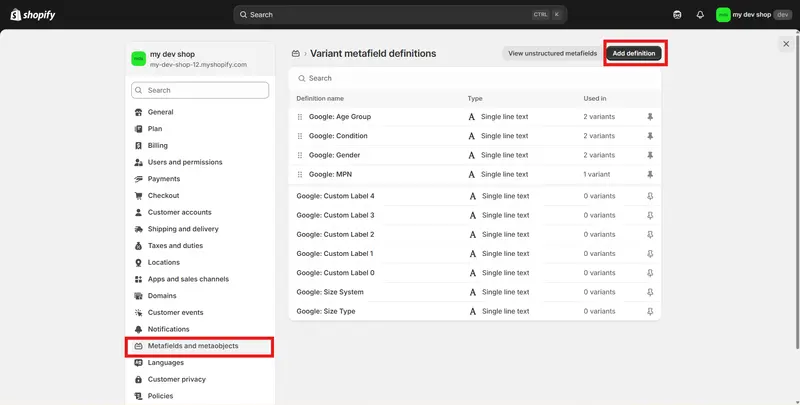
3. Inside the metafield definition settings, you’ll fill out these fields: Name, namespace and key, type, description, and more.
4. Once everything is set up, click Save. Your new variant metafield definition will now appear on every variant in your store, ready to receive values.
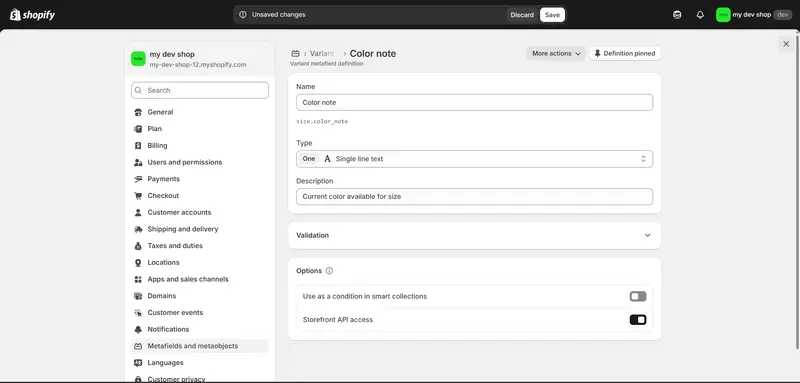
In specific, you will need to fill in these informations for your variant metafield definition:
- Name: The label shown inside the variant editor in Shopify; helps you understand the information for each variant. Example: T-shirt color note.
- Namespace and key: Shopify’s unique identifier for the metafield, auto-generated from Name (customizable). Used by themes and apps to read the metafield value. Example: size.color_note.
- Type: Metafield type decides the data format your variant metafield accepts, ensuring each variant stores consistent data. Example: Dimension.
- Description (optional): Optional text that explains what the metafield is for and how to fill it correctly. Example: Current color available for each size.
- Category assignment (optional): Matches the metafield to a specific product category so it only appears for relevant variants. Example: Apparel & Accessories > Clothing > Clothing Top > T-shirt.
- Validation (optional): Rules that limit what values can be entered, preventing invalid data. Example: Character limit 1–200.
- Options: Additional advanced settings depending on the metafield type.
Step 2: Add values to each variant
Once you have finished creating your variant metafield definition, let’s add the metafield values to your variants.
Here is how to add values to each variant:
1. Go to your Products section and open the product you want to edit.
2. Scroll to the Variants section, and click one variant to open its details screen, where Shopify exposes all variant-level information, including metafields.
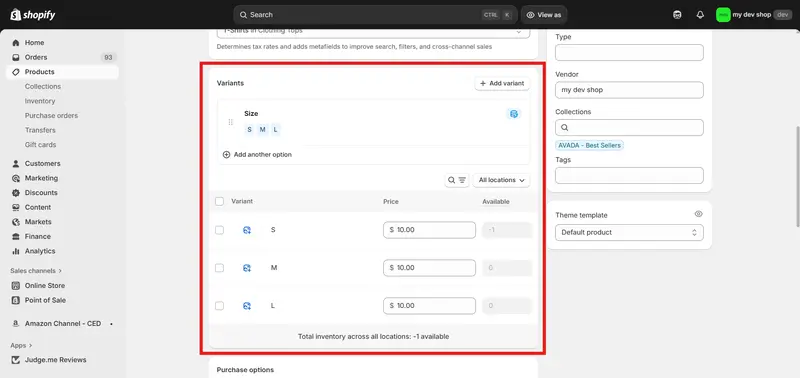
3. Scroll down until you see the Metafields panel. Shopify will display the field you created earlier, ready for you to enter the value. Here, remember to follow the format of the Type you previously chose in the definition (e.g. Write a decimal number for Decimal type).
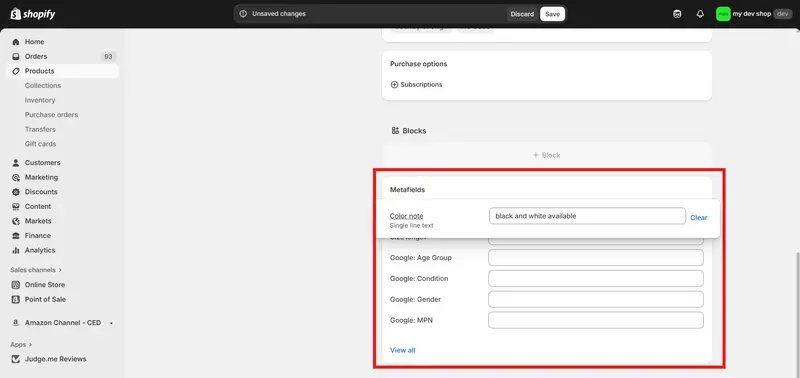
4. Click Save to store the metafield for that variant. You’ll need to repeat this process for each additional variant.
Step 3: Display variant metafields in your theme
To display Shopify variant metafields publicly, you’ll need to update your Shopify theme or use a supporting tool. Variant metafields don’t appear on product pages automatically – you must connect them to your theme layout.
If you’re comfortable with coding, you can add dynamic Liquid tags to your product template or variant section to pull and display the metafield values. This gives you full control over layout, styling, and conditional logic for each variant.
Here is how to display variant metafields in your Shopify theme:
1. Go to Online Store > Themes and press Edit theme.
2. In the theme editor, choose the product template you want to customize.
3. In the Product Information section, add a Custom Liquid block. Paste the following code into the Liquid code field:
{%- for variant in product.variants -%}
  {%- if variant.metafields.namespace.key != blank -%}
    <div>
      {{ variant.metafields.namespace.key }}
    </div>
  {%- endif -%}
{%- endfor -%}
4. Replace namespaces.key in the code with your own metafield’s namespaces and key, then click Save to apply the change.
This method works only for Shopify 2.0 Themes. Older themes, however, require editing the template file directly:
- In Online Store > Themes, click the three-dot button and choose Edit code.
- Open the product-template.liquid file and search for the variant loop section.
- Insert the same Liquid code just within this section. Click Save to apply the change
If you don’t want to deal with code, you can use a third-party page builder or metafield app like Accentuate Custom Fields, Variant Description OMG, Instant Section & Page Builder, etc., to publish variant metafields without coding.
Method 2: Import variant metafield values with BulkFlow
Managing variant metafields manually can quickly become overwhelming – especially if your products have many sizes, colors, materials, or other variant options. But don’t worry, BulkFlow provides a fast, scalable way to update all your Shopify variant metafield values at once.
Here’s how to import Shopify variant metafields using BulkFlow:
- Step 1: Get ready to upload Shopify variant metafields
- Step 2: Create a new update feed
- Step 3: Upload and map your field
- Step 4: Import variant metafield values to Shopify
Note: BulkFlow helps you add and update variant metafield values, so you must create your metafield definitions in Shopify first. After adding your variant metafield with BulkFlow, you still need to connect it to your theme like the manual method.
Stop uploading variant metafields one by one
BulkFlow lets you bulk update thousands of variant metafields data with zero stress. Perfect for managing large or fast-changing catalogs.
Step 1: Get ready to upload variant metafield
To begin uploading variant metafields, make sure you have a BulkFlow account. You can sign up directly on the BulkFlow website or install the app from the Shopify App Store.
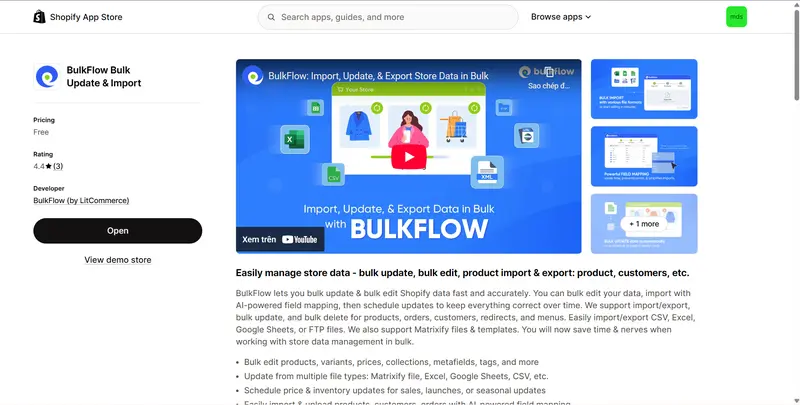
Next, prepare your data file. If you plan to start from scratch, you can download BulkFlow’s ready-made template, which includes a clean structure already optimized for Shopify variant metafield imports. You can also use your own existing spreadsheet if you already have one. The spreadsheet interface allows you to bulk edit product variant data fast and easy
Whichever option you choose, your file must include the field Name, SKU, Price, Qty and the columns for the variant metafield values you want to import. If you’re using BulkFlow’s template, each metafield column will follow the naming structure: Variant Metafield: namespace.key (e.g., Variant Metafield: size.color_note).
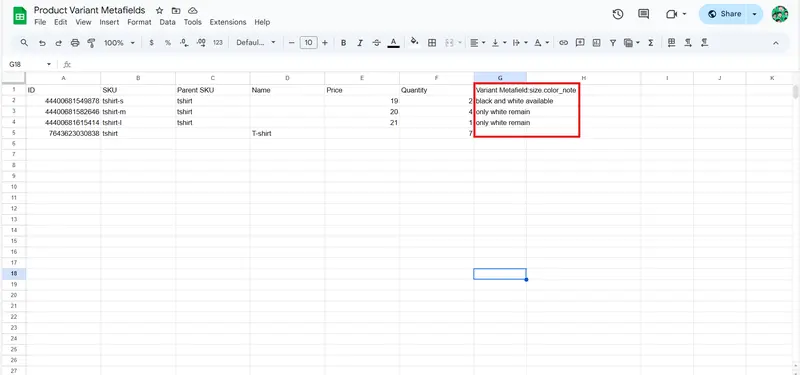
When you fill in the column, make sure all values match the variant metafields Shopify type. This prevents Shopify from rejecting invalid entries during import. Once your file is ready, save it in your preferred format. BulkFlow supports multiple ways to upload or connect:
- File upload (Excel or CSV)
- Shared connections like URL, Google Sheets, Google Drive, Dropbox, OneDrive
- FTP/SFTP server
Step 2: Create a new update feed
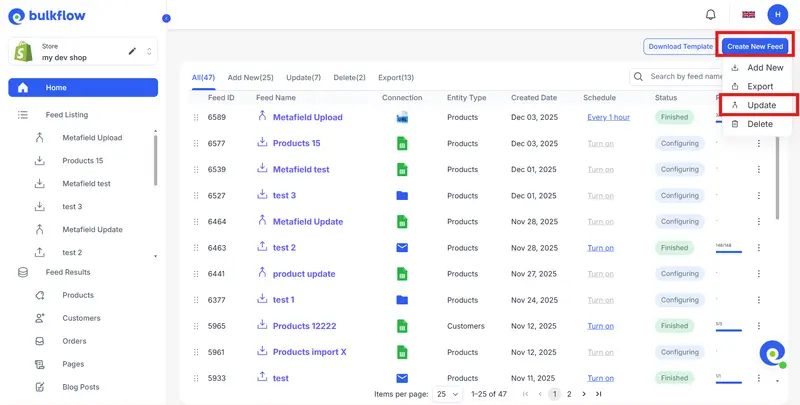
After logging into BulkFlow, go to your dashboard and click Create new feed > Update to start a new feed.
In the feed setup, give your feed a name, choose Products as your data entity, and select your template and connection method based on your data file.
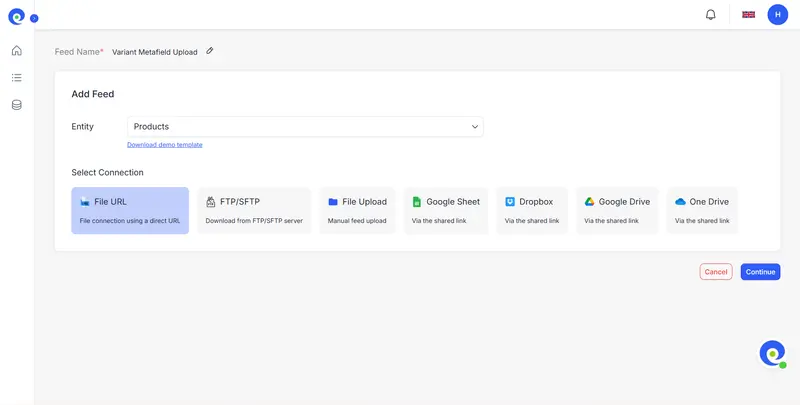
Once everything looks correct, click Continue to proceed.
Step 3: Upload and map your field
With the feed created, the next step is connecting your spreadsheet to BulkFlow. For file upload, you can upload your data file directly from your device.
For shared connections, you paste the file URL and click Test connection to make sure BulkFlow can read your file. For the FTP/SFTP server, you need to enter your server credentials and verify the connection.
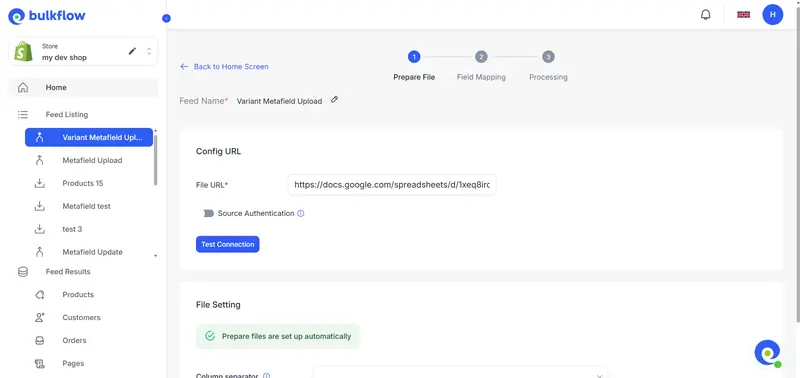
After connecting, click Next step to move to field mapping. This is where you match your file’s columns to Shopify’s fields.
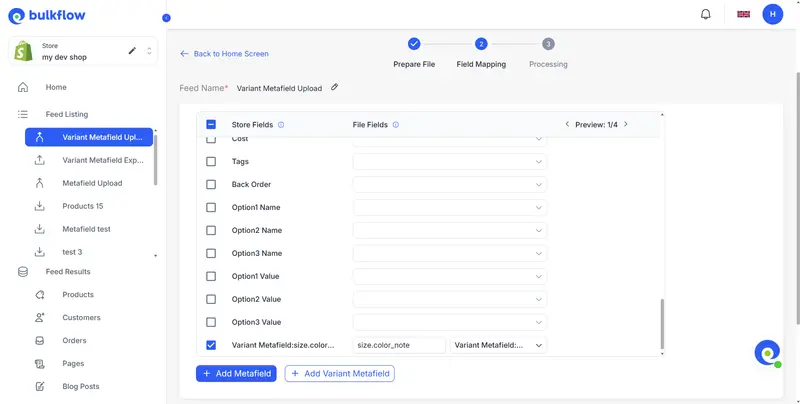
If you use BulkFlow’s default template, all fields will map automatically with zero effort. On the other hand, if you use your own template, BulkFlow will analyze your headers and auto-match them where possible.
BulkFlow also provides smart AI mapping suggestions, which identify and recommend the best matching Shopify fields. You can accept the suggestions or flexibly adjust your mapping. The final decision is fully under your control.
Step 4: Import values to Shopify
Once mapping is complete, click Next step to begin uploading your Shopify variant metafields. BulkFlow will process all rows in real time and apply the metafield values directly to your Shopify store.
After the process, if you use shared connections, you can enable automatic scheduling if you want BulkFlow to sync future changes. You’ll also see an Activity log showing successful rows and failed rows. Review them and make any necessary adjustments (if needed).
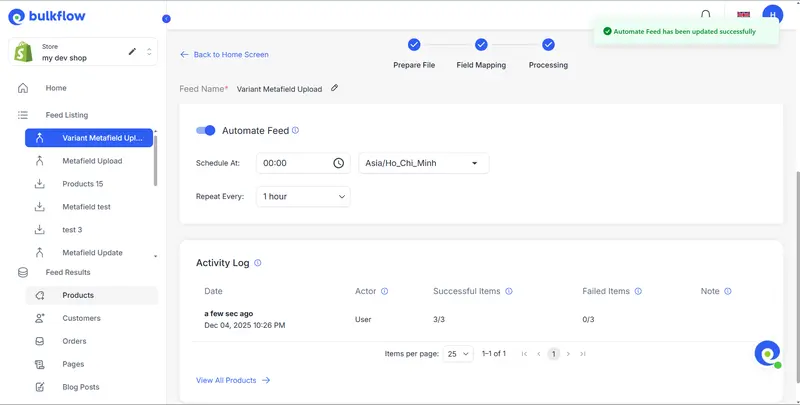
You should also return to your Shopify admin > Products to check if your variant metafield values have been updated successfully.
Export Shopify Variant Metafield With BulkFlow
Apart from importing and updating variant metafields, BulkFlow also allows you to export variant-level data for auditing, analysis, backup, or preparing bulk edits. The great thing about using BulkFlow is that you can select only the data field you need to export.
Here’s how to export Shopify variant metafields using BulkFlow:
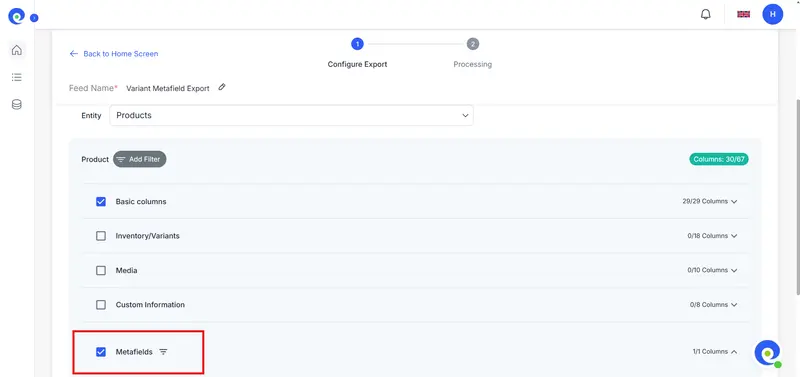
- Go to BulkFlow and click Create new feed > Export to create a new feed.
- Give your feed a name and choose your export destination – your email or FTP/SFTP server
- Choose your export format (CSV or Excel). Choose Product entity, and select the fields to export – don’t forget to select Metafield. You can also use a filter to narrow down data.
- Click Export to start the process. After it’s done, access your chosen destination to find your export file.
Common Mistakes with Variant Metafields in Shopify & How to Solve
Just knowing how to use variant metafields in Shopify is not enough, as it can become confusing or behave unexpectedly if not configured properly. Below are the most common pitfalls and how to resolve them quickly:
- Metafield types causing errors: If your metafield definition’s type doesn’t match the data you’re trying to import, Shopify will reject or partially save the value. Always double-check that your metafield type aligns with the format you need (string, list, file, date, etc.).
- Mixing product and variant metafields: Merchants sometimes upload variant-only details to product metafields, or vice versa. This results in missing or duplicated data on the storefront. Make sure you’re editing the correct metafield type and verify whether the information truly belongs at the product level or variant level.
- Theme sections not updating: Some Shopify themes don’t auto-refresh metafield content when switching variants. This leads to the wrong details showing on the product page. To solve this, you can update Liquid conditions or switch to a theme that supports variant-driven content refresh.
Shopify Variant Metafields – FAQ
How to display variant metafields instead of product metafields?
To display variant metafields, you’ll need to adjust your theme so it reads data from the selected variant rather than the product. Shopify’s default theme editor doesn’t offer a no-code way to connect variant metafields, so this typically requires editing your Liquid templates.
Is there a way to display variant metafields without coding?
Yes, but it’s limited. You usually have to custom-code it when you’re adding new variant metafields like this. However, if you are not comfortable with coding, you can try using a third-party app.
Can I use variant metafields for a product with no variants?
Typically, variant metafields are tied to specific variants – so if a product doesn’t have variants, variant metafields aren’t directly applicable. In that situation, it’s usually better to use product metafields instead.
Conclusion
Shopify variant metafields open the door to richer, more dynamic product pages – helping you show customers the exact information they need for each variant they’re considering. As a result, your store can deliver accurate, highly personalized product data.
As your catalog grows, managing variant metafields manually becomes slow, repetitive, and prone to errors. That’s where automation makes all the difference. BulkFlow helps you import, update, and export variant metafield values at scale – saving hours of manual work and ensuring your product data stays clean and consistent across your entire store.
If you’re ready to streamline your Shopify operations and manage variant metafields effortlessly, try BulkFlow and experience fast, reliable bulk data management built for Shopify teams.