Shopify product bundles are one of the most effective ways to boost average order value, increase conversions, and showcase more of your catalog without feeling pushy. No matter what you are selling, bundling creates a natural shopping experience that encourages customers to buy more with confidence.
But creating the right bundle isn’t always easy. Many merchants find it difficult to choose what to bundle, how to structure the offer, and how to manage inventory correctly. This article will walk you through everything you need to know: how to create product bundles and the strategies that help them sell.
What are Shopify Product Bundles & Examples
Shopify product bundles are sets of two or more items combined into a single offering for customers, usually with a discount. Instead of buying each item individually, customers can purchase multiple products in one click – making the buying process faster and more convenient.
For example, a hair routine bundle can combine shampoo with conditioner and treatment or customers can get a set of 3 T-shirts at a discounted bundle price.
Product bundles are important because they encourage customers to buy multiple items in a single purchase, naturally increasing average order value. They also help shoppers discover complementary products they might have overlooked, creating a smoother and more enjoyable shopping experience.
From a business perspective, bundling serves as a strategic tool for maximizing revenue. Instead of relying solely on larger carts, bundles let you combine products in ways that boost perceived value, improve margins, and drive upsells and cross-sells without increasing customer acquisition costs. This makes bundling a profitable strategy while still delivering strong value to customers.
6 Common Types of Shopify Product Bundles
Product bundles come in several formats, each designed to cater to different buying behaviors and business goals. Some bundles focus on convenience, while others encourage personalization, bulk buying, or cross-selling.
Here are most common bundle types used by Shopify merchants:
1. Fixed bundle
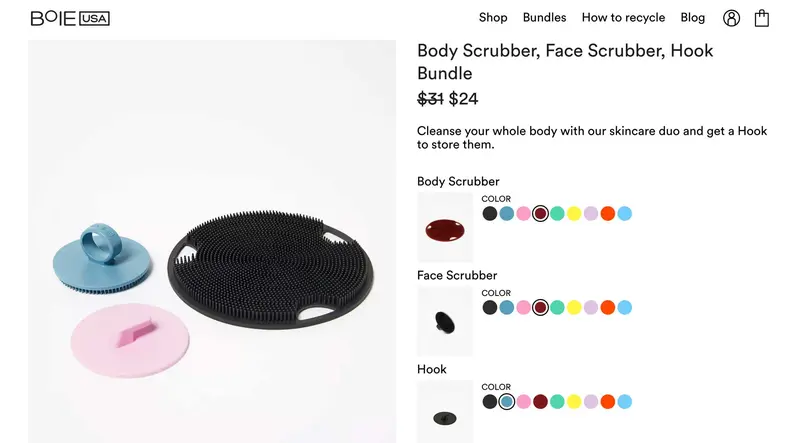
A fixed bundle includes a predetermined set of items sold together as one package. The products are curated to complement each other, making them ideal for themed kits or collections that customers typically use together.
This bundle type simplifies the buying decision because shoppers don’t need to choose variations – they simply purchase a complete set. Merchants often use fixed bundles to highlight best-sellers or create an all-in-one solution for a specific problem or need.
Example: A “Cleansing Essentials Kit” including a body scrub, face scrub, and hook.
2. Multipack bundle
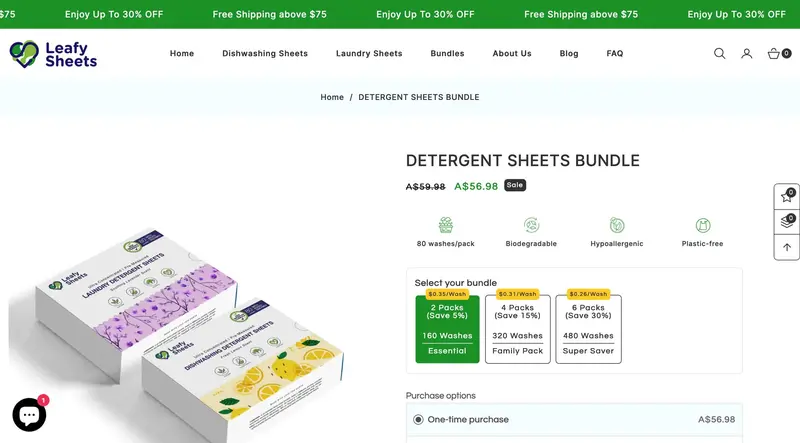
A multipack bundle offers multiple quantities of the same product, usually at a better price. This encourages customers to stock up, making it especially effective for consumables, essentials, or products used frequently.
Multipacks are also great for boosting repeat purchases since customers tend to buy more when they know they’ll use the product regularly. It’s a simple but highly effective way to increase average order value.
Example: Buy 2/4/6 packs of detergent sheets at a discount price.
3. Mix-and-match bundle
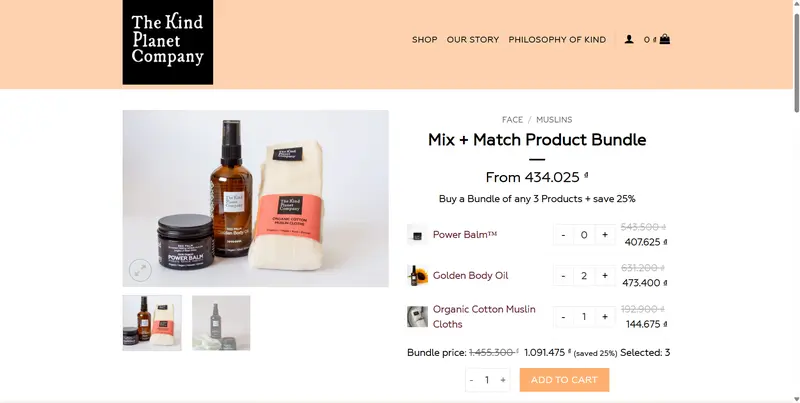
A mix-and-match bundle lets customers choose which products or variants they want within a certain category. This gives shoppers more control and personalization, improving satisfaction and conversion rates.
Stores with multiple colors, scents, styles, or flavors benefit most from this bundle type, as it allows shoppers to personalize their purchase without limiting them to pre-selected items.
Example: Choose any 3 products from our bundle and save 25%.
4. Cross-sell bundles
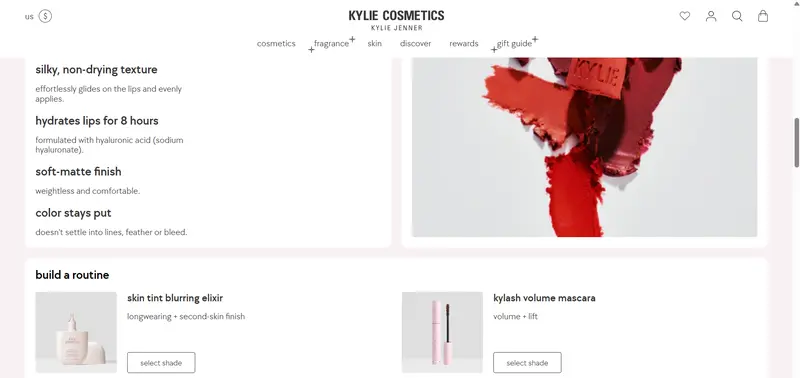
Cross-sell bundles pair complementary products that naturally go together, helping customers build a complete set. This type of bundle is often shown on product pages under “Frequently Bought Together” or “People Also Buy.”
These bundles are highly effective because they add convenience – customers can buy everything they need in one click – and they introduce items shoppers might not have considered but are highly relevant.
Example: Skin tint and mascara shown on a lipstick product page.
5. BOGO bundle
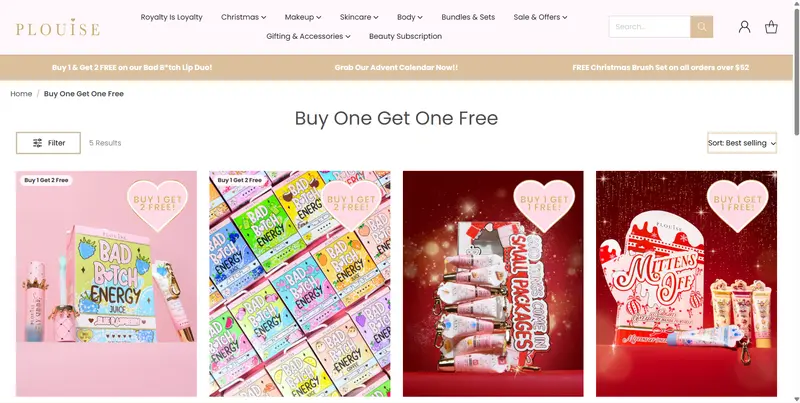
BOGO – Buy One, Get One bundles encourage customers to purchase by offering a free or discounted additional item. They’re great for promotions, clearing inventory, or rewarding loyal customers with extra value.
BOGO deals are appealing because they feel like a bonus rather than a discount, making them psychologically motivating. They’re particularly effective during seasonal sales, holidays, and product launches.
6. BYOB bundle
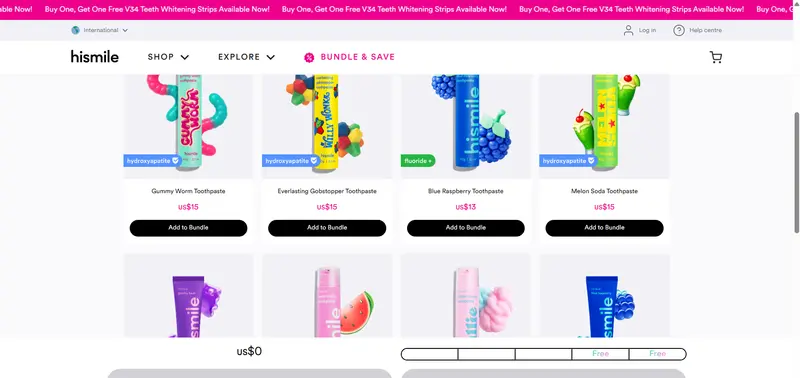
BYOB – (Build Your Own Bundle) bundles give customers full freedom to create their own custom package from a curated selection of products. This approach offers maximum personalization and increases the likelihood of larger carts.
Shoppers enjoy the interactive element of building a bundle themselves, and merchants can use BYOB setups to guide customers toward products with better margins or slower sales.
Eligibility & Considerations for Product Bundles Shopify
Before you jump into creating bundles, it’s essential to check whether your Shopify store meets certain requirements – and to understand what limitations or incompatibilities might affect how bundles work in your shop.
Eligibility requirements
To use product bundles, your Shopify store must meet these conditions:
- Your store must use the Online Store sales channel (or a custom storefront).
- You must have a bundles app installed in your Shopify store (for example, Shopify Bundles – free first-party app).
- Your store must use an upgraded checkout – stores that still rely on a customized checkout.liquid (or incompatible checkout customizations) are not eligible to sell bundles.
If your store becomes ineligible (for example, you add incompatible checkout customizations), existing bundles may be unpublished or modified: fixed bundles may revert to draft status, and custom bundles may be broken into individual items at checkout.
Incompatibility considerations
Using Shopify product bundles introduces trade-offs and limitations you should carefully consider:
- Bundles are not compatible with certain features – for instance, you cannot combine bundles with subscriptions, pre-orders, or “try-before-you-buy” purchase options.
- Bundles get a separate SKU from the individual items. If you change the SKU or variant options of an item inside the bundle, you may need to delete and recreate the bundle.
- Shipping is calculated based on the shipping profiles of individual products in the bundle – bundles do not have their own independent shipping profile.
- Bundles cannot include other bundles, nesting bundles inside bundles is not supported.
- Bundles do not support import/export or bulk editing.
How to Create Product Bundles in Shopify in 4 Easy Steps
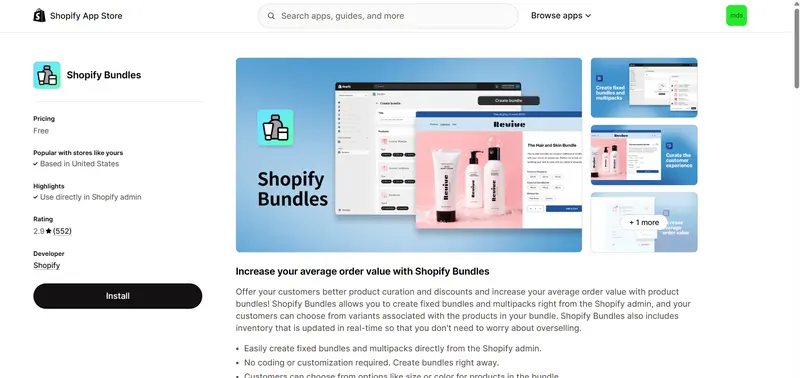
Shopify provides a dedicated tool called Shopify Bundles that helps merchants sell multiple products together as a single offer. This app makes it easy to create, manage, and display basic Shopify product bundles in your store, ensuring inventory syncs correctly and customers see clear value.
Here is how to create product bundles in Shopify using Shopify Bundles:
- Step 1: Add products for bundles to Shopify
- Step 2: Create a new bundle
- Step 3: Add bundle details
- Step 4: Publish product bundles on Shopify
Step 1: Add products for bundles to Shopify
Before you can build a product bundle in Shopify, you need to ensure that all the products you want to include already exist in your store.
Here are the steps to add your products to your Shopify store before creating bundles:
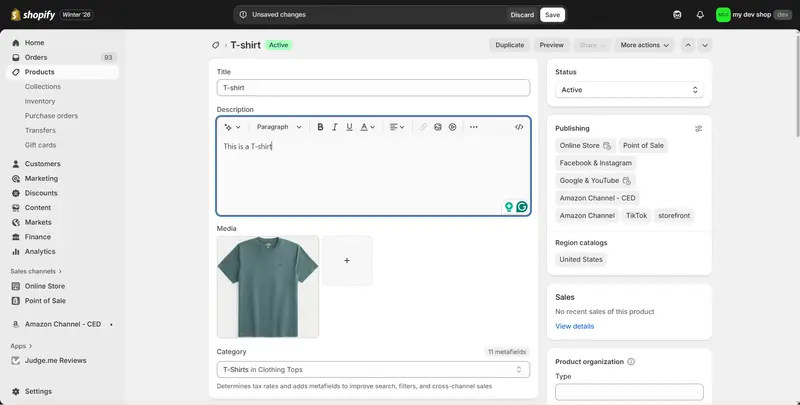
- Log in to your Shopify admin > Products. Click Add product to create a new product
- Fill in the necessary information like product title, description, images, pricing, and inventory.
- For products with multiple options, make sure to add all the variants and their details.
- Save your product. Do the same for all other products in your bundles.
Aside from adding products manually, you can use a product importer app like BulkFlow to streamline the process. BulkFlow helps you bulk import products, automate repetitive tasks, and save time, especially when you have a large catalog to prepare for bundles.
Once all component products are ready, you can move on to creating the bundle in the Shopify Bundles app.
Step 2: Create a new product bundle
To begin building your bundle, make sure you have already installed the Shopify Bundle app on Shopify App Store. Once the app is installed, you can start creating a new product bundle.
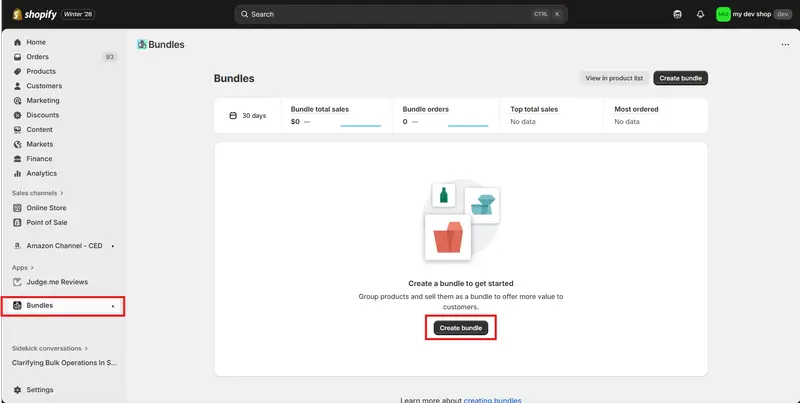
In Shopify admin > Apps, select Bundles from your installed apps. Click the Create bundle button to start a new bundle setup.
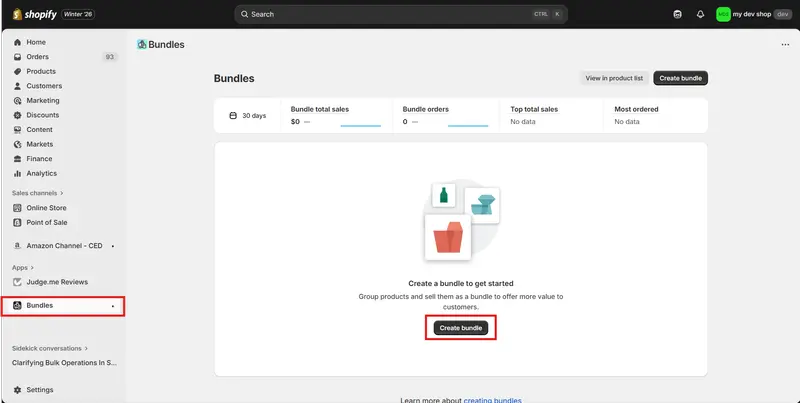
Enter a descriptive bundle name that clearly communicates what is included. Then, click Add products and select the products you want to include in the bundle. Bundles may contain up to 30 distinct products; each product has a limit of 3 options and 2048 variants, similar to a normal product.
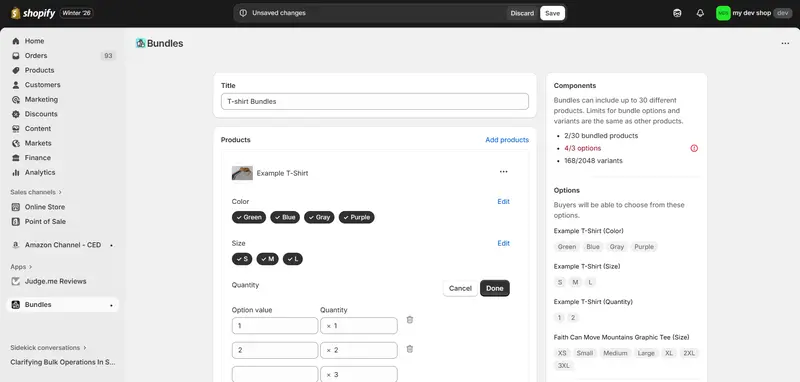
With your products added, you can now adjust the options and variants you want to include in your bundles. Clicking variant buttons to add and remove them from your bundles. You can also let the customers choose the quantity of each product by clicking the three dots and choosing Add quantity as an option.
When all products and variants in your bundles are selected, click Save to apply the setup.
Step 3: Fill in your Shopify product bundle details
After you save your bundle, Shopify Bundles will turn it into a new product. Shopify will automatically lead you to a product setup page for you to add your bundle details, similar to how you do with a product. Here, you can fill in the necessary information like bundle title, description, images, etc.
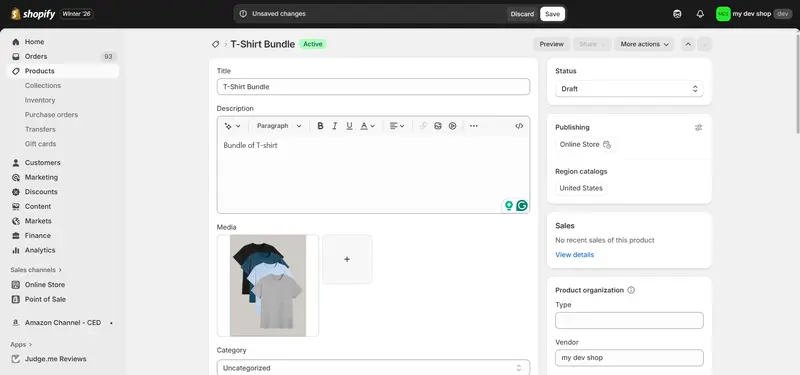
Your bundle’s variants here are the different combinations of each product’s variants. You can choose which one to display in your store by ticking the box next to it.
And, don’t forget to set the bundle price to reflect the combined value of the products while giving customers an incentive to purchase the set.
When you add images for your product bundles, make sure each option is easy to recognize—this guide on how to add variant images on Shopify shows you a simple way to display the right image for every variant.
Step 4: Publish product bundles Shopify
After you finish configuring your bundle, set the bundle status to Active to make it available in your store. Click Save to finalize and publish the bundle. You should check the bundle on your store website to ensure that all the bundle details appear correctly.
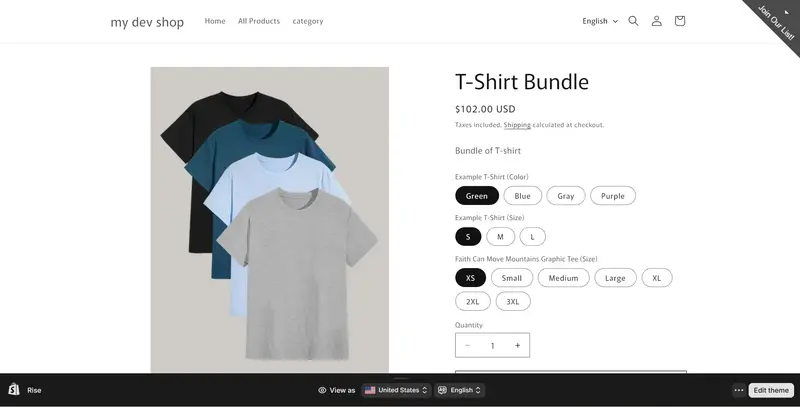
Once the bundle is live, each sale will automatically adjust the inventory of the individual products included, keeping stock levels accurate.
4 Strategies to Get Your Shopify Product Bundles Selling
To make your Shopify product bundles truly effective, it’s not enough to simply create them – you also need the right strategy to present, promote, and manage them. The following tactics help you turn bundles into powerful sales drivers.
1. Promote where customers browse or buy
A key tactic is to place bundle offers exactly where customers are already making decisions. Some of the best places for them are:
- Product pages: Feature bundles directly on your product pages, just below or near the “Add to Cart” button. This encourages customers to pick the bundle instead of a single item by showing the value at the moment of decision.
- Checkout or cart page: Surface bundles during checkout or on the cart page, offering related products or bundle upgrades as “last-minute” add-ons. This increases the chance of an extra purchase without changing browsing paths.
- Dedicated bundles section or homepage: If your store is busy or you offer many bundles, add a dedicated “Bundles” page or a bundle section on your homepage. This allows casual browsers to easily discover deals and explore curated package offers in one place.
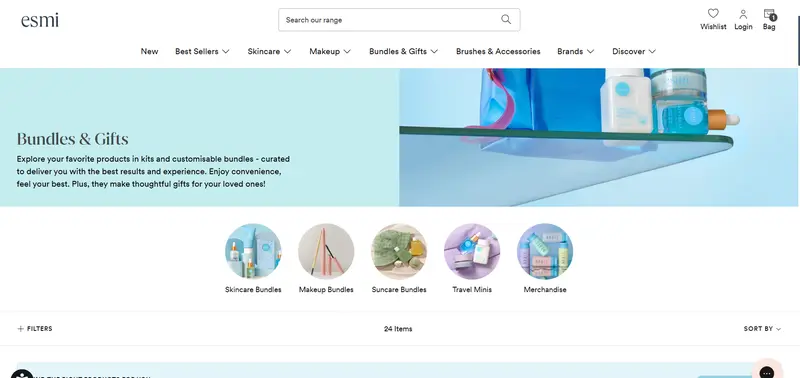
2. Create compelling copy and presentation
Even the best Shopify product bundles won’t sell if customers don’t instantly understand its value. Try to create a clear, benefit-focused copy that highlights what customers get and why the bundle matters. Use simple, persuasive language that speaks to needs (e.g. “Complete your skincare routine,” “Stock up and save,” “Build your own gift box”).
Good visuals matter too. You should show all bundled items together, maybe with high-quality photos or mockups of the set. This helps customers visualize the complete package and increases perceived value. Also, make sure the savings or advantage of the bundle vs buying items separately is obvious – this reduces friction and supports decision-making.
3. Use discounts or perceived savings smartly
Bundles are often attractive because of the value they offer compared with buying items individually. Offering a clear discount helps highlight that value, whether percentage-based (e.g. 10-20%) or a fixed-price bundle below the total of separate items.
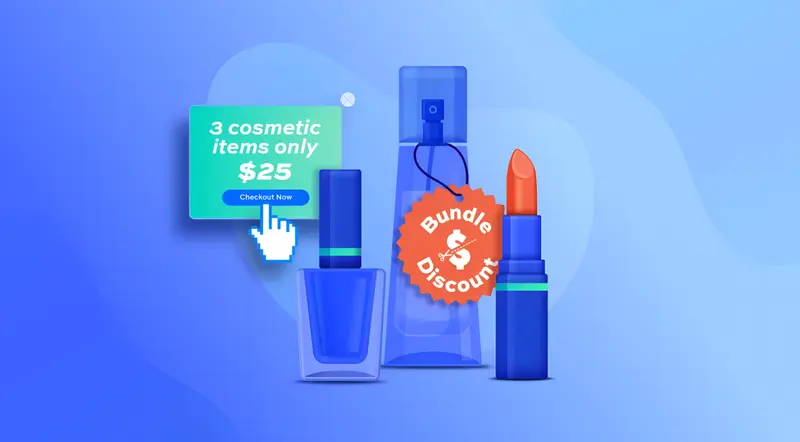
However, the discount shouldn’t kill your profit margins. It’s wise to structure bundle pricing carefully: for lower-priced product bundles Shopify, a percentage discount may work well; for higher-priced bundles, a fixed-amount discount may make savings clearer without eroding profitability.
Also, presenting savings prominently, such as “Save 15%” or “You save $10” in bold near the price, helps customers instantly recognize the benefit and nudges them toward the bundle.
4. Try different formats and monitor performance
Not all bundles will perform the same. It’s wise to test different bundle types – fixed sets, multipacks, or mix-and-match – depending on your catalog, customer base, and goals. Some bundles may resonate better than others.
While offering your bundles, don’t forget to track their performance using your store analytics or the dashboard provided by your bundling app: monitor bundle sales, conversion rate, how often customers pick bundles over single items, and whether bundles lead to repeat purchases.
If a bundle underperforms, try adjusting the composition, pricing, or presentation – maybe change product variety, lower or raise the discount, or move where the bundle is shown. Over time, this data-driven optimization helps you refine which bundles work best.
Shopify Product Bundles – FAQ
How to make a bundle from products of a specific collection?
Shopify’s native Bundles app does not support this feature, but you can use a third-party bundling app like MBC Bundle or similar tools. They provide a “pick from collection” feature that lets customers choose items from a specific collection. (Source)
Can I create a bundle with a unique SKU?
Yes, bundle products can have their own unique SKU when using Shopify Bundles. It allows you to edit the SKU of each variant, like normal Shopify products. (Source)
How to create product bundles in Shopify without apps?
You can create a simple bundle manually by adding a new product in Shopify and listing its items in the description. However, inventory won’t sync automatically, so you’ll need to adjust stock manually for each item sold. This method works but isn’t ideal for growing stores. (Source)
What are the best Shopify Bundle apps?
Shopify Bundles is the default first-party app that lets you create bundles right from the Shopify admin, but it provides only basic functionality. There are also many third-party apps like Bundler, Fast Bundle Product, Simple Bundles, BOGOS, etc. that offer advanced features for creating bundles.
Conclusion
Shopify product bundles can play a major role in increasing average order value, improving customer experience, and boosting overall store profitability. When bundles are designed with customer behavior in mind and promoted with the right strategies, they create a sense of value that encourages shoppers to buy more.
While bundles themselves are managed through Shopify or bundle apps, running a successful store still depends on keeping the rest of your data clean and efficient. This is where BulkFlow supports your workflow. It lets you manage large amounts of products, customers, orders, and other store data in bulk, helping you stay organized and save time behind the scenes.