Selling internationally on Shopify means dealing with customs, duties, and shipping regulations – and Shopify HS codes sit at the center of all three. These standardized product codes determine how your items are classified at the border, how much tax or duty is charged, and whether your shipment clears customs smoothly or gets delayed.
Despite their importance, many Shopify sellers either don’t fully understand HS codes or don’t know how to use them. That’s why this article walks you through everything you need to know about HS codes.
What Are Shopify HS Codes?
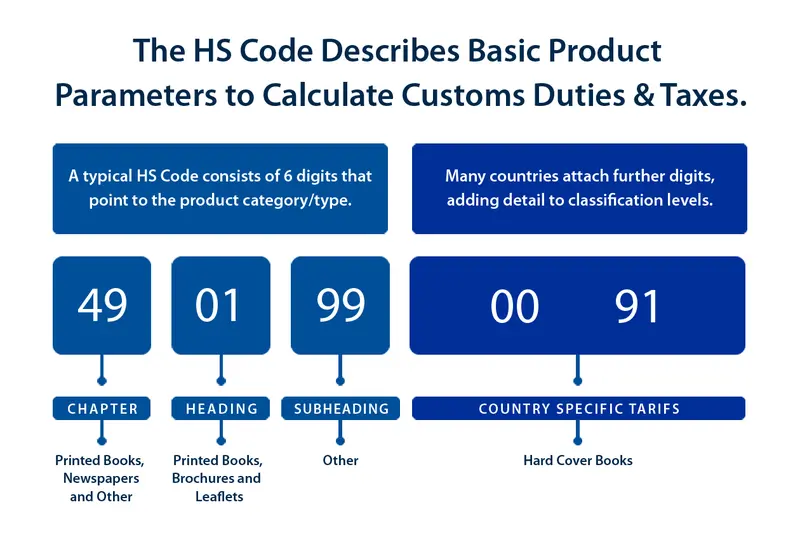
Shopify Harmonized System code (or HS code) are standardized international classification codes used on your Shopify store to help customs authorities calculate customs duties, tariffs, and taxes during import and export.
These codes are usually 6 digits long at the international level, with some countries extending them to 8-10 digits for more detailed classification. In Shopify, HS codes are added at the product or variant level and are mainly used for international shipping and customs documentation.
Plan to Expand Your Shopify Store Internationally?
BulkFlow helps you bulk upload and update thousands of products so your catalog stays clean, consistent, and ready for global growth.
What Are Shopify HS Codes?
Shopify Harmonized System code (or HS code) are standardized international classification codes used on your Shopify store to help customs authorities calculate customs duties, tariffs, and taxes during import and export.
These codes are usually 6 digits long at the international level, with some countries extending them to 8-10 digits for more detailed classification. In Shopify, HS codes are added at the product or variant level and are mainly used for international shipping and customs documentation.
When an international order is created, Shopify uses the HS code attached to each product to generate customs information. This data is passed to shipping carriers and customs authorities as part of the commercial invoice or shipping label.
Customs agencies then use the HS code to:
- Identify the type of product
- Apply the correct import duties and taxes
- Check for restrictions or special regulations
If the HS code is missing, incorrect, or too vague, your shipment may be delayed, returned, or charged unexpected fees.
Using correct Shopify HS codes brings clear advantages for both sellers and customers. It helps ensure smooth customs clearance, reducing the risk of delays, inspections, or rejected shipments. Accurate HS codes also lead to correct duty and tax calculations, preventing overcharging or surprise fees for customers upon delivery.
How to Identify Your Shopify HS Code?
Harmonized System code Shopify follows a global classification system where every product falls under a standardized set of chapters and subheadings used by customs authorities worldwide. Unlike Shopify SKU, which you can create and modify based on your preferences, HS codes must be accurate and consistent with the classification rules.
A Shopify HS code follows a hierarchical structure, moving from broad categories to increasingly specific product definitions.
- Chapter (first 2 digits): The chapter level groups products into broad categories based on their general nature. Each chapter covers a wide range of related goods. (e.g., chapter 69 for ceramic products).
- Heading (add 2 digits): Headings narrow the classification by grouping products with similar functions or characteristics within a chapter. This level helps distinguish between different product groups under the same category. (e.g., heading 6912 for ceramic tableware and kitchenware).
- Subheading (add 2+ digits): Subheadings provide the most detailed classification at the international level. The first two subheading digits are standardized worldwide, while additional digits may be added by individual countries for local duty rates, regulations, or statistical tracking. (subheading 6912.00 for ceramic household items like mugs and cups).
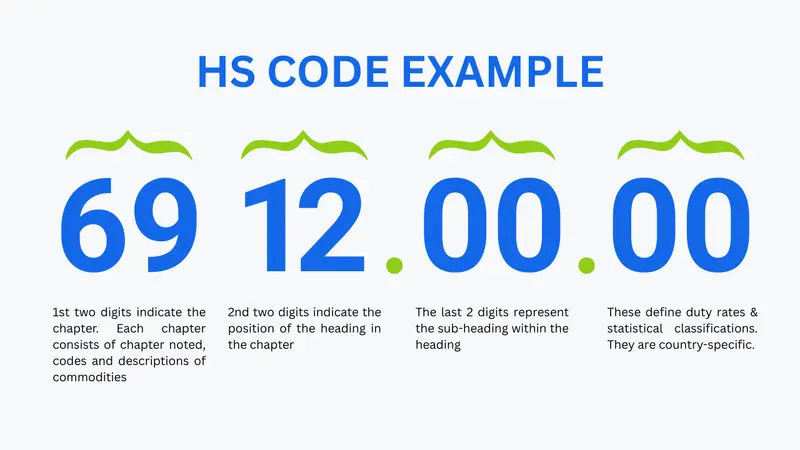
Understanding this structure allows you to systematically narrow down the correct HS code by matching your product’s function and attributes at each level.
To ensure accurate classification, you should use official HS sources and online lookup for searching. Start at the chapter level and read the descriptions and notes carefully before narrowing down to the more specific headings and subheadings.
As you go through each level, you should carefully read the descriptions and any section or chapter notes. These notes often explain what is included or excluded, and they can help you avoid choosing a code that looks correct at first glance but is technically inaccurate.
How to Add Shopify HS Codes to Your Products
Once you’ve identified the correct HS code for a product, the next step is to add it to your Shopify product so that shipping labels, customs forms, and duty calculations use the right classification. Shopify provides several ways to enter HS codes depending on your needs.
1. Add HS code manually to your products on Shopify
Adding a Shopify HS code manually is ideal when you have a small catalog or are adding products to Shopify one at a time. For this method, you add the HS code directly in the product settings.
Here is how to add HS codes to your products manually on Shopify:
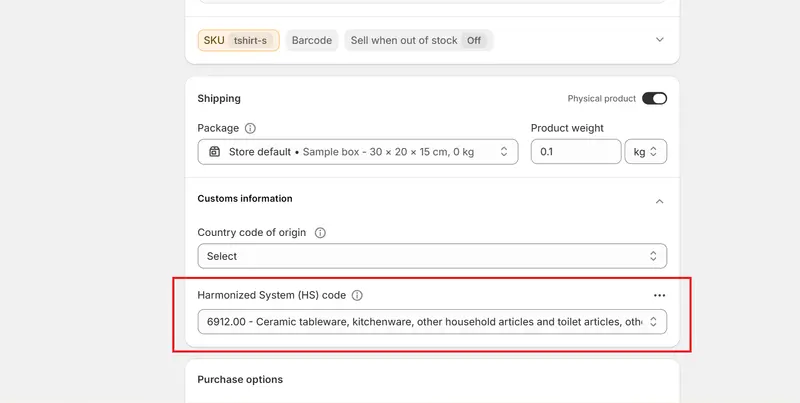
1. Go to Shopify admin > Products. Open the product you want to update.2. Scroll to the Shipping section (if your product has multiple variants, you need to go to each variant to find this section). Here, make sure you enable the Physical product setting.
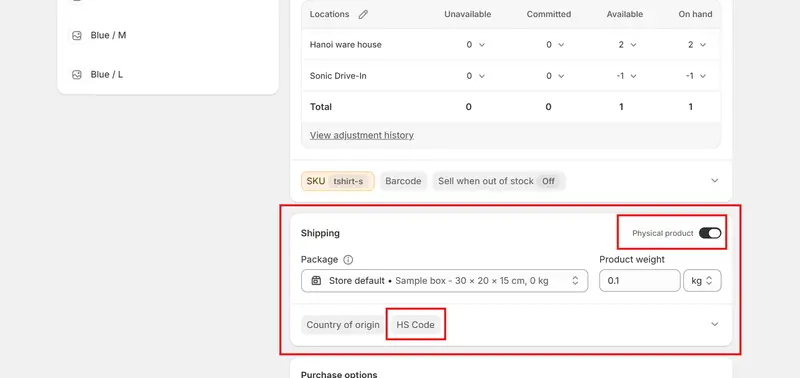
3. Click the HS code button and fill in the field with your code. You can also enter a keyword to find your code.
4. Save your changes. Repeat this process with other variants/products.
2. Add HS code with bulk editor
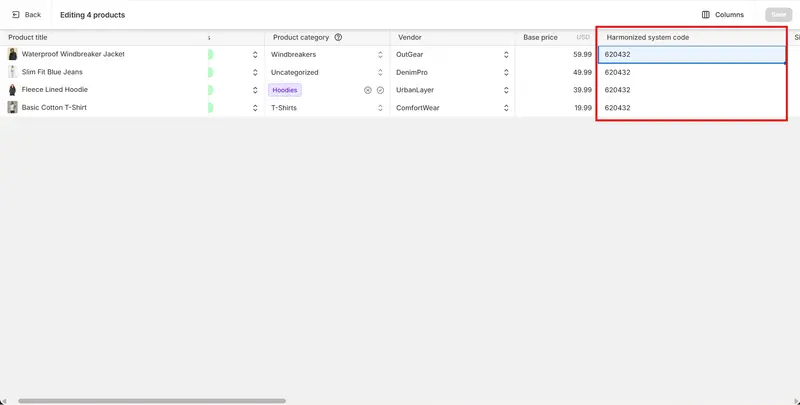
If you have many products to update, Shopify’s bulk editor lets you add or update Shopify HS codes for multiple products without opening each individually. The bulk editor resembles a spreadsheet inside Shopify, where you can add and edit HS codes directly.
Here is the step-by-step guide to add HS codes with the bulk editor:
- Go to Shopify admin > Products. Select all products you want to edit and click Bulk edit.
- In the bulk editor, click Column and choose Harmonized System codes.
- Enter HS codes for each product in the list.
- Save your changes.
3. Add HS code with CSV file
Using a CSV file is the best option when you want to add HS codes for thousands of products, or even your entire catalog. Shopify allows you to export product data into a CSV spreadsheet, edit the HS code column, and then import it back into your store.
Here is the guide to add HS codes via CSV file:
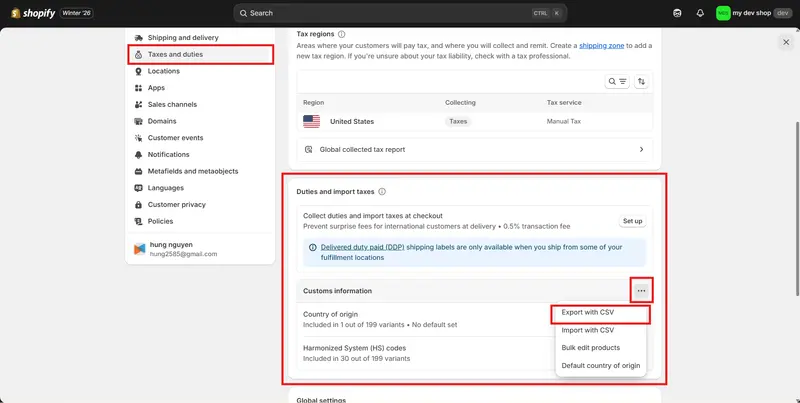
1. Go to Shopify admin > Settings > Taxes and duties.
2. Scroll down to the Duties and import taxes section. Here, in the Custom information field, click the three dots icon and choose Export with CSV to export HS code data.
3. Open the file and enter values in the HS code columns. Save your changes.
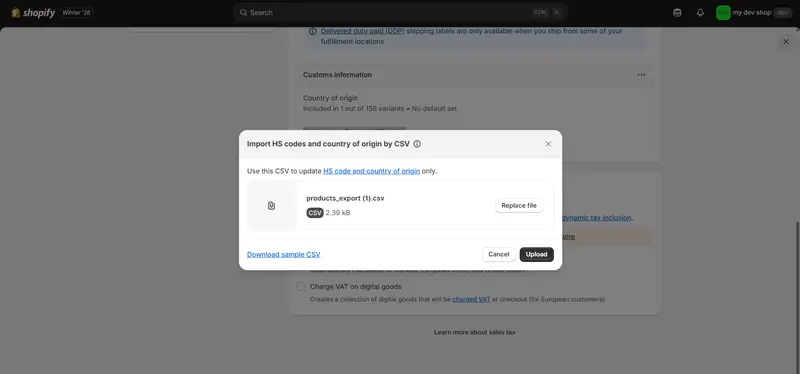
4. Return to Custom information, click the three dots icon, and choose Import with CSV
5. Attach your file and click Upload to start importing your HS codes.
4 Common Mistakes to Avoid and Best Practices
Even when sellers understand the basics of Shopify HS codes, mistakes still happen. These errors can lead to customs delays, incorrect duties, or frustrated customers. Below are the most common mistakes Shopify merchants make with HS codes, along with how to avoid or fix them.
1. Using a generic or guessed HS code
Some sellers assign a “close enough” Shopify HS code just to fill the field, especially when the exact match isn’t obvious. While this may seem harmless, customs authorities rely on precise classification, and vague or incorrect codes can trigger inspections or reclassification.
Best practice: You should always base your HS code on the product’s main function and core attributes, not convenience. If you’re unsure, take time to review the HS chapter notes or consult official HS lookup tools. Writing down your reasoning also helps ensure your choice is intentional and defensible.
2. Applying one HS code to all variants
A common oversight is assigning the same HS code to every variant of a product, even when variants differ in material, composition, or function. This can be inaccurate, especially for apparel, electronics, or mixed-material products.
Best practice: You can assign HS codes at the variant level in Shopify. If variants differ in a way that affects classification (for example, cotton vs polyester, or wired vs wireless), you should assign separate HS codes accordingly to stay compliant.
Read more: Shopify Variant Metafields: How to Add Them in Your Store
3. Not updating HS codes when products change
Products can evolve – materials change, components are upgraded, or suppliers switch. However, HS codes are often left untouched even when the product itself changes.
Best practice: You should review HS codes Shopify whenever you update product specifications. A simple best practice is to include HS code verification as part of your product update or sourcing checklist, especially before selling internationally.
4. Not documenting your classification decisions
When HS codes are assigned without documentation, it becomes difficult to maintain consistency – especially if multiple team members manage products or if classifications are questioned later.
Best practice: You can keep a simple internal record explaining why each Shopify HS code was chosen. This doesn’t need to be complex, but it helps with audits, onboarding new staff, and maintaining accuracy as your catalog grows.
Shopify HS Codes: A Glossary
This glossary covers more advanced HS codes information that is especially useful for sellers who ship internationally.
HS code database
An HS code database is an official reference that lists all Harmonized System codes, organized by chapters, headings, and subheadings. These databases are maintained by global trade authorities and are used by customs offices, logistics providers, and governments worldwide.
One of the most authoritative sources is the World Customs Organization (WCO) HS database, which provides:
- The full HS structure, from chapters to subheadings
- Official product descriptions
- Explanatory notes that clarify what is included or excluded
To use it, you can search the database by keyword or browse by product category. Start broad, then narrow down step by step using your product’s function and attributes. This is especially useful when a product could fit into multiple categories, and you need to confirm the most accurate classification.
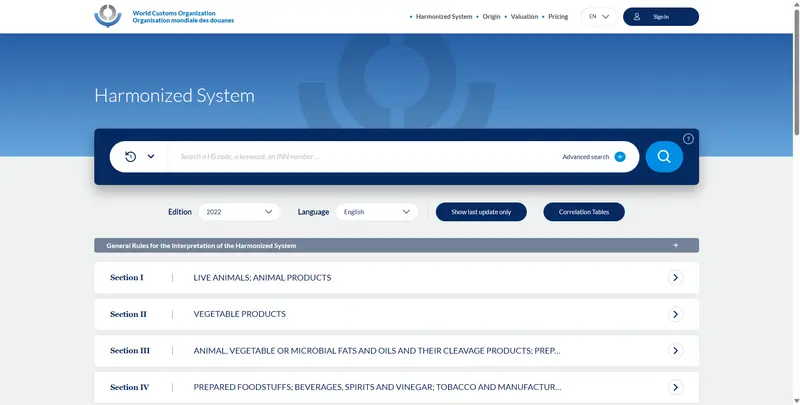
Using an official HS database helps ensure your Shopify HS codes align with international standards rather than assumptions.
Country-specific codes
While HS codes are standardized at the first 6 digits, many countries extend them to create country-specific codes (often 8-10 digits long). These extended codes are used for local tariff rates, trade statistics, and regulatory controls. Here are some common ones:
- United States: The Harmonized Tariff Schedule (HTS) code is the U.S. extension of the HS code. It adds four extra digits to determine exact duty rates, trade policies, and import restrictions in the United States. While Shopify sellers typically use the 6-digit HS code, U.S. customs will automatically map it to the correct HTS code during import.
- European Union: The Combined Nomenclature (CN) code is the EU’s extension of the HS system. It adds two digits to the 6-digit HS code and is used to calculate customs duties and collect trade statistics within the EU. If you sell frequently to EU countries, understanding CN codes can help you better estimate duties and compliance requirements.
- Canada: Canada uses 10-digit HS-based tariff codes, which determine duty rates, eligibility for trade agreements, and regulatory requirements. Certain products may also need to comply with CFIA (Canadian Food Inspection Agency) rules tied to the HS code.
- Australia: Australia applies 8-digit statistical tariff codes based on the HS system. These codes are closely linked to biosecurity controls. They are also used to apply anti-dumping or countervailing duties.
Shopify HS Codes – FAQ
Are HS codes mandatory for international shipping?
Yes, HS codes are mandatory for international shipping. Customs authorities require HS codes to classify goods, calculate duties and taxes, and determine import eligibility. If an HS code is missing or incorrect, shipments can be delayed, held, or rejected by customs. (Source)
How to get a report of all HS codes Shopify for my products?
You can get a report of HS codes by exporting your data as a CSV file from Shopify. This is a built-in Shopify feature, so you don’t need to install any app. Here is how to export HS codes from Shopify:
1. Go to Shopify admin > Settings > Taxes and duties.
2. Scroll down to the Duties and import taxes section.
3. In the Customs information area, click the three-dots icon.
4. Choose Export with CSV.
(Source)
Can I assign multiple HS codes to a product?
HS code Shopify is assigned at the variant level, not the product level. This means one variant can have only one HS code, but a single product can have multiple HS codes if it has multiple variants with different classifications. (Source)
Conclusion
When you sell internationally, Shopify HS codes are a foundation for smooth global commerce. The right HS code helps your products move through customs faster, keeps duties accurate, and protects your store from costly delays or rejected shipments. Getting this wrong can create friction for both you and your customers; getting it right builds trust and reliability at checkout and delivery.
By understanding HS codes, you put yourself in control of your international operations. Whether you’re shipping your first overseas order or scaling into new markets, treating HS codes as part of your growth strategy will help your business expand globally with confidence.
Still, to truly scale your store and sell internationally, you need to streamline your workflow with bulk product updates and smart automation. BulkFlow helps you update, import, and update product data in bulk, saving time, reducing errors, and giving you the confidence to expand globally.