An untidy digital storefront can be just as off-putting as a cluttered physical one. When customers browse your collections only to find that many items are unavailable, it creates a frustrating experience that can lead them to abandon your store altogether. That’s why knowing how to use Shopify to hide sold out products is not just a matter of aesthetics – it’s a critical part of effective store management.
Successfully managing your inventory display ensures that customers only see items they can actually purchase, streamlining their journey from browsing to checkout. This guide provides a comprehensive overview of the different ways you can hide out of stock products in Shopify, from simple, built-in features to powerful automation workflows. We’ll walk through each method step-by-step, helping you maintain a clean, professional, and shoppable online store.
Reasons to Hide Sold-Out Products on Shopify
Before diving into the “how,” it’s important to understand the “why.” Hiding items that are no longer in stock is a strategic decision that directly impacts your store’s performance and customer perception. It’s a small change that can yield significant results.
Here are the key reasons why you should actively manage and conceal sold-out inventory:
- Improve the customer shopping experience: The most significant benefit is preventing customer frustration. Shoppers invest time and emotional energy browsing your products. Allowing them to click on an item they love, only to discover it’s sold out, leads to disappointment and can make them feel their time was wasted.
- Create a cleaner, more appealing storefront: A collection page filled with grayed-out “Sold Out” labels looks cluttered and can give the impression of a poorly managed or neglected store. By showing only available products, you present a vibrant, professional, and well-stocked storefront that encourages browsing.
- Focus attention on products you can actually sell: Every moment a customer spends looking at an unavailable item is a moment they could have spent discovering a product they can purchase. Hiding sold-out goods funnels their attention toward in-stock items, directly increasing the likelihood of a sale.
- Enhance perceived brand value: Constantly displaying out-of-stock items can inadvertently signal that your business struggles with inventory management. A clean, curated shop filled with available products boosts customer confidence in your brand’s reliability and professionalism.
How to Hide Out-of-Stock Products in Shopify?
Shopify provides several native tools that allow you to control product visibility based on inventory levels. These methods range from fully automated to manual, giving you the flexibility to choose the approach that best fits your operational workflow.
Here are the three primary ways to hide sold out products in Shopify using its built-in features.
1. Use automated collection conditions
This is the most popular, efficient, and recommended method for the vast majority of Shopify stores. By setting a specific condition on your collections, you can create a “set it and forget it” system that automatically hides products the moment their inventory level drops to zero.
This approach ensures that as soon as an item sells out, it disappears from the collection page without any manual intervention. When you restock the item, it automatically reappears.
Here’s a step-by-step guide on how to set the hide-out conditions:
- From your Shopify admin dashboard, navigate to Products > Collections.
- Click on an existing collection you want to modify or select Create collection to build a new one.
- Select Smart as the collection type.
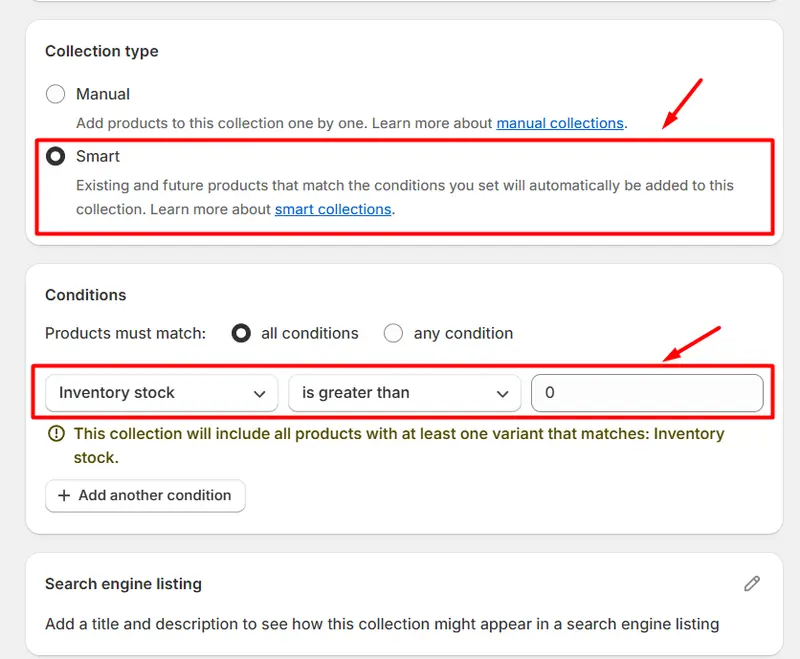
- In the Conditions section, click Add another condition. (If there’s no Conditions section, the collection is manual.)
- Choose Inventory stock → is greater than → 0.
- Click Save.
You will need to repeat this process for all the automated collections where you want to hide sold-out items. While it requires some initial setup, it saves countless hours in the long run.
Now, out-of-stock products will be hidden from your collection pages but will still appear in search results.
2. Change a product’s status to draft or archived
This method is best reserved for products that you do not plan to sell again in the near future, such as seasonal items or permanently discontinued lines. You can easily hide sold-out products by changing their core status in Shopify.
Shopify gives you two main options for this: Draft and Archived.
- Draft: Setting a product to Draft removes it from all sales channels and your storefront. It’s best used for products you might bring back later or are still preparing for launch.
- Archived: Archiving a product also removes it from your storefront but is intended for products you never plan to sell again. It hides the product from your main product list but keeps its data for reporting purposes.
Here is how to change a product’s status to draft in Shopify:
- In your Shopify admin, click Products from the left-hand menu.
- Click the name of the product you want to change.
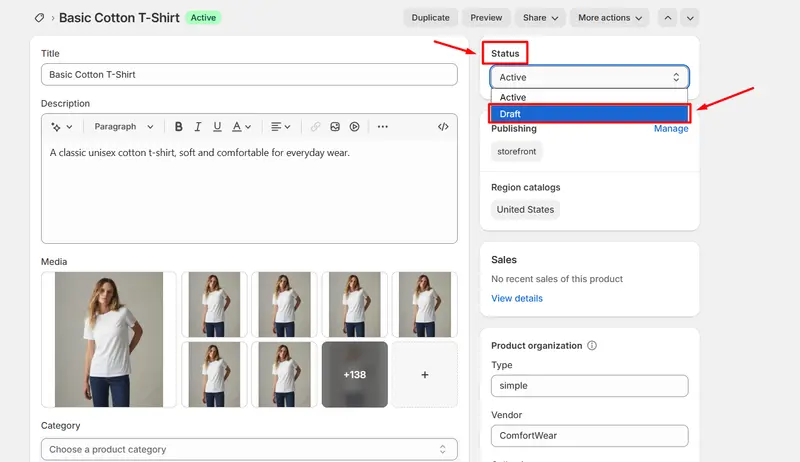
- In the Status section at the top, select Draft from the dropdown.
- Once finished, click Save to apply the update.
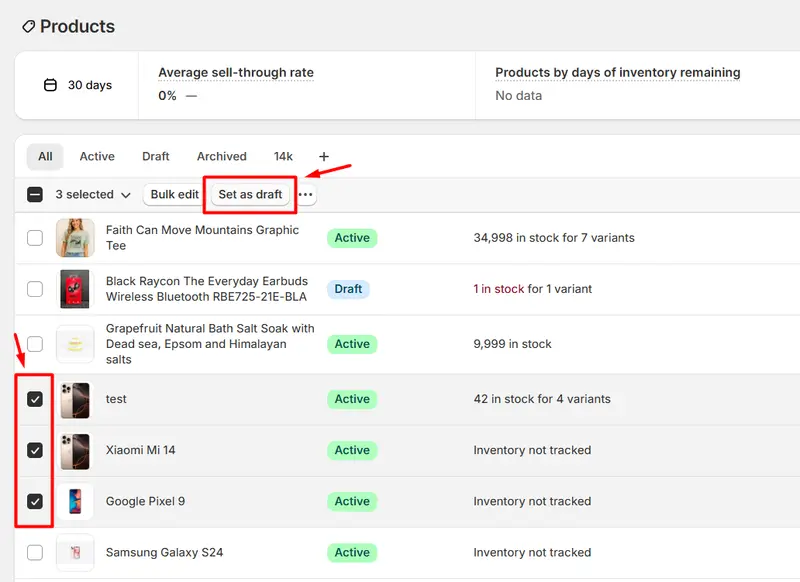
Moreover, if you want to change multiple products to Draft at once, simply select the checkboxes next to them and click Set as draft.
Here is how to archive a product to hide it:
- From your Shopify admin, go to Products.
- Click on the product you want to hide.
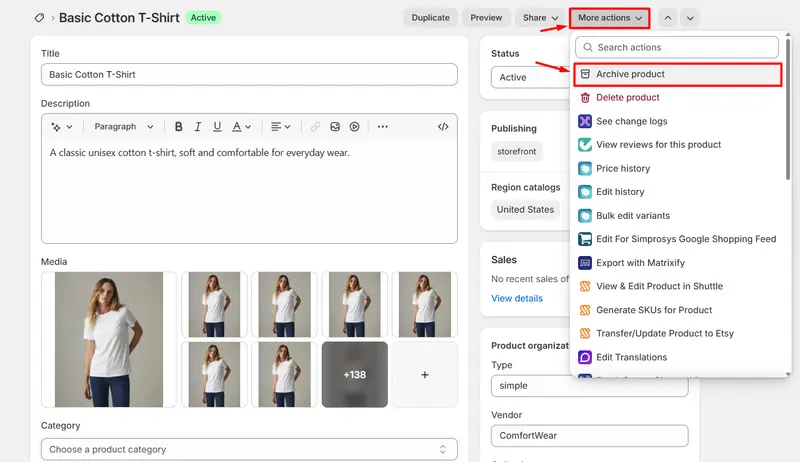
- To archive it, click More actions and select Archive product.
A Word of Caution on SEO: Archiving a product completely removes its URL from your store, resulting in a 404 “Not Found” error if customers or search engines attempt to access it. If the product page has strong SEO value or backlinks, you may want to consider other options. Setting a product to Draft also removes it but is more easily reversible.
3. Unpublish products from sales channels
This is a more nuanced approach, ideal for merchants who sell across multiple channels, such as an online store, a physical retail location (via Shopify POS), and social media platforms.
This method allows you to hide out-of-stock products from one sales channel (like your public website) while keeping them available on another (like your POS system for in-store staff).
Follow these steps to manage channel visibility:
- From your Shopify admin, navigate to Products and select the product you wish to edit.
- On the right-hand side of the screen, locate the Publishing section.
- Click on Manage. A pop-up will appear listing all your active sales channels.
- Uncheck the box next to any channel from which you want to hide the product. For example, to hide it from your website, uncheck Online Store.
- Click Done, and then Save the product.
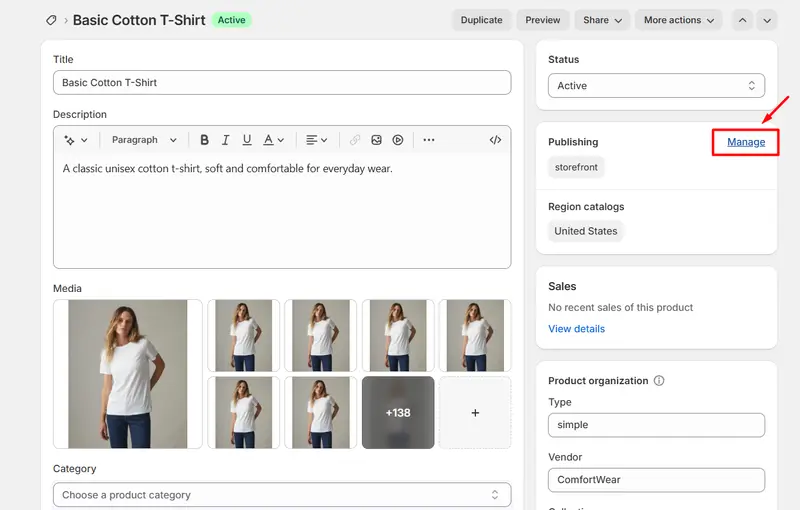
This method gives you precise control over where your products appear, which is especially useful for complex retail operations. It also keeps the product’s URL active, avoiding the SEO issues associated with archiving.
4. Use apps to manage out-of-stock products
For stores with large catalogs, multiple locations, or a need for more sophisticated automation, relying on Shopify apps can be a game-changer. These tools can automate the hiding process and handle bulk actions that would be tedious to perform manually. One of the most popular tools is BulkFlow. This app helps sellers bulk import and export products, making it easy to hide or unpublish sold-out items in just a few clicks.
5. Automate with Shopify Flow workflows
If your store is on the Shopify, Basic, Advanced, or Plus plan, you have free access to Shopify Flow, a powerful automation tool. Flow allows you to create “if this, then that” workflows to automate repetitive tasks, including hiding products.
You can build a simple workflow that automatically hides a product from your online store as soon as its inventory hits zero.
Here is a basic recipe for a Shopify Flow workflow:
- Trigger: Choose the event that starts the workflow ⇒ Select Inventory quantity changed.
- Condition: Set the rule that must be met for the action to proceed. Add a condition that checks if the Product variant inventory quantity is less than or equal to 0.
- Action: Define what should happen when the condition is met ⇒ Choose the action Hide product from online store. Alternatively, you could use an action like Add product tag (e.g., add a ‘sold-out’ tag), which you could then use in your automated collections.
Shopify Flow provides a visual builder that makes this process surprisingly intuitive. It is the perfect solution for store owners who want full automation without relying on manual collection setup.
Hide Sold Out Products in Bulk with BulkFlow Import/Export App
For power users who need to manage thousands of products at once, a dedicated import-export app is the most efficient solution. Apps like BulkFlow allow you to export your entire product catalog into a spreadsheet, make changes in bulk, and then re-import the file to apply those changes instantly.
Before beginning the process, search for BulkFlow and install it for your Shopify store. Once installed, you will be redirected to the BulkFlow dashboard!
Here is how to hide sold-out products on Shopify in bulk with BulkFlow:
- Step 1: Prepare your product file
- Step 2: Create a feed for product updating
- Step 3: Add your hide sold-out products file
- Step 4: Map your product field and run the product update
Step 1: Prepare your product file
If you already have your product file, ensure that it contains the Status column. If you haven’t yet, export your products or use the BulkFlow template to add your product data. Here, be sure that your file includes key columns like Handle, Variant SKU, and Status.
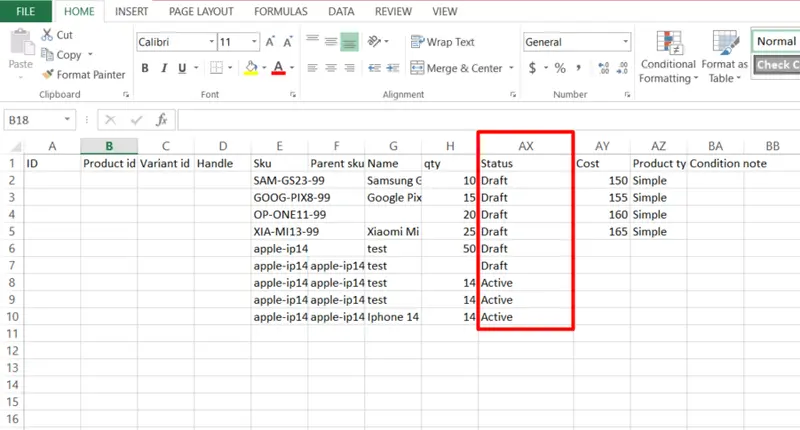
For all products with zero inventory, change the value in the Status column from Active to Archived or Draft. Then, save your modified product file.
Step 2: Create a feed for product updating
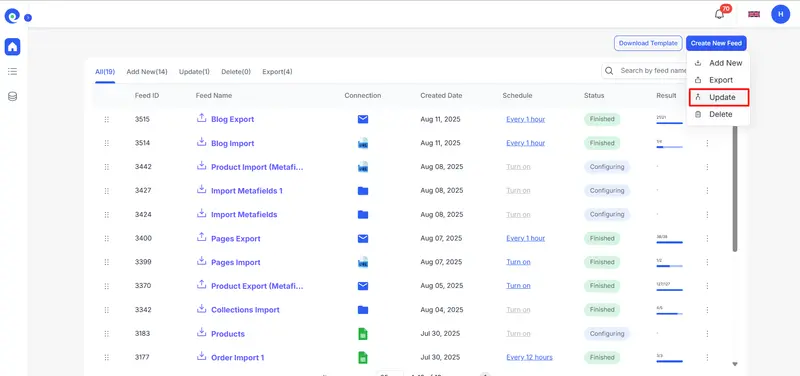
From the BulkFlow home screen, click Create New Feed, then select Update to begin the import process.
Give your feed a clear name, then choose Products as the data entity to update. (BulkFlow can also handle Customers, Orders, Blog Posts, Pages, and Menus if needed.)
Next, choose how you want to import your products:
- Use BulkFlow’s template: Ideal if starting from scratch. Download the ready-made Shopify product template (CSV format), fill in your product details, and skip field mapping later. You can edit the file in Excel or Google Sheets.
- Use your own file: If you already have a prepared file, simply upload it in its existing format.
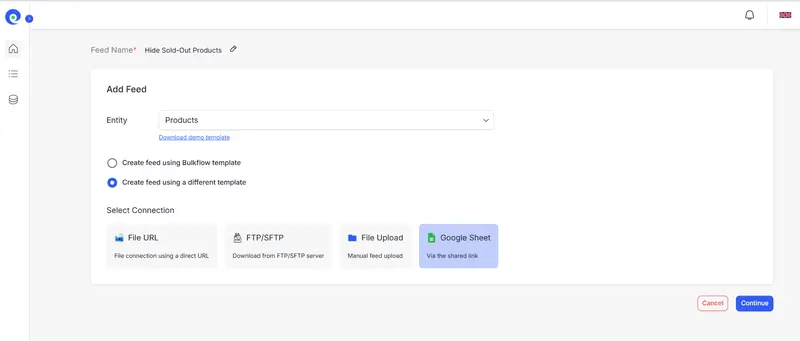
Finally, select a connection method – File URL, FTP/SFTP, File Upload, or Google Sheet – and click Continue to proceed to uploading your sold-out product file.
Step 3: Add your “hide sold out products” file
At this stage, BulkFlow will show the connection settings according to the method you chose. Upload the prepared file or add the link, making sure it clearly identifies which products are sold out and should be hidden from your Shopify store.
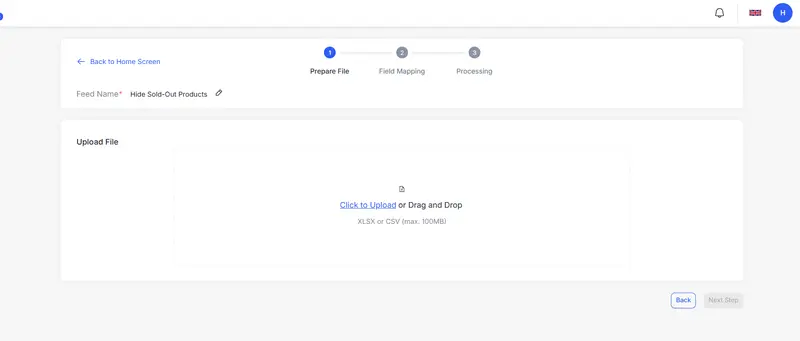
Once the upload is complete, click Continue to move forward. BulkFlow will process your file, and you’ll be ready to map your product fields in the next step.
Step 4: Map your product field and run the product update
If you used the BulkFlow template in the previous step, your fields will already be pre-mapped – no need to worry about mismatches, as everything is set up for you.
If you’re using your own file, BulkFlow will automatically scan your file headers and map them to the correct Shopify fields. For any unmapped fields, you can manually adjust them. Be sure to map the column containing your product status to the Status field in Shopify so sold-out items are hidden correctly.
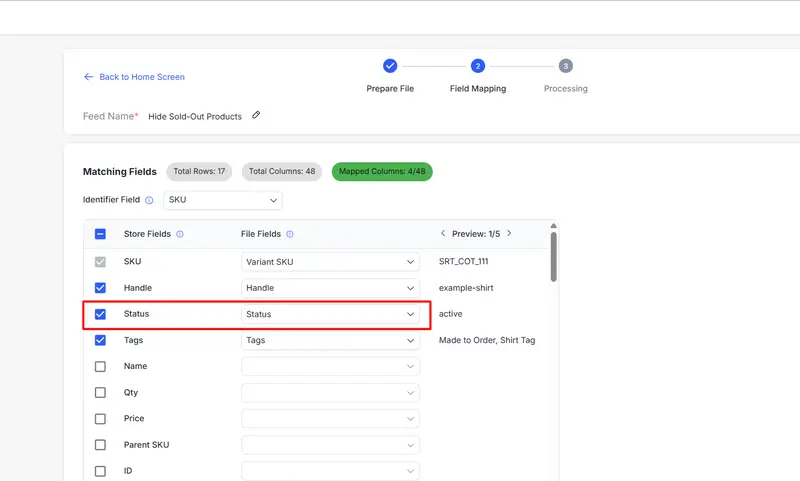
Once all mappings are set, click Next Step to run the update. After a short processing time, your products will be updated, and any sold-out items whose status you changed will be hidden in your Shopify store.
Moreover, if you’re using a shared connection like Google Sheets, File URL, or FTP, you can also enable automation and schedule your feed to run at your preferred times, saving you even more manual work.
This method is incredibly powerful for large-scale inventory updates, migrations, or comprehensive store cleanups.
Choosing the Right Method to Hide Sold-Out Products on Your Shopify Store
With several options available, how do you decide which one is right for you? The best choice depends on your store’s size, your technical comfort level, and your specific goals.
This table breaks down each method to help you make an informed decision.
| Method | Best For | Pros | Cons |
| Automated Collections | Nearly all stores for managing day-to-day stock. | – Fully automated after setup<br>- Reversible (products reappear when restocked)<br>- SEO-friendly (URLs remain active) | – Requires initial setup for all collections<br>- Can’t hide a single variant, only the entire product if all variants are out of stock |
| Manual Archive/Draft | Permanently discontinued products you won’t restock. | – Simple, no-fuss way to remove products<br>- Keeps product data for reporting (Archive) | – Manual process, not scalable<br>- Archiving creates 404 errors, which can hurt SEO<br>- Not suitable for temporarily out-of-stock items |
| Unpublishing | Multi-channel retailers needing channel-specific control. | – Precise control over product visibility<br>- SEO-friendly (URL remains active)<br>- Good for complex inventory scenarios | – Manual, product-by-product process<br>- Can become confusing to manage without a clear system |
| Shopify Flow | Automating the process on Shopify, Basic, or higher plans. | – True “set it and forget it” automation<br>- Highly customizable workflows<br>- Can automate other tasks simultaneously | – Requires a qualifying Shopify plan<br>- Slight learning curve for the workflow builder |
| Import/Export App | Large stores needing to perform bulk updates. | – The fastest way to update thousands of products<br>- Allows for complex, data-driven changes | – Relies on a third-party app (may have a cost)<br>- Risk of data errors if the spreadsheet is not handled carefully |
By carefully considering these options, you can implement a robust system to hide your Shopify sold out products, creating a better experience for your customers and a more efficient workflow for you.
Shopify Hide Sold Out Products – FAQs
How to hide sold out products in Shopify?
In Shopify, you can hide sold-out products by enabling inventory tracking and unpublishing out-of-stock items manually, using automated collections, or with an app like BulkFlow.
How do you archive sold-out products on Shopify?
In your Shopify admin, open the product, click More actions, and select Archive product. Archived products are removed from your active catalog but remain in your store records.
How do I remove the sold-out badge on Shopify?
Go to Online Store > Themes > Customize, then edit your product page settings. If your theme doesn’t support it, you’ll need to edit the theme code or use a customization app.
How to make a product not available but not appear sold out on Shopify?
Uncheck the sales channels where the product is published (in the product settings). This hides it from customers without showing it as sold out.
Conclusion
Learning how to Shopify hide sold out products is essential for keeping your storefront clean and user-friendly. By hiding or archiving unavailable items, you create a smoother shopping experience and keep customers focused on products they can actually buy. Set up these options today to maintain a polished, conversion-ready store.