Managing pricing strategies is a critical aspect of running an e-commerce business. Whether you are launching a seasonal sale, adjusting for inflation, or reacting to supplier cost changes, updating product prices one by one is inefficient and prone to human error.
To maintain operational efficiency, store owners must learn how to bulk edit prices on Shopify. This guide provides a comprehensive technical walkthrough of the available methods, helping you choose the right approach for your specific catalog size and requirements.
We will cover native tools, spreadsheet operations, and automated solutions to ensure you can execute a seamless Shopify bulk price change.
All ways to bulk edit prices on Shopify (Quick comparison)
Before diving into the technical steps, it is crucial to select the method that aligns with your volume and complexity needs. Choosing the wrong tool can lead to browser crashes or data corruption.
Here is a quick comparison to help you decide the best way to execute a Shopify bulk edit prices task:
| Method | Best For | Difficulty | Rollback Capability |
| Shopify Admin (Bulk Editor) | Small to medium catalogs (<50 items). Simple, manual adjustments. | Easy | No (Manual revert required) |
| CSV Import/Export | Large catalogs (1000+ items). Applying Excel formulas. | Hard (Strict formatting) | No (Requires backup file) |
| Third-Party Apps | Recurring updates, percentage-based rules, and scheduled changes. | Medium | Yes (Most apps have “Undo”) |
Method 1: Bulk edit prices using Shopify bulk editor in admin
The native Bulk Editor is a spreadsheet-like tool built directly into the Shopify admin. It allows you to modify data without leaving your browser.
Use Case: This method is ideal for “spot checks” or quick updates on a specific collection. It works best when you need to bulk edit prices Shopify for fewer than 100 products at a time.
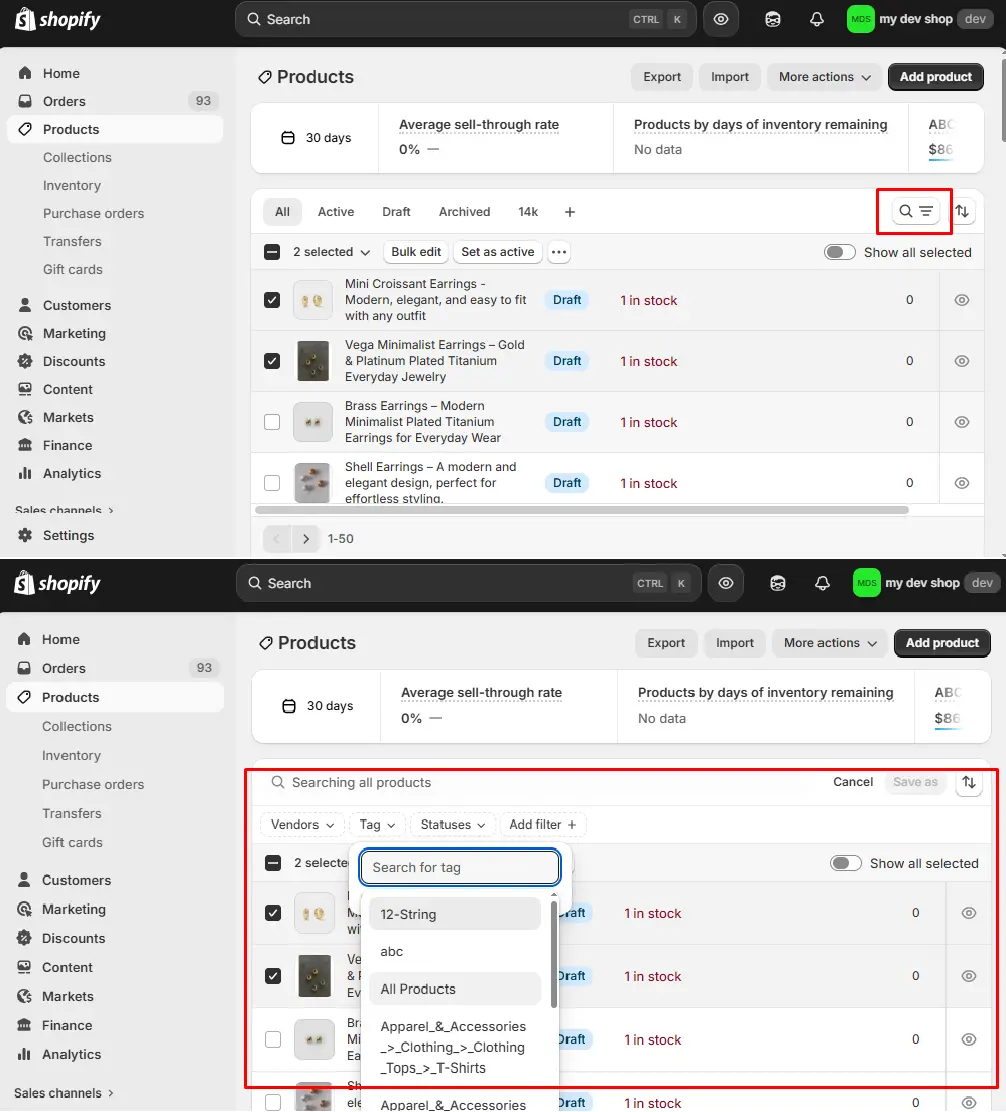
Step 1: Filter and select products
Navigate to Products in your Shopify admin. Use the search bar or filters (e.g., by Collection or Tag) to isolate the products you want to update. Click the checkbox to select the specific items.
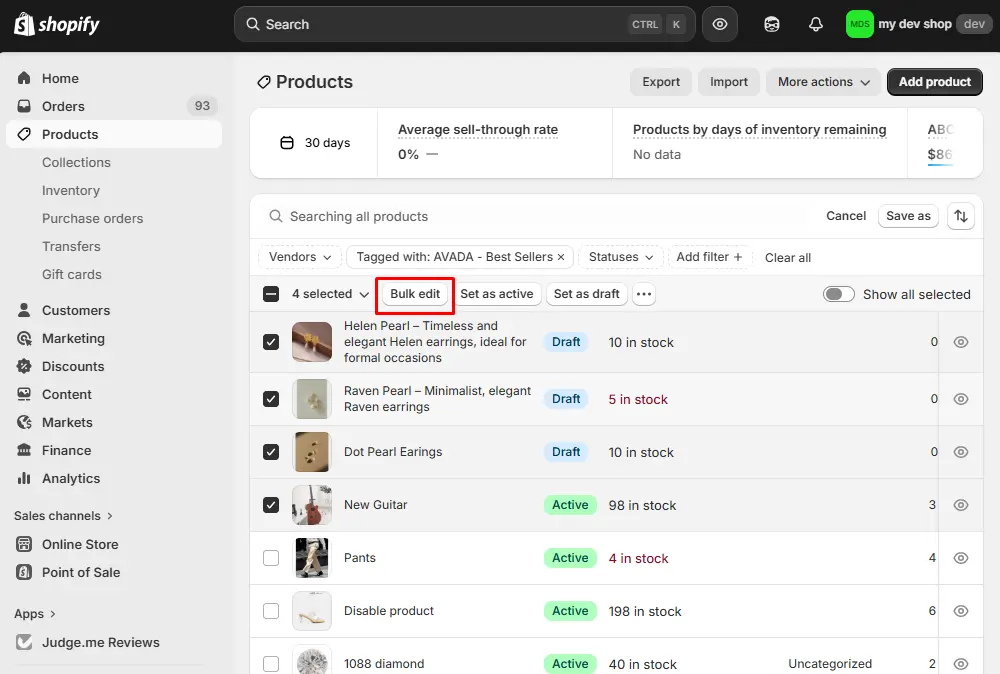
Step 2: Access the bulk editor
Once items are selected, a menu will appear at the bottom of the screen. Click Bulk edit.
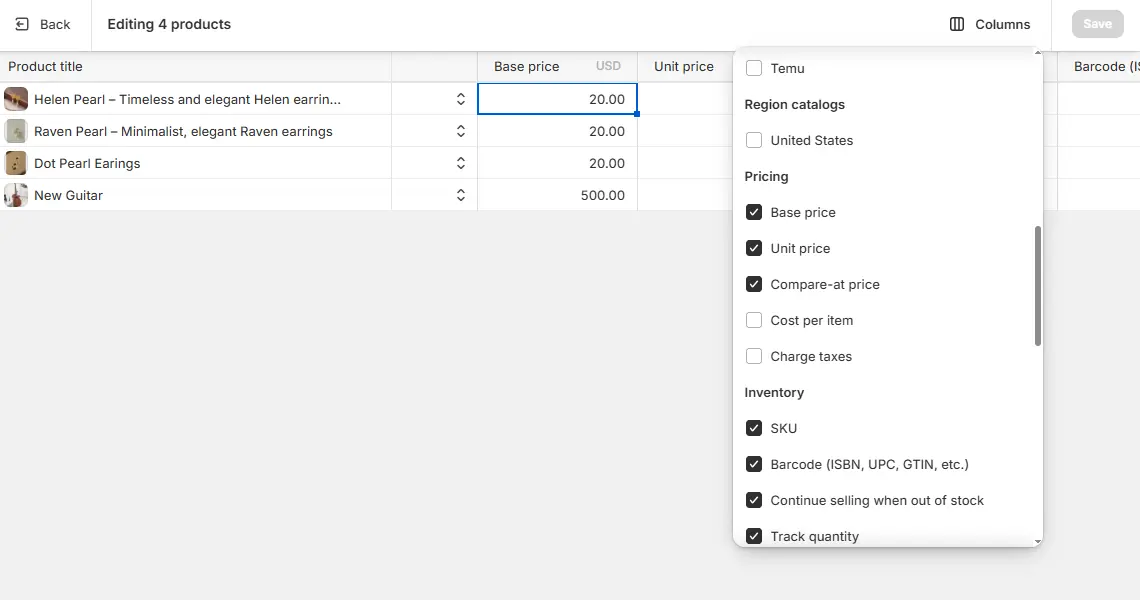
Step 3: Configure columns & input new prices
You will be redirected to a grid interface. If the “Price” or “Compare-at price” columns are not visible, click the Columns button in the top right corner and check the pricing fields to add them to your view.
Then, click on a cell to type the new price. Click Save in the top right corner. Shopify will process the updates in the queue.
Tip: To apply the same price to multiple rows, click the first cell, hold Shift, click the last cell, and type the value. This updates the entire selection instantly.
Limitations:
- No Logic: You cannot increase prices by a percentage (e.g., “+10%”); you must calculate and type the final number manually.
- Performance: Attempting to load hundreds of variants can cause the browser to freeze or crash.
Method 2: Bulk edit prices using CSV Import & Export
For merchants managing thousands of SKUs, the browser-based editor is insufficient. The CSV (Comma Separated Values) method allows you to use spreadsheet software (Excel, Google Sheets) to perform a massive Shopify bulk edit price operation.
Use Case: This is the standard procedure for large-scale updates or when you need to use formulas (e.g., calculating margins) before applying the final price.
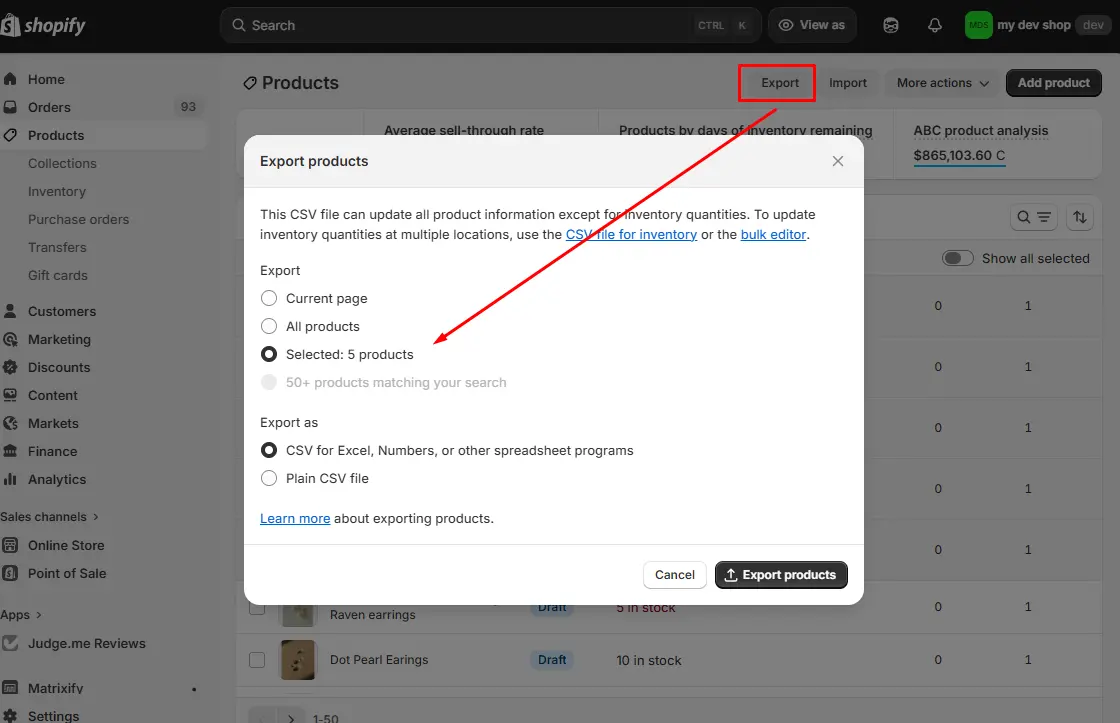
Step 1: Export Data
Go to Products > Export. Select “All products” or your current search. Choose “CSV for Excel, Numbers, or other spreadsheet programs” and click Export products.
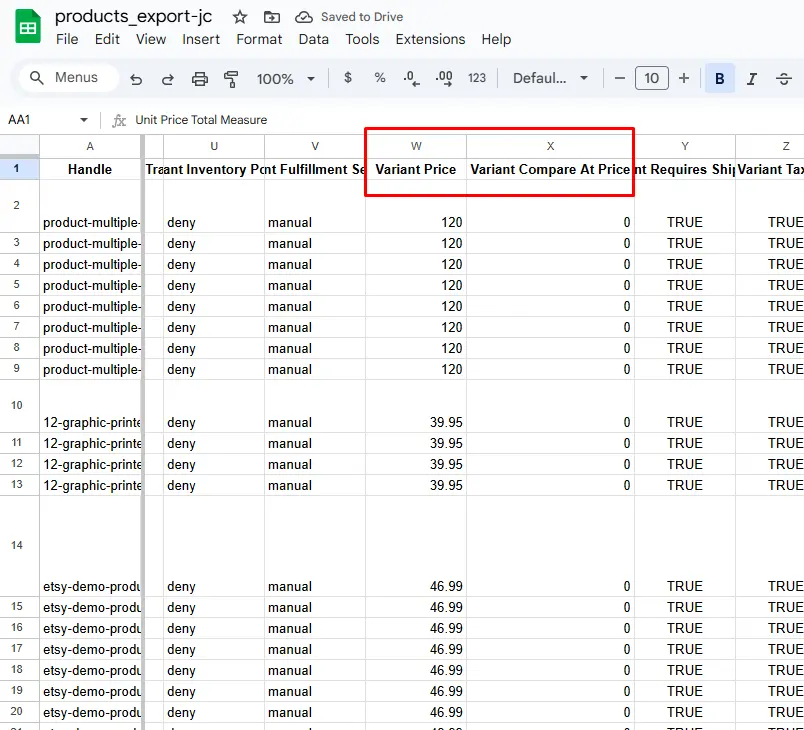
Step 2: Edit in Spreadsheet
Open the file in Excel or Google Sheets. Locate the Variant Price and Variant Compare At Price columns.
Important note: Do not modify the Handle column. This is the unique key Shopify uses to match the data back to the existing product.
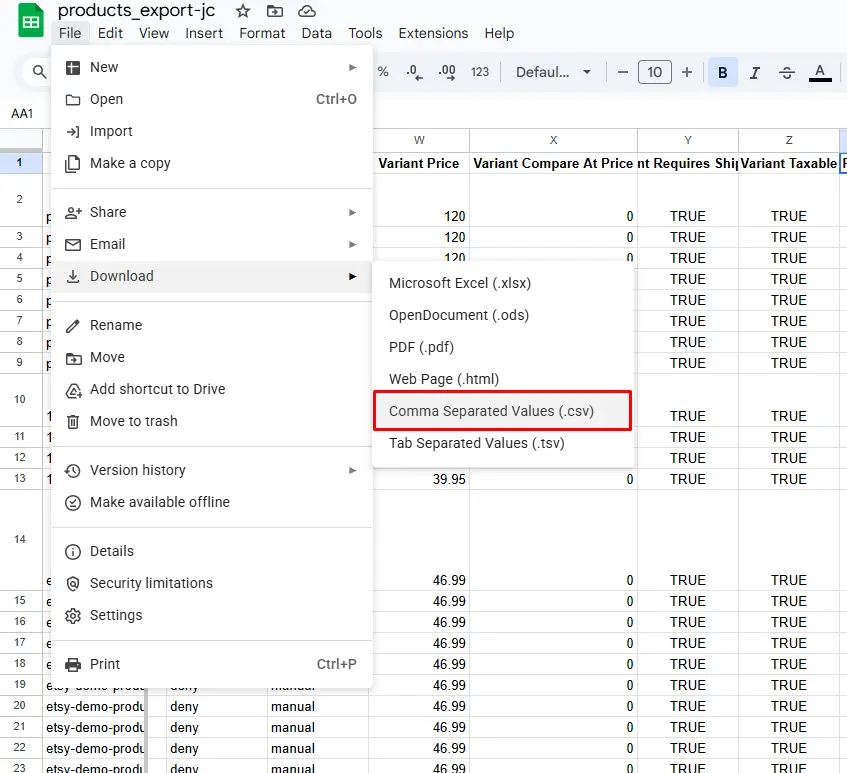
Step 3: Clean and Save
Ensure you remove any formula formatting (Paste as Values) before saving. Save the file as .csv.
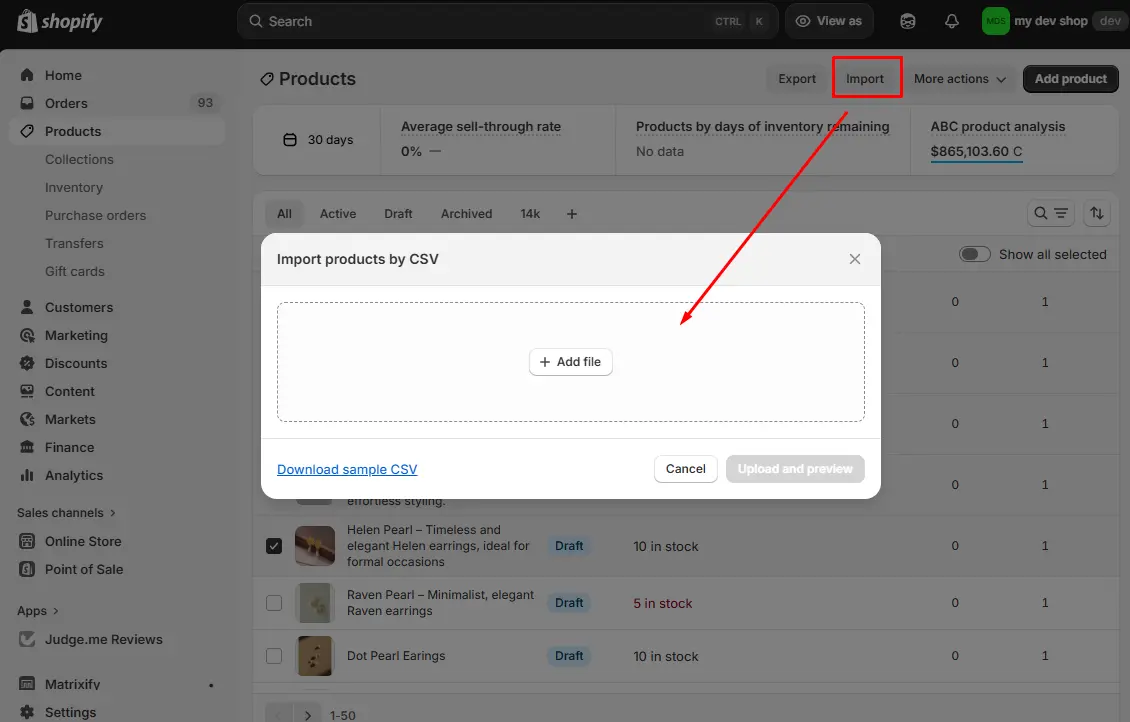
Step 4: Import the CSV file with the edited prices
Return to Products > Import. Upload your modified file.
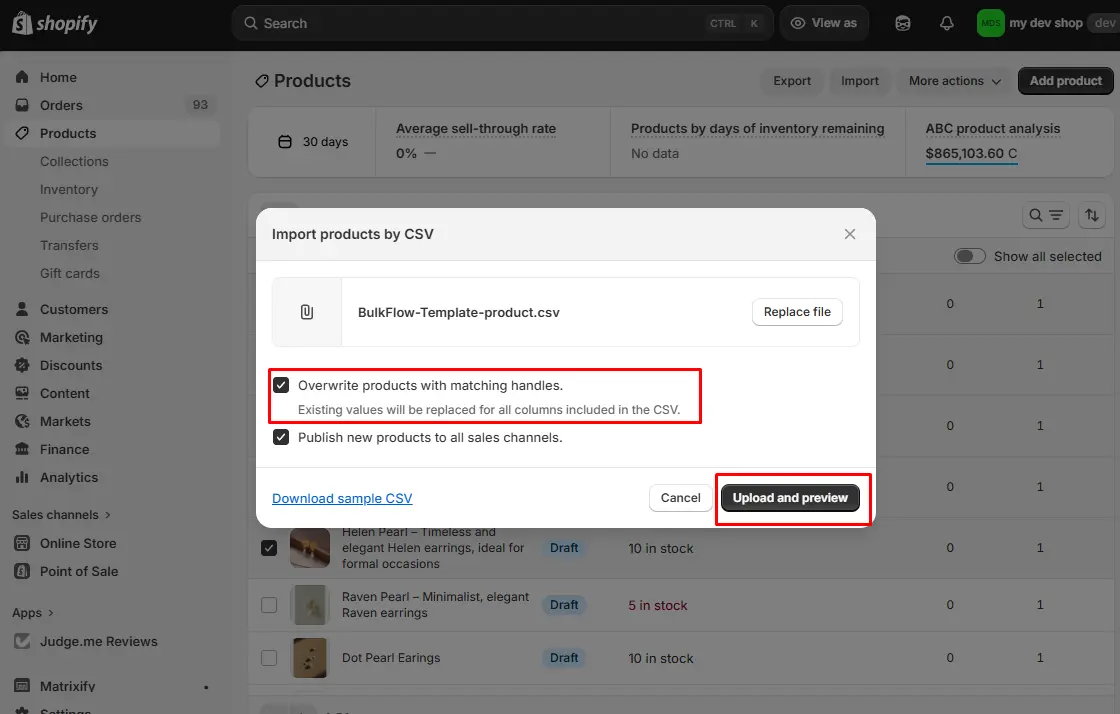
Step 5: Overwrite and preview
Check the box labeled “Overwrite any current products that have the same handle.” If this is skipped, the prices will not update. Review the preview summary and click Import products.
Limitations:
- High Risk: A misplaced comma or wrong column header can corrupt product data.
- Strict Formatting: Shopify is sensitive to file encoding (UTF-8) and structure.
Bulk edit prices using an app (BulkFlow)
BulkFlow makes it easy to update product prices in bulk on Shopify – fast, safe, and without needing technical skills. Before you start, prepare a product file that includes a reliable identifier (Handle or Product ID) and the price column(s) you want to update.
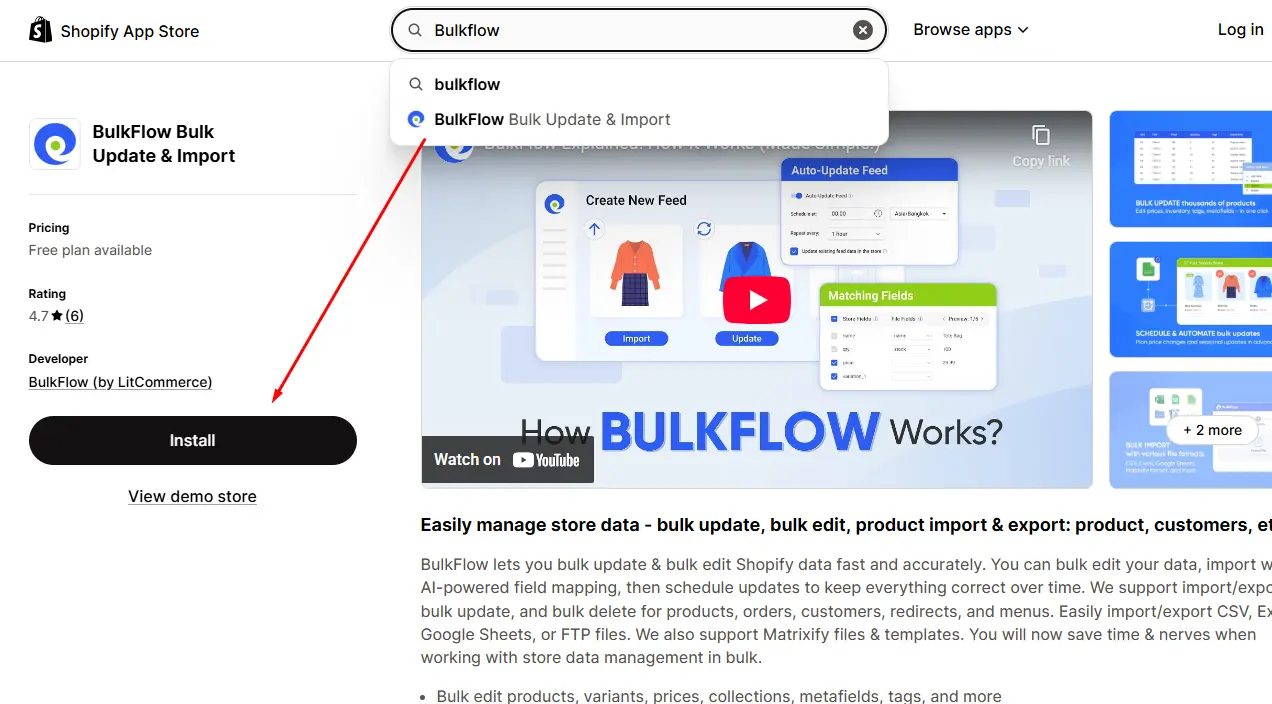
Step 1: Connect BulkFlow to Shopify and prepare your price file
Create a BulkFlow account and connect it to your Shopify store . Or install the BulkFlow app from the Shopify App Store).
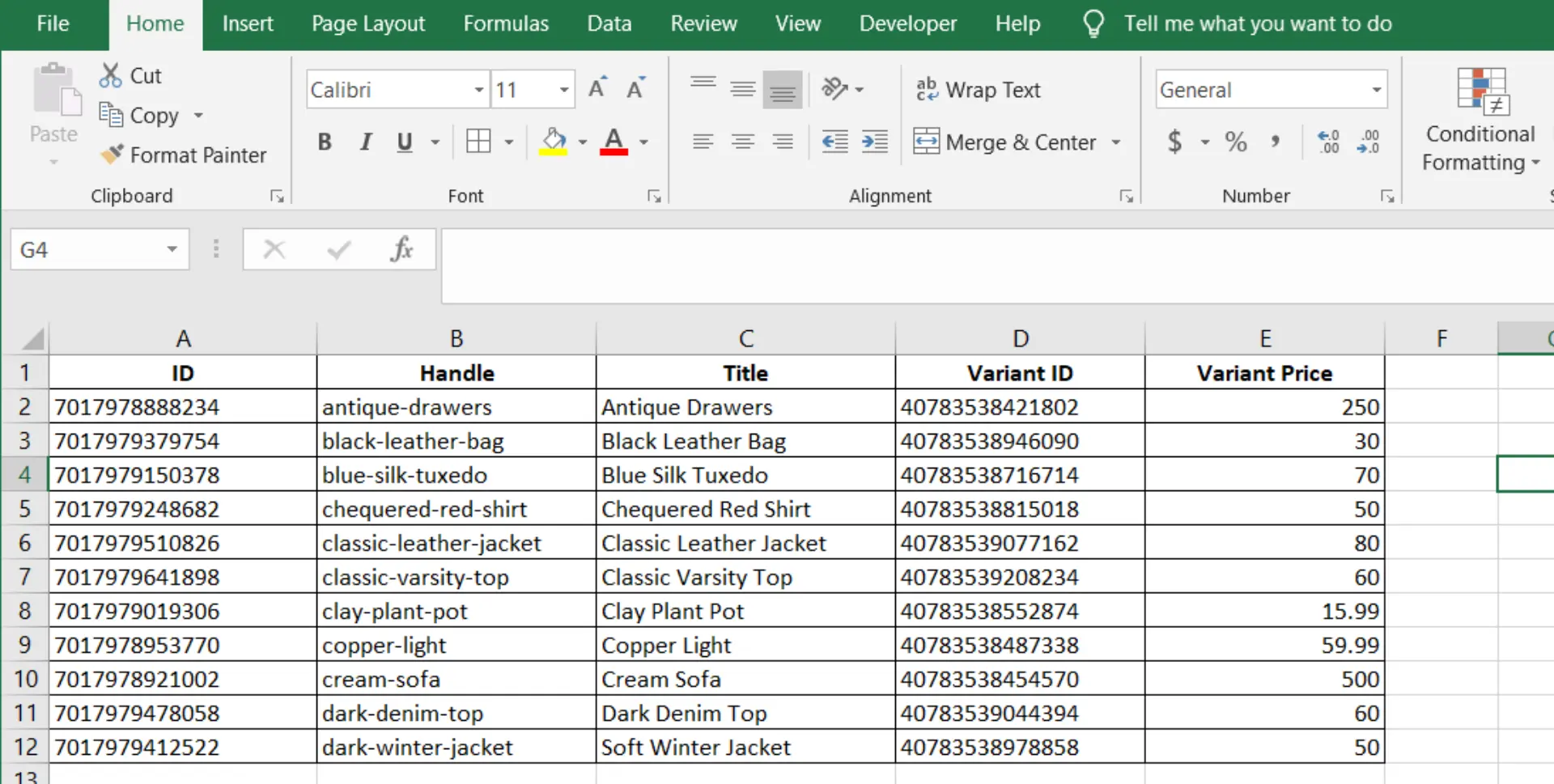
Step 2: Prepare data that need to be modified
Next, get your update file ready. If you already have one, double-check it includes Handle/ID plus the current and/or new price so Shopify can match updates to the correct products.
If you don’t have a file yet, export product data from Shopify or BulkFlow. Exporting from BulkFlow is often easier when you only want to edit prices, because you can export just the fields you need. You can also use the BulkFlow template to reduce (or skip) field mapping later.
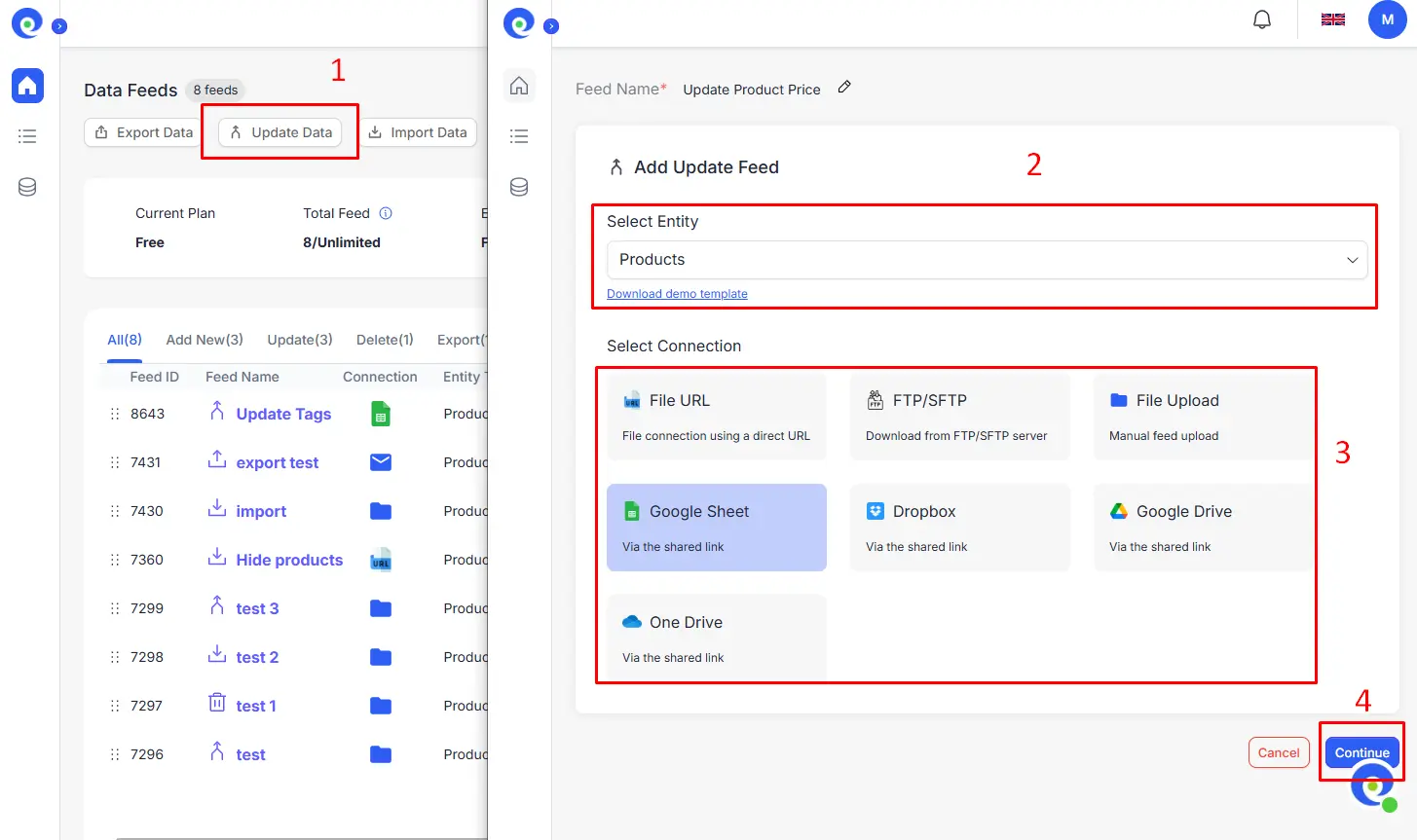
Step 3: Create and setup a new price update feed in BulkFlow
In the BulkFlow dashboard, select Update Data >> Name your feed, select Products as the entity, then choose how you want to connect your file: File Upload, File URL, FTP/SFTP, or Google Sheet. Click Continue.
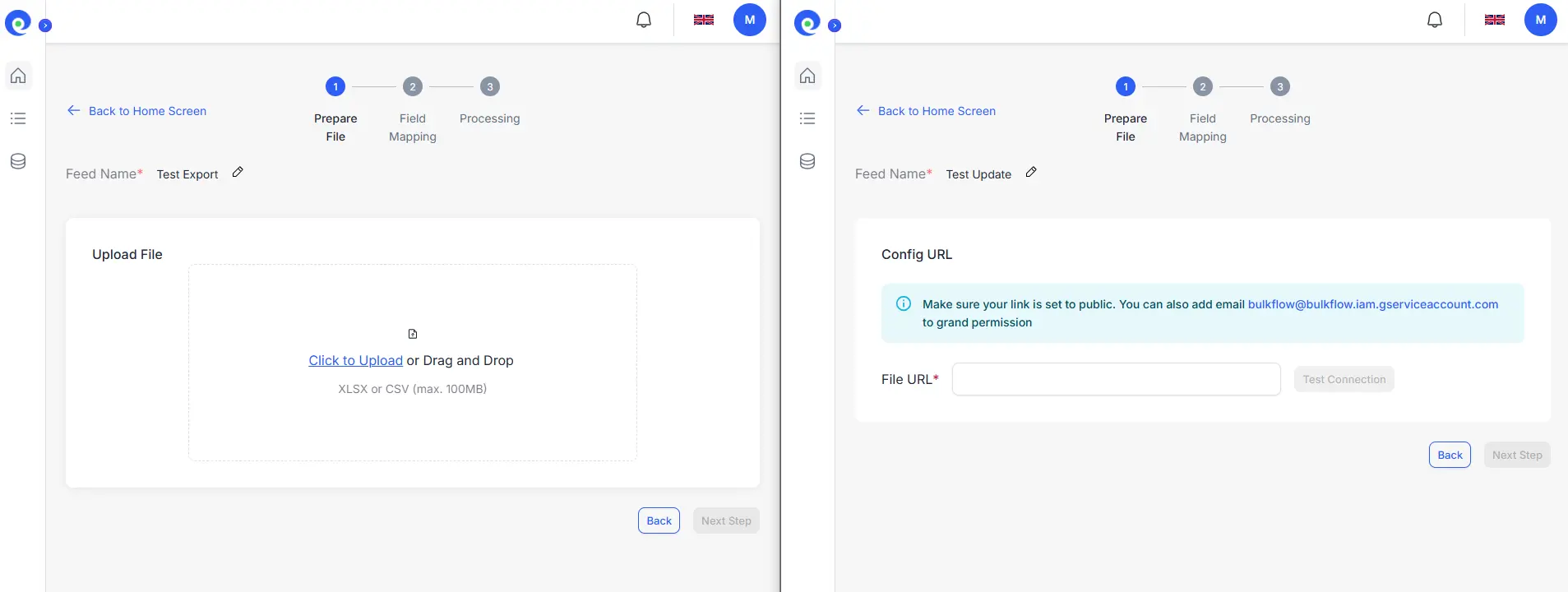
Step 4: Set up the file connection
BulkFlow will ask for connection details based on the method you selected.
- If you choose File Upload, upload the file from your computer.
- If you choose the URL/FTP/Google Sheet, paste the link or enter the connection details, then test the connection so BulkFlow can access your data (and support automated updates later).
When you’re done, click Next Step.
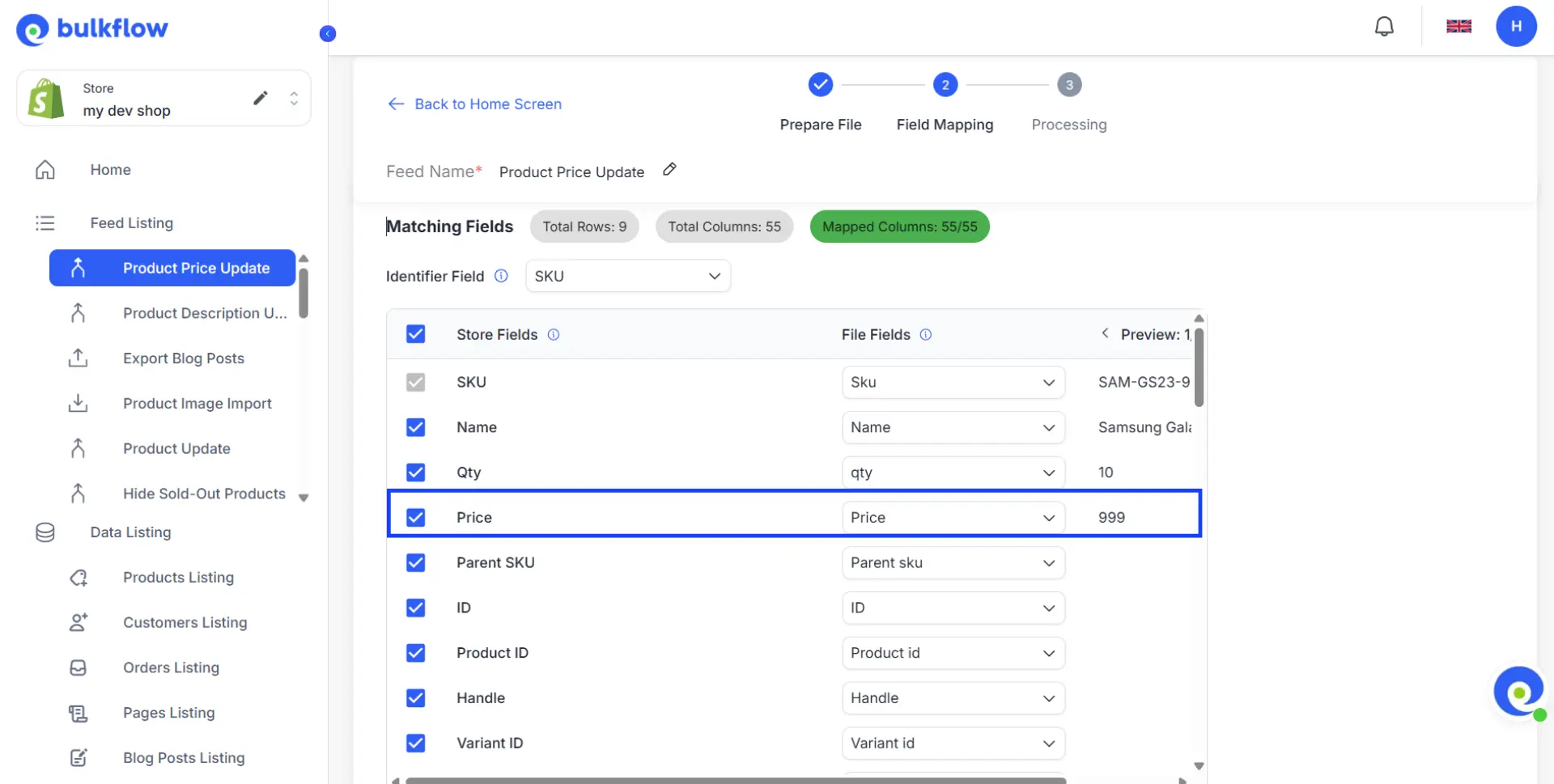
Step 5: Map price fields and launch the update
If you’re using the BulkFlow template, key columns like price are usually pre-mapped. For custom files, BulkFlow will auto-detect and match columns, but you should still review and adjust mappings if needed to avoid errors.
Once everything looks correct, click Next Step to run the update. BulkFlow will push the new prices to your Shopify store right away.
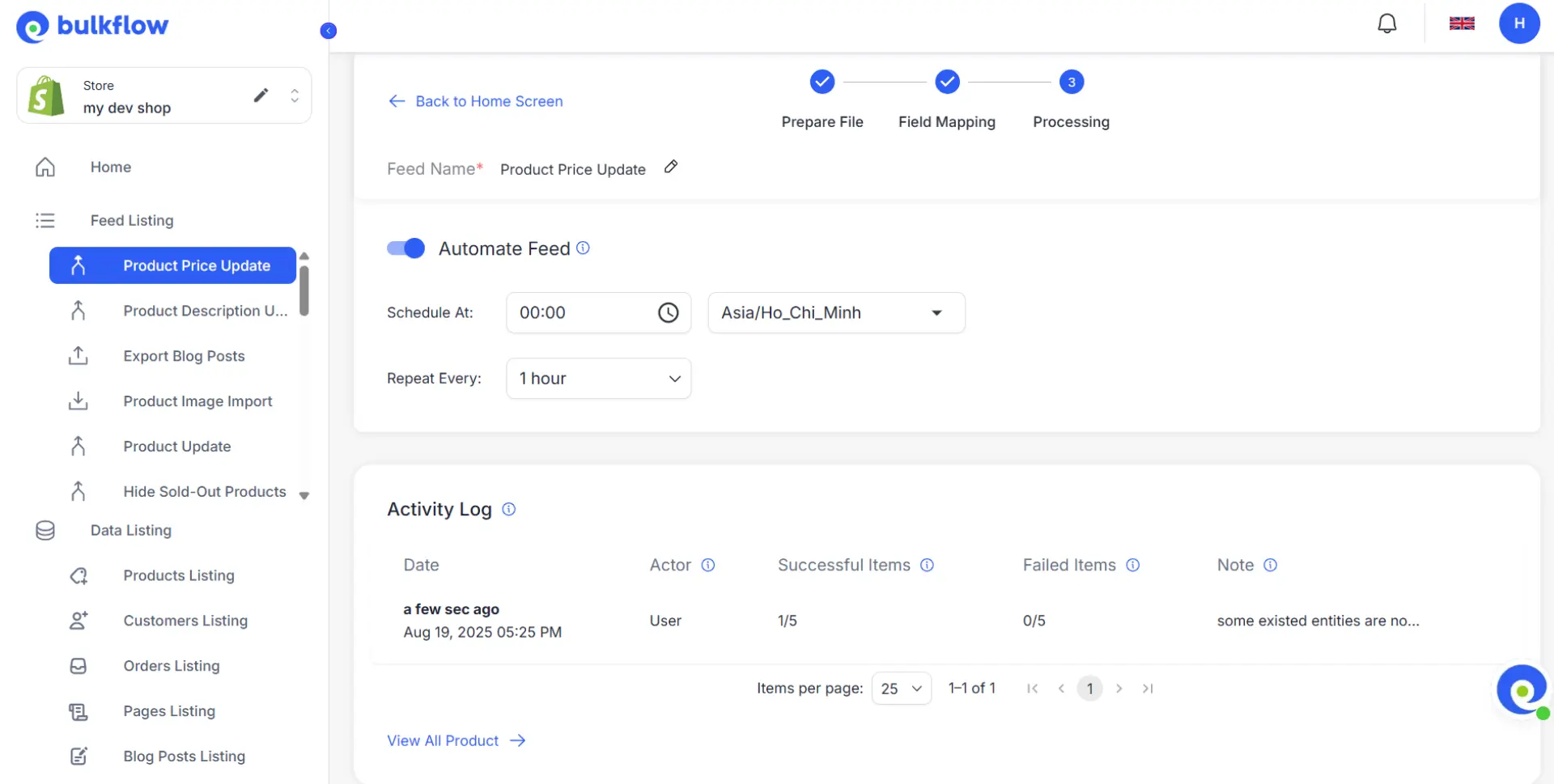
Step 6: Review results and manage future updates
After the update finishes, check the Activity Log to confirm which products were updated and whether any errors occurred.
If you plan to update prices regularly, use Scheduling to automate future updates. You can also click View All Products to open the product listing page, then open each product to verify the new price under Product Info.
Why choose BulkFlow for Shopify Bulk Edit Price
BulkFlow helps store owners simplify, speed up, and eliminate errors in Shopify bulk price change and product data management on Shopify. Its versatile features empower merchants to efficiently handle large inventories without hassle.
- Flexible data inputs: BulkFlow accepts various file formats and connection methods such as CSV, Excel, Google Sheets, and FTP/SFTP. This flexibility lets you work in the data format that best fits your workflow.
- Smart field mapping: The app automatically matches your data columns to Shopify’s product fields, drastically reducing setup time and preventing costly mistakes during bulk edit prices Shopify.
- Advance scheduling: BulkFlow lets you schedule recurring bulk updates, enabling seamless, hands-off price adjustments and keeping your store accurate and competitive without manual input.
- Comprehensive management: Beyond price edits, BulkFlow supports bulk importing, exporting, and editing inventory, description, tags, and other product information. It’s a versatile platform tailored for complex eCommerce catalogs, ensuring clean and up-to-date product data.
By leveraging these capabilities, BulkFlow enables Shopify store owners and agencies to streamline data management, minimize manual labor, reduce errors, and make faster, smarter business decisions that fuel growth and profitability.
Explore some more of BulkFlow’s features here:
Common mistakes when bulk editing prices on Shopify
Pricing data is sensitive; a small error can result in significant revenue loss or customer mistrust. When you execute a bulk edit price Shopify task, be aware of these common pitfalls.
1. Data errors (Formatting & currency)
- The Decimal Issue: Entering “1000” instead of “10.00” can result in a product being listed for $1,000 instead of $10. Always double-check decimal placement in CSV files.
- Currency Confusion: If your store operates in multiple currencies, ensure you are editing the base price. CSV imports typically only affect the store’s default currency.
2. Process failures (Skipping Backups)
The most dangerous mistake is modifying data without a safety net. Before you learn how to bulk edit prices on Shopify via CSV, you must export a “Master Backup” file. If an import goes wrong, you can simply re-import the original file to restore the previous state.
3. Operational errors (Variant Mismatches)
When products have multiple variants (e.g., Size/Color), they often have different prices. A common mistake in the Bulk Editor is selecting the main product row but failing to expand the variants, leading to incomplete updates where only the first variant is changed.
How to Bulk Edit Prices on Shopify – FAQs
How can I bulk edit prices by percentage or apply advanced pricing rules in Shopify?
Native Shopify tools (Bulk Editor and CSV) do not support logic-based changes like “Increase all prices by 10%” or “Decrease prices ending in .99”. To perform these advanced scenarios, you have two options: use Excel formulas within a CSV export (which requires manual calculation) or use a third-party app designed for rule-based automation.
How do I schedule price changes for future sales?
Shopify does not natively support scheduling price changes in advance. However, third-party apps like BulkFlow allow you to schedule feeds that automatically apply price updates on a chosen schedule. For example: set the schedule at 6 p.m. Asian Time Zone, repeat every 3 hours.
Is there a way to undo a bulk price change?
Shopify does not have a native “Undo” button for bulk actions. If you make a mistake using the Bulk Editor or CSV import, you must manually revert the changes or import a backup CSV file. This is why having a recent backup is essential before starting any Shopify bulk price change.
Can I bulk edit ‘Compare-at’ prices to create a sale?
Yes. Both the Admin Bulk Editor and the CSV method allow you to edit the Variant Compare At Price column. To show a product as “On Sale,” ensure the Variant Price (selling price) is lower than the Variant Compare At Price (original price).
Wrapping Up
Mastering how to bulk edit prices on Shopify is a game-changer for any store owner looking to stay agile and competitive. Whether you choose Shopify’s native tools or leverage the advanced capabilities of apps like BulkFlow, the ability to update prices efficiently empowers you to respond swiftly to market demands and promotional opportunities.
By integrating these strategies into your workflow, you not only save valuable time but also maintain precise control over your store’s pricing strategy, setting the stage for sustainable growth and success.