To manage a growing inventory efficiently, you must know how to Shopify bulk edit tags without wasting hours on manual entry. Whether you need to organize collections or clean up inconsistent data, this guide provides the fastest methods to bulk add tags Shopify, remove old labels, and rename existing ones using native tools, CSVs, and automation apps.
Choosing the right method for your tagging needs
Not all tagging tasks are the same. While adding and removing tags are standard features, “renaming” (updating) is not a native button in Shopify. Choosing the right tool depends entirely on your specific goal and catalog size.
Refer to the table below to identify the best method for your situation:
| If your goal is… | Best Method | Why? |
| Add tags to selected products | Bulk Actions | Fastest native way for simple additions. |
| Remove tags or visually review data | Using Bulk Editor | Spreadsheet view helps spot errors easily. |
| Rename tags or update 100+ items | Import / Export the CSV file | Allows “Find and Replace” for bulk updates. |
| Automate tagging based on rules | Using third-party apps | Handles complex logic (e.g., tag by price). |
Method 1: Using “Bulk Actions”
Best for adding tags quickly
This is the quickest way to Shopify bulk add/remove tags to a specific group of products, customers, or orders directly from the admin panel.

Step 1: Filter and Select
Go to Products and filter for the items you want to tag. Click the checkbox to select them. Note: If you have more than 50 items, click the link “Select all 50+ products in your store” to ensure the entire list is included.

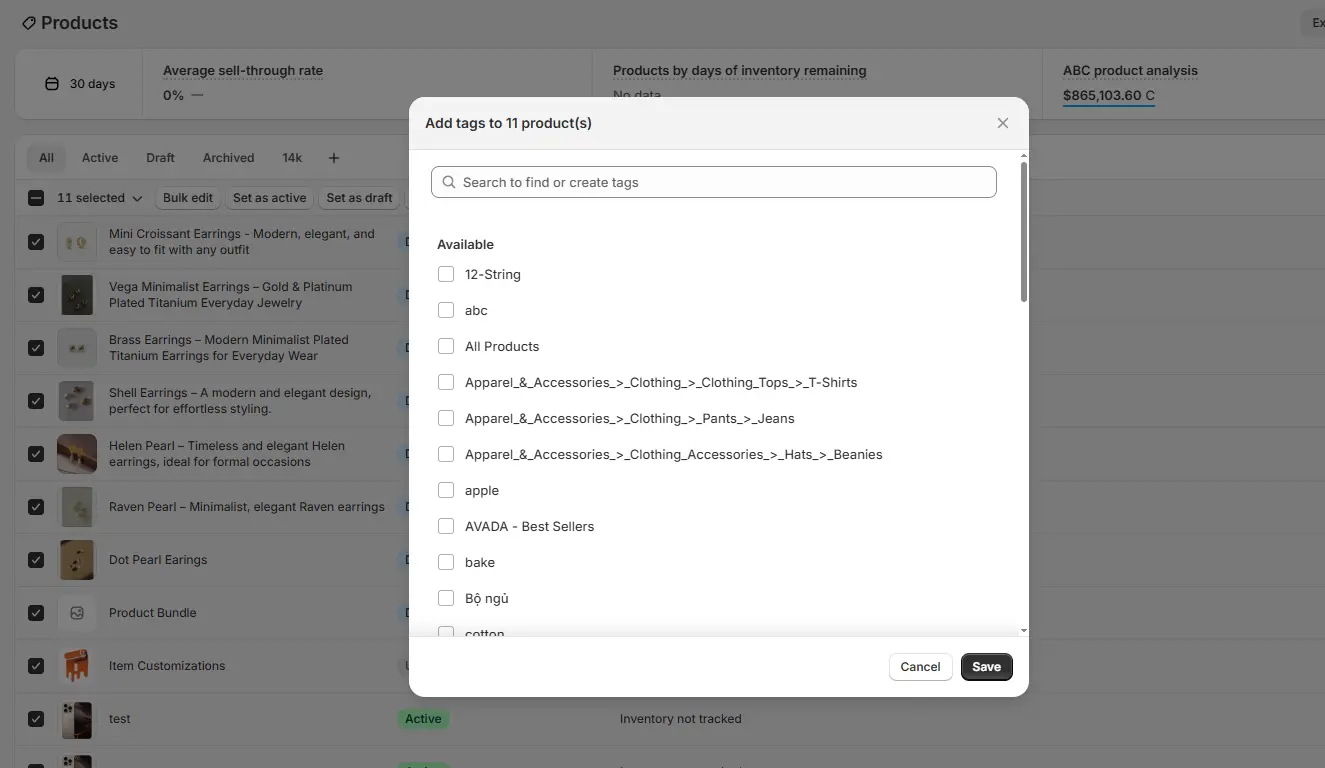
Click the More actions button (three dots) that appears at the bottom of the screen. Select Add tags / Remove Tags from the dropdown menu.
Step 3: Apply and save
Type your new tag(s) in the text box. You can enter multiple labels by pressing enter after each one. Click Save to apply them immediately.
Method 2: Using the “Bulk Editor”
Best for: Delete and review multiple cards at once.
The Bulk Editor feature offers a spreadsheet-style interface, making it the ideal Shopify bulk tag editor for removing specific tags or spotting capitalization errors.

Step 1: Open Bulk Editor
Select the products you want to modify on the Products page. Click the Bulk edit button in the floating menu bar.
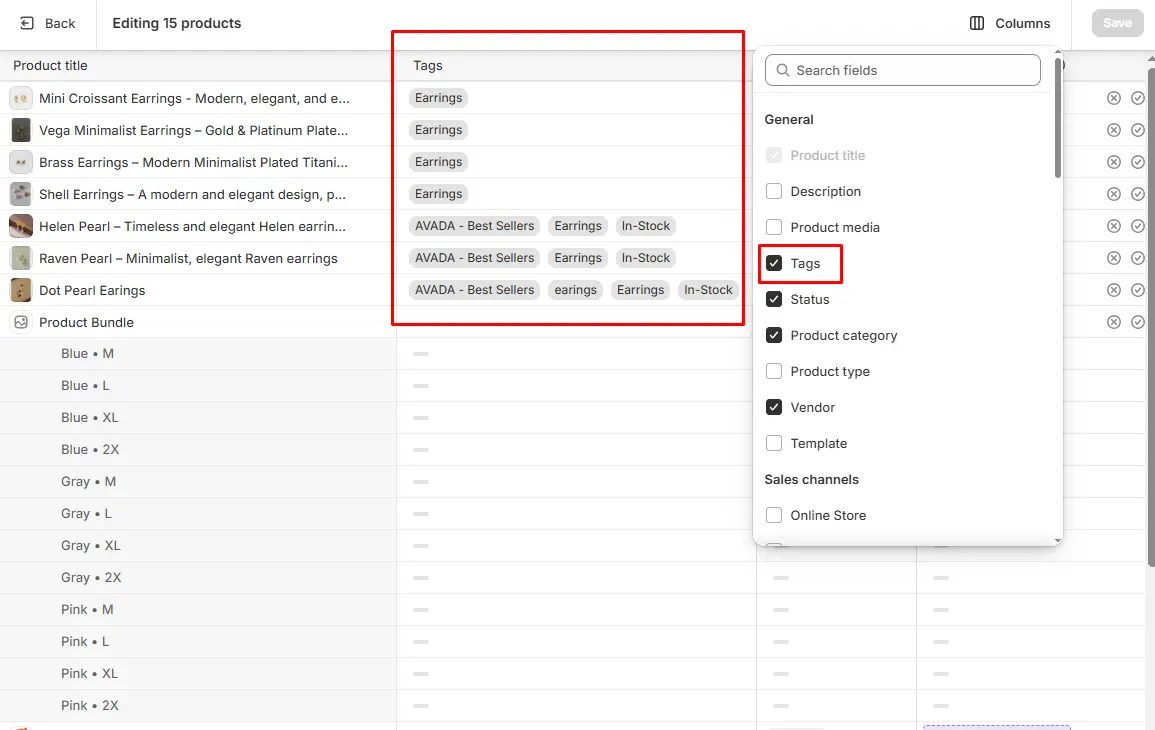
If the “Tags” column is not visible, click Columns in the top right corner and select Tags.

Step 3: Edit visually
Click on any cell to add more tags. And if you want to bulk remove tags, simply click the “x” next to the tag name. Click Save in the top right corner to finalize your updates.
Tip: To edit multiple rows at once, click the first cell, hold Shift, and click the last cell to select the range.
Method 3: Using CSV import / export
Best for: Deleting old tags in bulk and updating with a massive number of new ones.
For renaming tags (e.g., fixing typos) or managing thousands of items, the CSV method is the industry standard to bulk update Shopify product tags.
Step 1: Export data
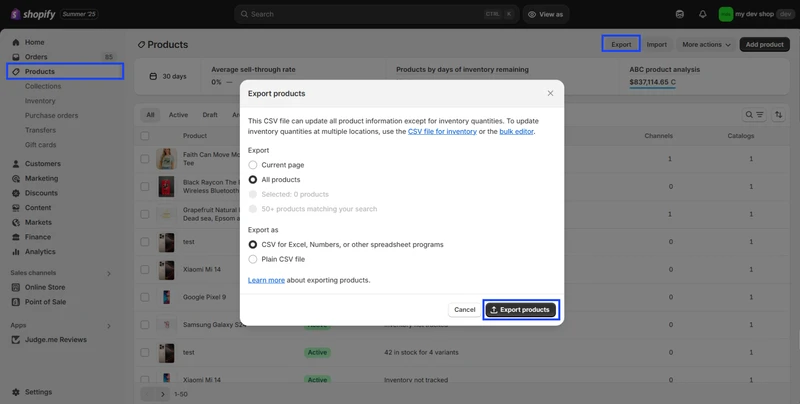
Go to Products > Export. Select “All products” (or your filtered selection) and choose “CSV for Excel”. Click Export products to download the file.
Step 2: Find and replace in Excel
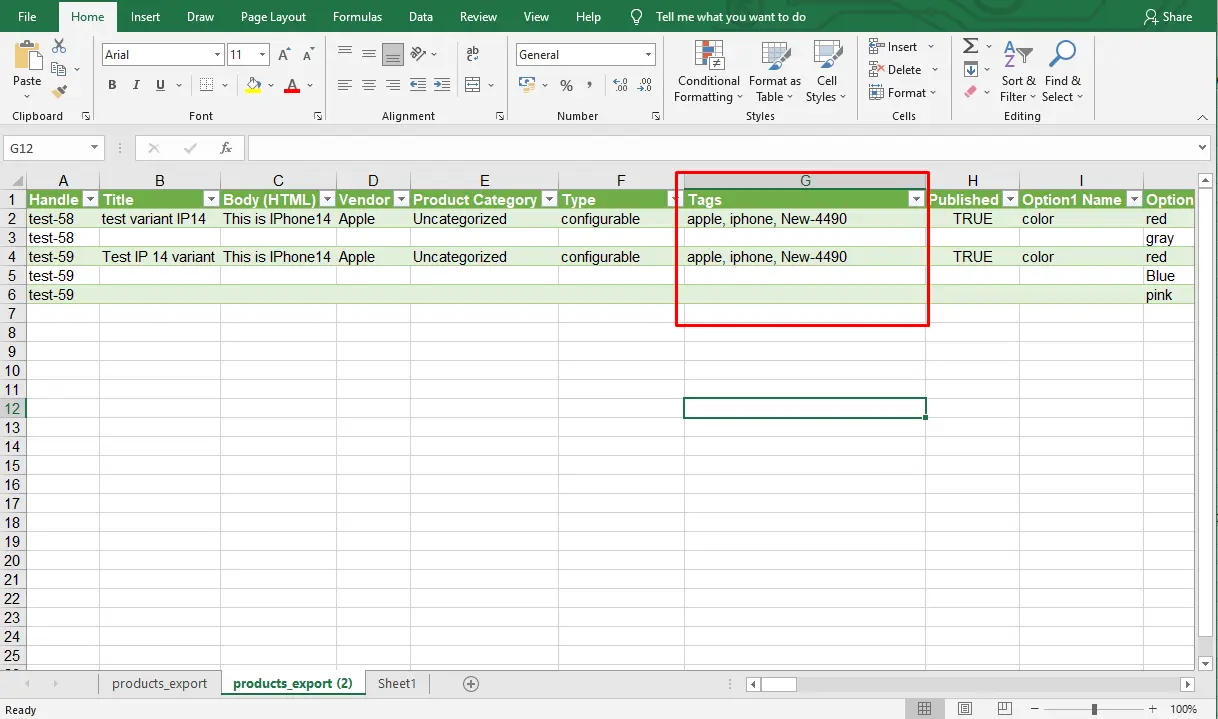
Open the file in your spreadsheet software. Use the Find and Replace function to locate the old tag (e.g., “old-tag”) and replace it with the new one (e.g., “New-Tag”) in the Tags column.

Step 3: Import and Overwrite
Save the file as a .csv. Go to Products > Import in Shopify. Upload your file and check the box: “Overwrite any current products that have the same handle.” This ensures your new data replaces the old.
Method 4: Using Automated Apps (Best for Complex Logic)
If native tools are too slow or you require frequent updates, using a Shopify app bulk tags solution is the most professional approach.
BulkFlow offers a seamless solution for stores with large inventories or those requiring frequent updates. It streamlines the process of adding or updating tags without the risk of manual errors.
Instead of spreadsheets, you use a simple dashboard to filter products and define actions. Apps also provide “Undo” buttons and task scheduling, making them safer for performing a bulk update Shopify tags operation on massive catalogs.
This guide will show you how to bulk edit product tags using BulkFlow. If you don’t have a BulkFlow account yet, please sign up here.
Step 1: Connect your Shopify store to BulkFlow
In the Shopify App Store search bar, type BulkFlow >> select BulkFlow >> click Install then log in using your registered account.

Step 2: Prepare the product data for bulk tag editing
Export your product data from your store using Shopify Admin’s built-in Export feature or BulkFlow’s export function. After exporting, the CSV file will be downloaded to your device.
We recommend opening the downloaded CSV file with Google Sheets, as it automatically converts comma-separated CSV data into columns.

Step 3: Edit the CSV data
Locate the Tag column to update tags for each product. Make sure the Google Sheets file sharing permission is enabled.
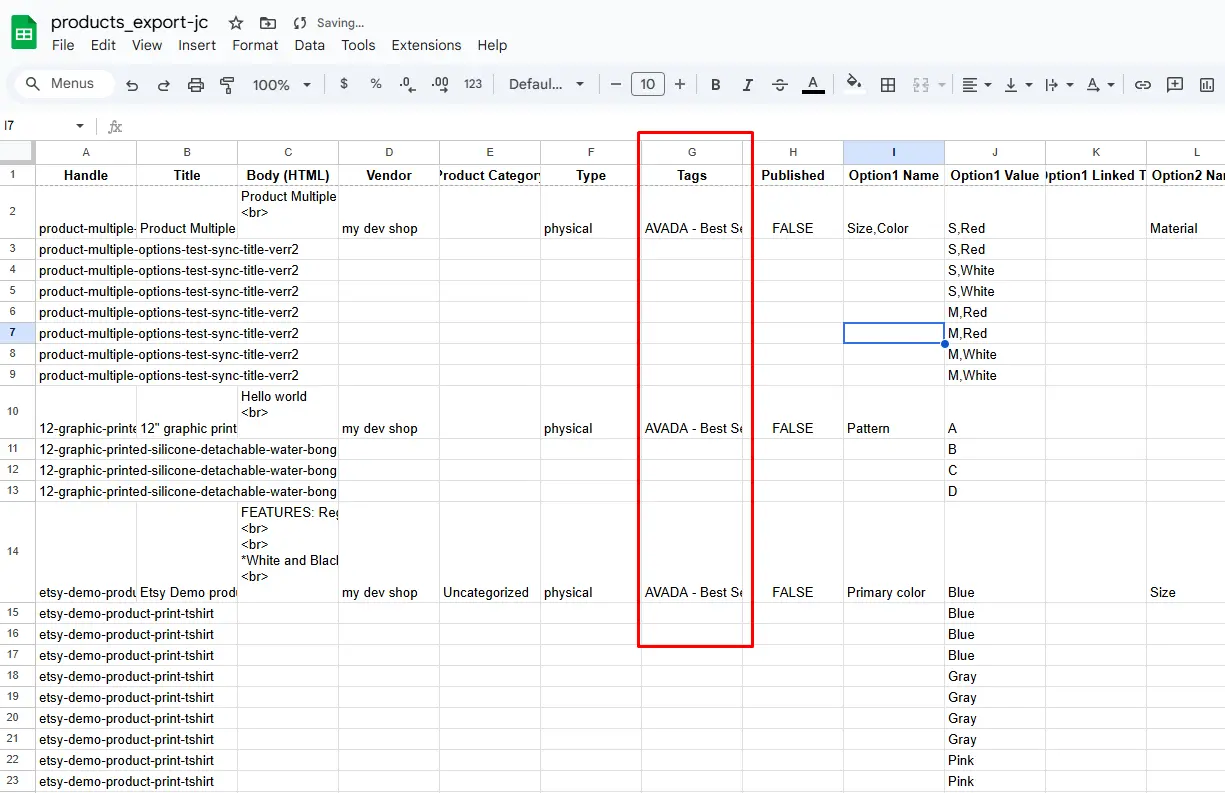
Step 4: Create a new Feed to update the data
Go back to BulkFlow. On the homepage, select Update >> name your Feed >> choose Google Sheets as the data source >> paste the Google Sheets link.
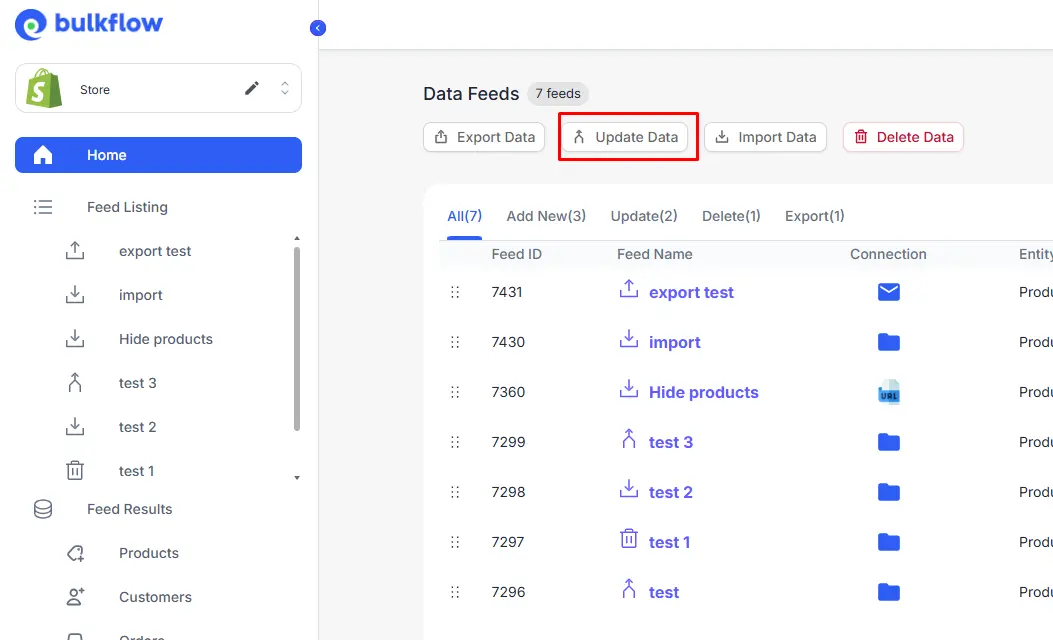
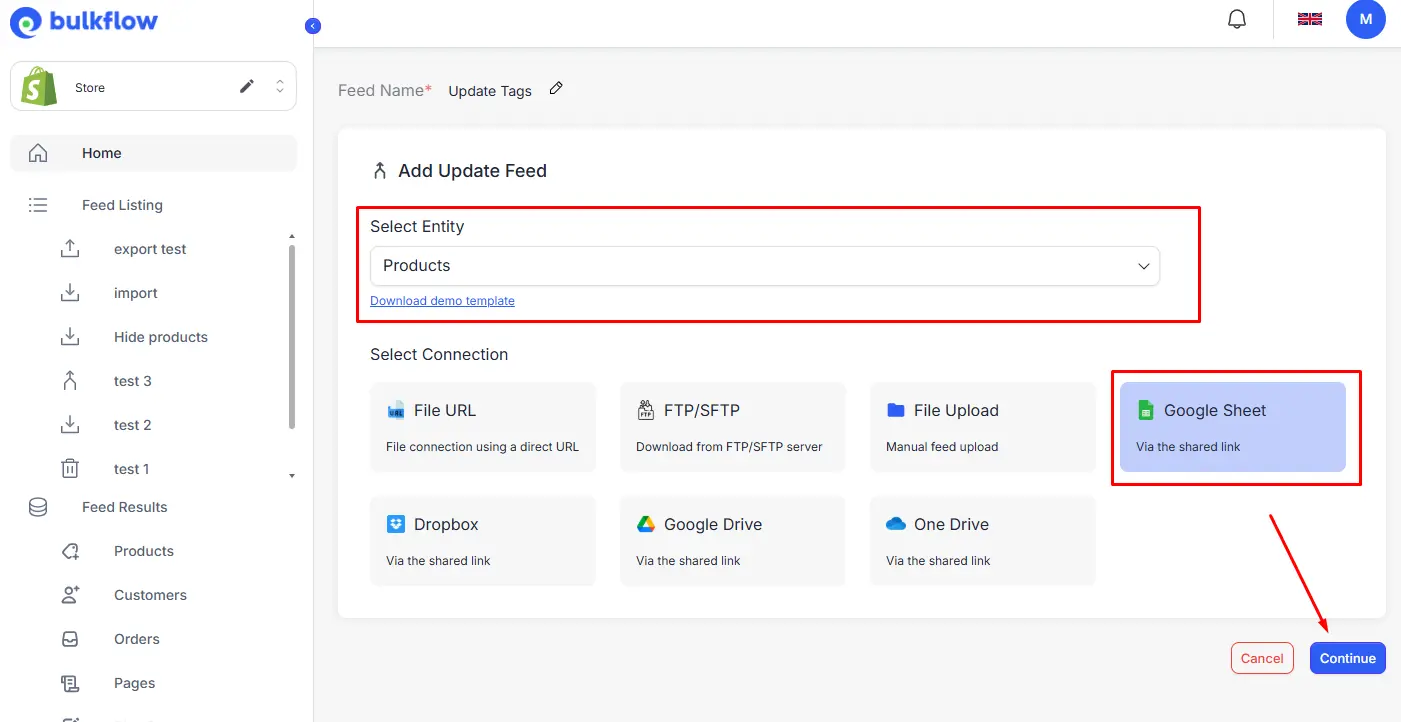

Step 5: Configure the Feed
In the Matching Fields section, map the edited Google Sheets data to the corresponding BulkFlow fields. Mapping the Tags column is required. Click Next Step.
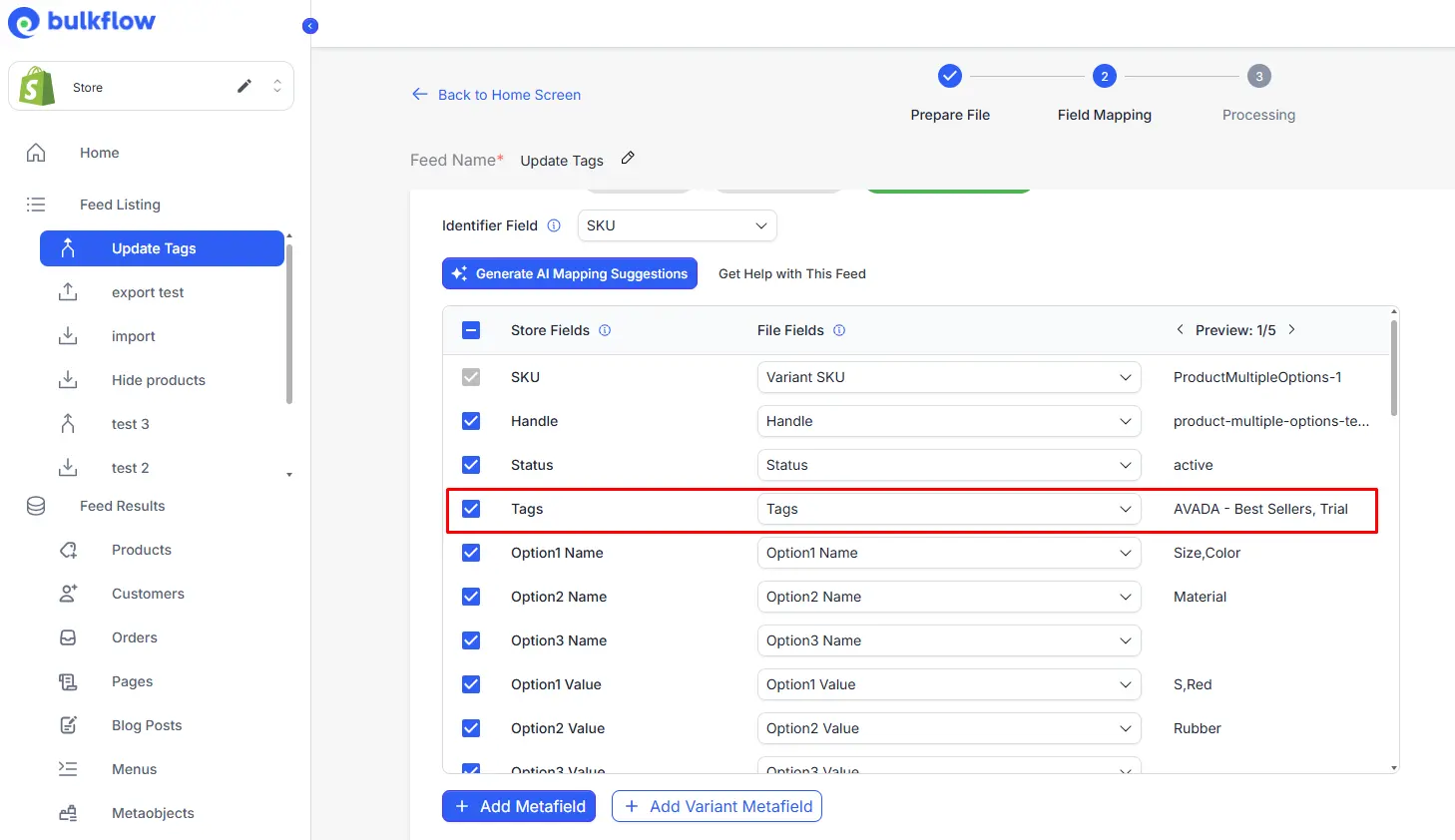
Step 6: Wait for the bulk tag update to complete and check the results on Shopify
Once everything is set up, start bulk add tags Shopify by clicking Next Step. BulkFlow will process your file, adding tags efficiently across all specified products.
When the process is complete, you can track the result in the Activity Log for any errors or failed products. You can also check the tags that are added to your products on your Shopify admin.
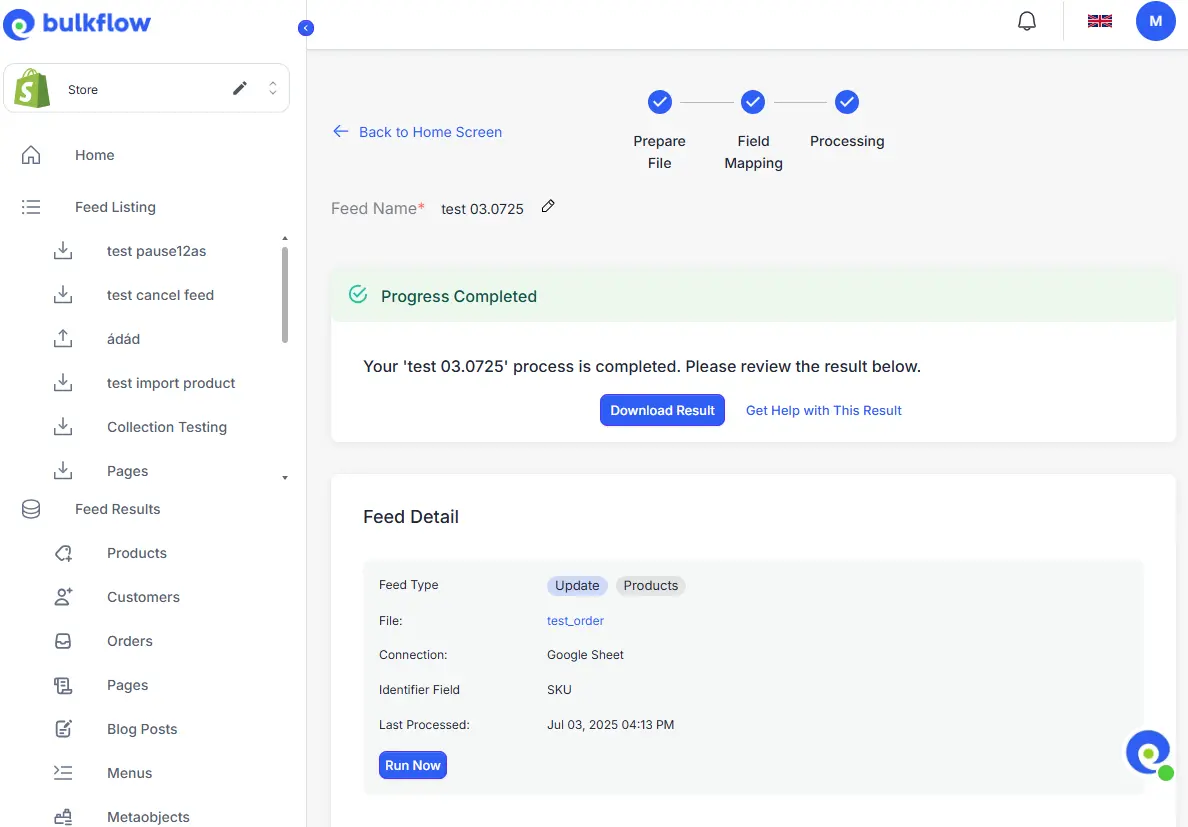
You can also adjust your setup schedule for the future if your store requires regular, automated updates to reduce manual work and keep your product data consistently up to date.
Each product in Shopify can have up to 250 tags, which provides lots of flexibility for categorization.
You can perform Shopify bulk remove tags using Shopify’s default tools. For larger inventories and more seamless workflow, third-party apps like BulkFlow enable you to remove tags while minimizing manual work and errors.
Yes, tags updated within Shopify automatically sync across all connected channels, including Shopify POS, online stores, and marketplaces.
While tags don’t directly impact SEO rankings, they enhance customer navigation and filtering, improving overall user experience. Well-organized tags help customers find products easily, which can increase engagement and sales.
Final Words
Tags play a crucial role in organizing your Shopify store, improving both backend management and customer shopping experience. Using BulkFlow for bulk add tags Shopify takes these benefits to the next level by offering seamless automation, flexible data integration, and error-free updates.
BulkFlow not only simplifies adding tags in large volumes but also helps manage descriptions, inventory, metafields, and more, streamlining your entire product data workflow. For Shopify merchants serious about scaling and maintaining a well-organized store efficiently, BulkFlow is an indispensable tool.
Start using BulkFlow today to transform your tag management and elevate your store’s organization and customer experience like never before.