Struggling to keep your Shopify product catalog tidy? Or maybe you want better filters, faster product setup, and smarter reporting? That’s where Shopify product type comes in – a simple yet powerful organizational tool every merchant should use.
Whether you’re just starting or already scaling with thousands of SKUs, understanding product types can save you hours and improve store performance. This guide will explore the fundamentals of product type, differentiate between type and collections/tags/category, and teach merchants on Shopify how to add product type. Let’s dive in!
Tired of updating product types one by one?
With BulkFlow, you can assign and edit thousands of Shopify product types in minutes – faster, easier, and fully automated.
Basic Knowledge about Shopify Product Type
When you add a new product to Shopify, you’ll notice a field called Product type under the Product organization section. Many beginners skip it, but it’s actually the backbone of your store’s organization and automation.
What is a product type in Shopify?
In simple terms, a product type in Shopify is a label you assign to each of your products to categorize what kind of item it is. Think of it like a folder name in your inventory; each product goes into one folder that describes what it is.
For instance, if you sell apparel, you might have Shopify product type examples like T-shirt, Hoodie, Sneakers; if you sell electronics, you might have Wireless headphones, Laptop, etc.
Here are the key things to know:
- Each product can have only one type product Shopify.
- The product type is fully created by you.
- The field is optional – you can run your store without using product types, but you’ll be missing out on organizational and automation benefits.
- The Product type Shopify field is different from product category (Shopify’s standard taxonomy), collections, or tags. More on that later.
Importance of product type on Shopify
Product types are not just a label; they directly impact how efficiently you can manage your store and how easily customers can find what they want. Here are the most important benefits:
- Improved SEO and sales channel performance: Standard product types help Shopify map your products more accurately to Google and external marketplaces — boosting discoverability.
- Faster and smarter catalog management: Product types make bulk editing easy and allow you to build automated workflows, especially when using tools like BulkFlow for large catalogs.
- Better navigation and filtering for customers: Product types power storefront collections and filtering logic, which leads to higher product discovery and fewer abandoned searches.
- Cleaner reporting and better merchandising insights: You can analyze performance by product type to understand which core categories drive revenue and where to optimize inventory.
When you start organizing your Shopify store, you’ll see several overlapping tools: product types, collections, categories, and tags. They all help you sort products, but each has its own purpose.
| Tool | What it is | Purpose | Example |
| Shopify Type | A single label that defines what the product is | Classifies what the product is for inventory, reporting, and automation | “Running Shoes”, “Coffee Mug” |
| Shopify Collections | A group of products shown together based on rules or manual selection | Groups products by theme, rules, or marketing purpose for customers to browse | “Summer Sale”, “New Arrivals” |
| Shopify Tags | Flexible labels you can assign to a product, multiple per item | Adds flexible details for filtering, search, and refined organization | “Blue”, “Eco-Friendly”, “Limited Edition” |
| Shopify Categories | Shopify’s standard taxonomy or hierarchical structure | Aligns products with external systems (Google, Facebook) and store navigation | “Home & Garden > Bedding > Bed Sheets” |
Shopify collections
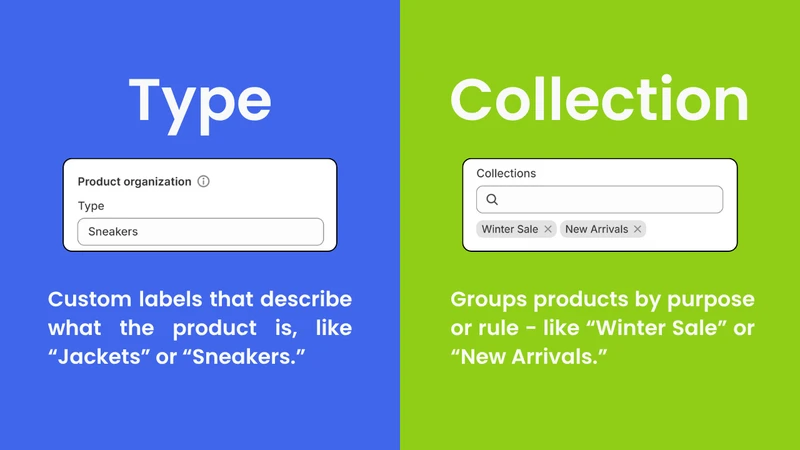
A collection in Shopify is a group of products you bucket together to show (or organise) in your storefront, for example, “New Arrivals,” “Sale Items,” or “Spring 2025 Collection.” You can make them manually (hand-pick products) or automatically (set rules to add products).
From your customer’s perspective, collections are how they browse your store: collections become pages or sections your visitor clicks into. From your side, they’re good for marketing, seasonal themes, and building navigation. Think of collections more as front-door experiences rather than just internal labels.
Key takeaways: What’s the difference between Shopify product type vs collection?
Product type defines what a product is, while collection groups products for browsing or marketing purposes.
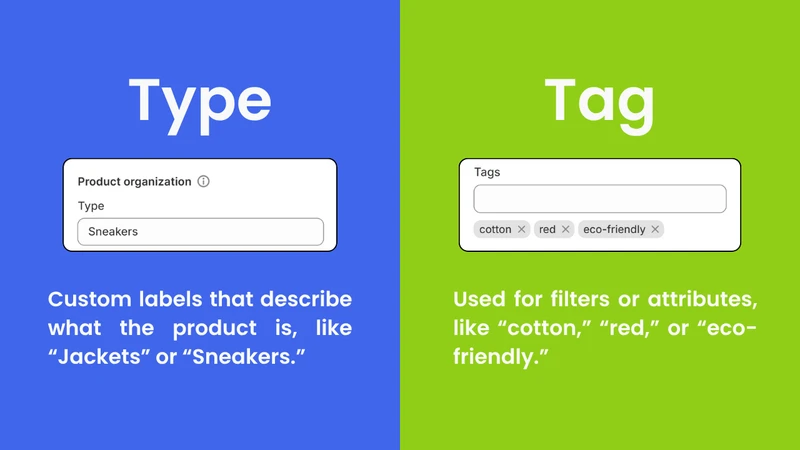
Tags are flexible little labels you add to products to give extra detail beyond the main type. For example: “Blue,” “Eco-Friendly,” “Limited Edition,” “Giftable”. You can add many tags to a single product, making them ideal for filtering, searching, and refining your catalog.
While tags don’t always display to customers (depending on theme/configuration), they still help your store behind the scenes: for search queries, smart collections (you might set conditions using tags), or managing inventory. As your catalog grows, tags become a key tool to bring nuance and segmentation.
Key takeaways: Shopify product type vs tag: What’s the difference?
Product type is one per product for broad classification, while tag provides multiple labels for filtering and detailed attributes.
Read more: Bulk Add Tags Shopify: How to Manage Tags Effectively
Shopify categories
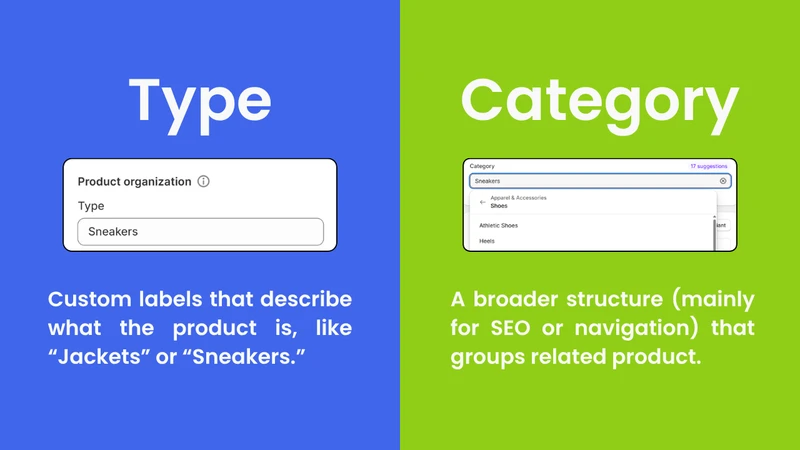
In Shopify, a product category (or the standard product taxonomy) is a broader classification, sometimes mandated for external channels, tax purposes, or standard data feeds. For instance, “Home & Garden > Bedding > Bed Sheets” is a category breadcrumb.
Categories are less about the customer browsing experience (though they can influence navigation) and more about aligning your product data with standards (for tax, marketplace, Google Shopping). You may not show them as boldly in the storefront, but they matter when you scale or connect to external sales channels.
Key takeaways: Shopify product type vs category: What’s the difference?
Product type defines the product itself, while category organizes products according to a standard hierarchy for external systems and data alignment.
How to Add a Product Type on Shopify – 3 Ways
Being able to add product type Shopify can be a tiny change that pays off big: better automation, easier filtering, and cleaner reporting. Below are three practical ways to add product types:
Adding product types with BulkFlow
BulkFlow is a bulk import/export tool built for merchants who need to update many products quickly and reliably. Instead of editing dozens (or thousands) of product pages, you upload a spreadsheet and let BulkFlow push changes to Shopify, including product type values, at scale. Here is how to add product type in Shopify:
- Step 1: Export your product data
- Step 2: Fill in product type values
- Step 3: Connect your file to BulkFlow
- Step 4: Map your fields and run the update
Note: Remember to create a BulkFlow account and connect it to your Shopify store(s) before doing anything else.
Step 1: Export your product data
In this step, you will export product data to prepare the file needed for adding product type in Shopify. If you already have an existing data file, you can skip this step.
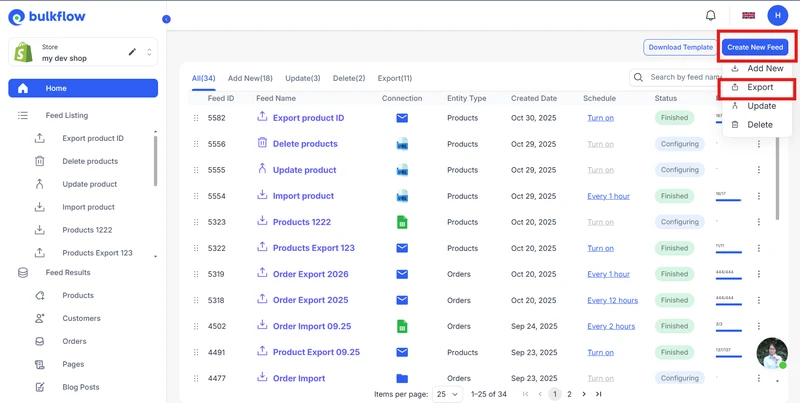
First, go to the BulkFlow dashboard and select Create new feed > Export.
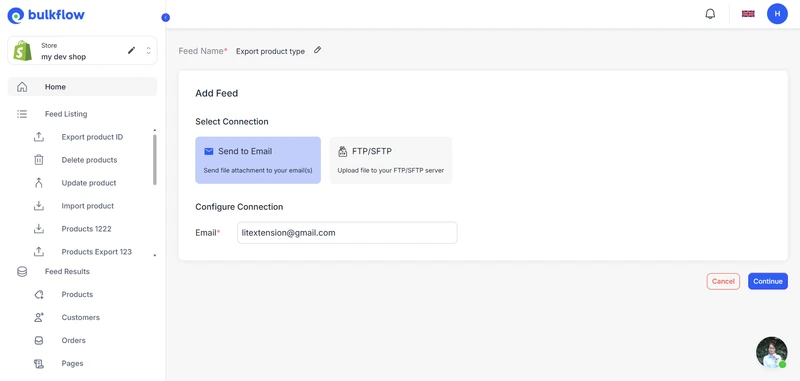
Here, give your feed a name and choose where your export file will be sent to: your email or FTP/SFTP server. When you’re done, click Continue.
Next, you will customize your export. You can select a preset (if you already have one) and choose your file format (CSV or Excel).
For your export data, choose Product data entity, apply a filter to narrow down your list (if needed), and select the fields you want to export. Make sure you include a product identifier (ID, Handle, SKU, etc) and Product Type fields.
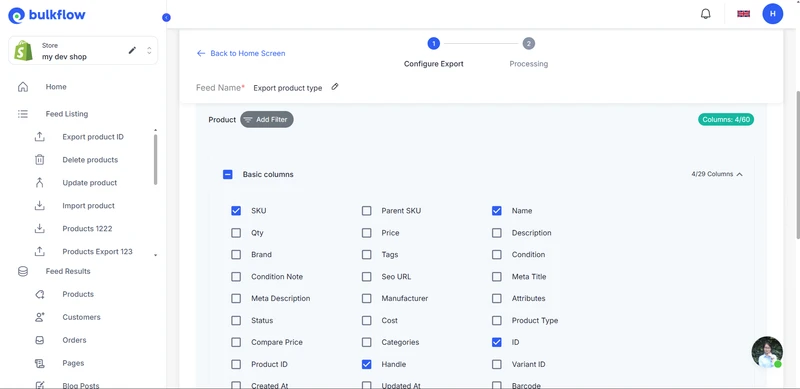
Once you’ve finished, start the export process. The file will be sent to your chosen destination.
Step 2: Fill in product type values
Now that you have a file, you can prepare it for the import later. Open the exported file in a spreadsheet and locate the blank Product Type column. What you need to do is just fill in this new column.
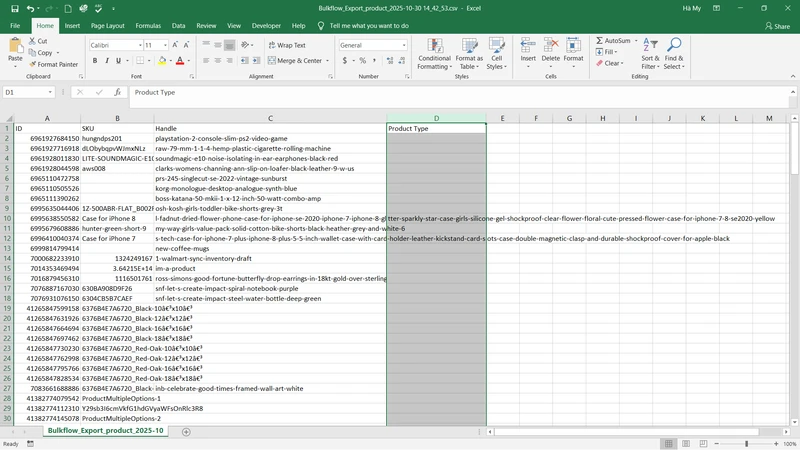
If you already follow Shopify’s Standard Product Taxonomy, you may copy the terms from the official list to keep your data consistent and structured. Otherwise, you can add your own Shopify custom product type – just make sure they’re clear and specific enough for easy filtering and reporting later.
Once you’ve filled in all the Shopify type product cells, double-check for typos or inconsistencies. Consistent naming will save you a lot of trouble when you re-import the file into Shopify.
Step 3: Connect your file to BulkFlow
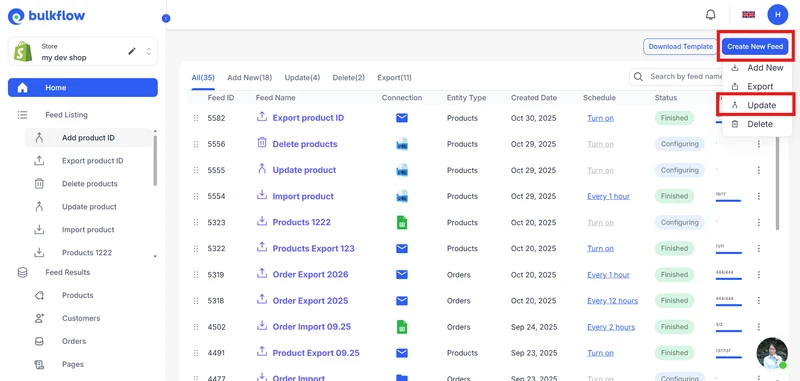
Back to your BulkFlow dashboard, select Create new feed > Update to add Shopify product type to existing items in your store.
In your feed setting, give it a name, choose Product as the data entity, and select Create feed using your own template.
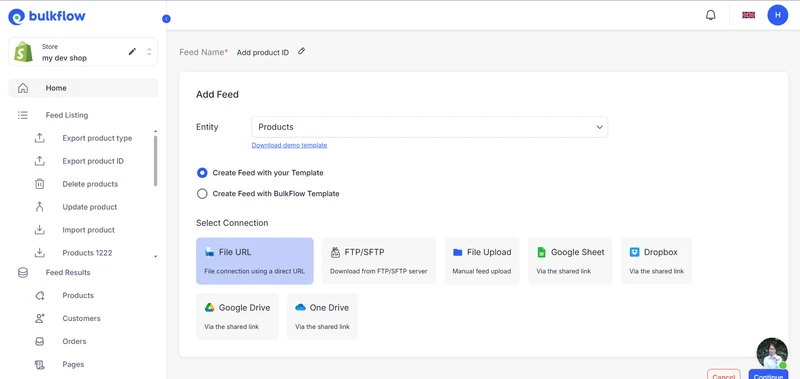
For the connection methods, BulkFlow allows you to freely choose your preferred file format: file upload (CSV, Excel), shared connection (file URL, Google Drive, Google Sheets, OneDrive, Dropbox), and FTP/SFTP. When you’re done, press Continue.
Then, BulkFlow will ask you to connect your file according to the specific connection method you chose:
- File upload: Upload your file from your device directly to BulkFlow.
- Shared connection: Paste the product file URL and test BulkFlow’s connection.
- FTP/SFTP: Fill in the server information and click Test connection to make sure BulkFlow can access it.
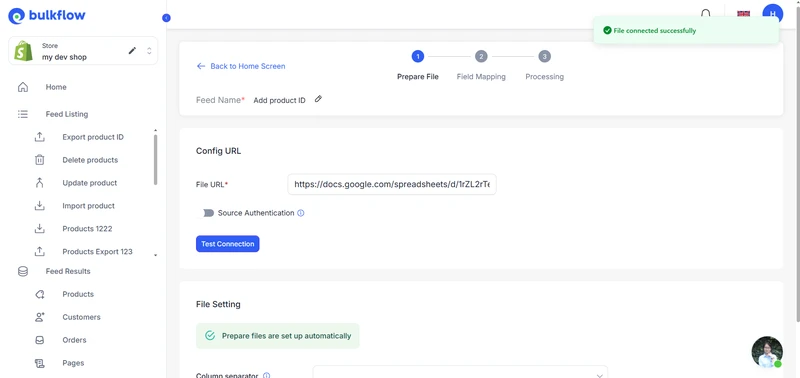
When you make sure that BulkFlow can access and take data from your file, press Next step to proceed.
Step 4: Map your fields and run the update
Next, in the field mapping part, BulkFlow will attempt to match your file’s columns with Shopify. For the columns that aren’t automatically mapped, you can use Generative AI Mapping Suggestion for help or map them yourself.
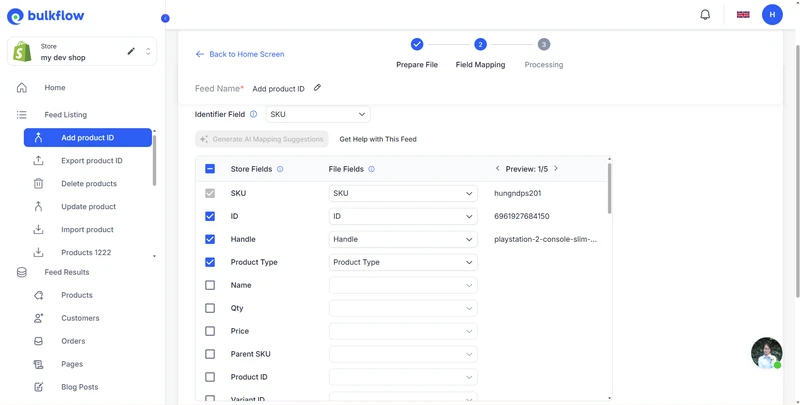
Once you have finished everything, click Next step to begin to add new product type Shopify. After the process, you can set up a schedule if you need future updates.
BulkFlow even provides a success/failure report. There, you can see how many items are imported successfully, how many are not, and view these specific items’ problems by clicking View All Products.
You should also log in to your Shopify Admin and check your newly added Shopify product type to make sure they are assigned correctly.
Automate your Shopify product type updates on a schedule
BulkFlow allows you to schedule imports or edits in advance – from hourly to daily – so your product type on Shopify stays consistent without manual work.
Add product type manually
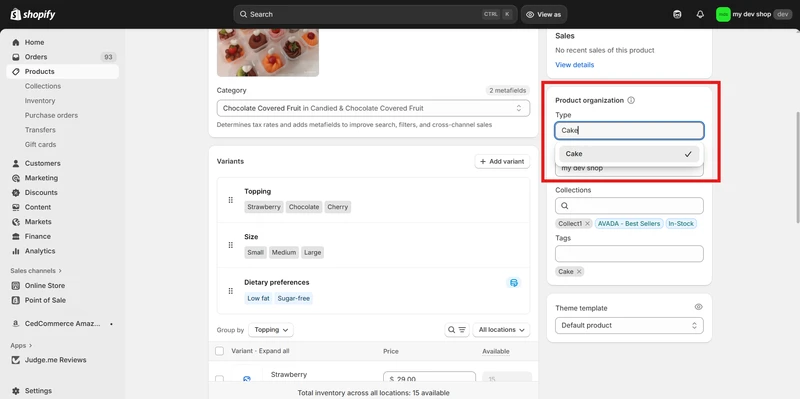
If you only have a few products, adding product types manually in the Shopify Admin is the simplest method. This process is quick and works perfectly for small stores or single product updates. Here is how to add a product type in Shopify manually:
- Go to your Shopify > Products and select the product you want to add a product type to.
- Locate the Product organization section on the right of the page. In the Type field, enter or choose the relevant type for your product.
- Click Save to apply your changes.
Add product type with the bulk editor
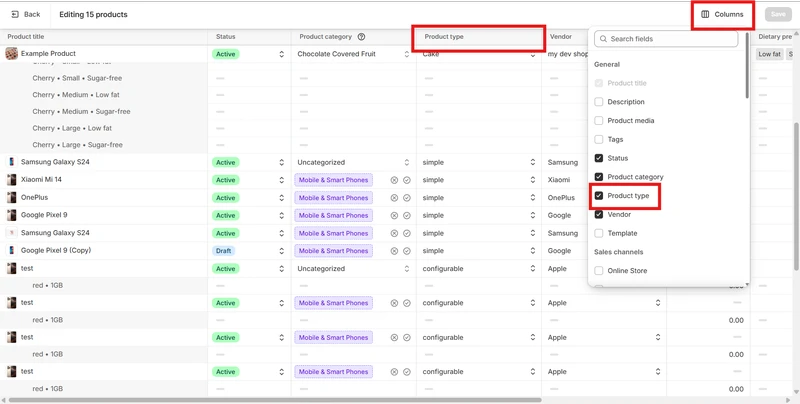
The bulk editor is ideal if you need to update product types for a moderate number of listings, more than a few, but not in the hundreds. It allows you to bulk edit multiple products simultaneously from within Shopify. Here is how to add a new product type in Shopify with the bulk editor:
- From your Shopify Admin, go to Products.
- Select the products you want to update. Click Bulk edit to open the bulk editor.
- Add a column for Product type (if it’s not visible). Enter or modify product types directly in the grid.
- Click Save to confirm your edits.
Further Product Type Management with BulkFlow: Edit and Delete
Once you’ve added product type on Shopify, keeping them organized and up to date is just as important. Shopify allows you to edit or delete product types directly in the Admin, but for larger stores, using BulkFlow can save hours of manual work.
How to edit product type in Shopify
You might need to edit a product type when reorganizing your catalog, renaming categories, or correcting a mistake. On Shopify, you can do this manually or in bulk with BulkFlow, depending on your needs. Here are the steps to edit product types with BulkFlow:
- Go to your BulkFlow dashboard and export your product data file. Remember to include at least one identifier and the Product type column.
- In your exported file, locate the Product type column and enter the new product type you want to apply. Save your changes.
- Return to your BulkFlow dashboard and create a feed to update your product type to Shopify.
How to delete product type in Shopify
Sometimes, product types become unnecessary, for instance, when you use collections or tags instead. Deleting unused types helps keep your product catalog clean and easier to manage. Here are the steps to delete product types with BulkFlow:
- Export your product data file with BulkFlow. Make sure to include a product identifier and the Product type column.
- Open your exported file. Find the Product type column for the products you want to delete their type and leave the cells blank. Save your changes.
- Go back to your BulkFlow dashboard and reupload your file to Shopify.
Common Mistakes & Best Practices for Shopify Product Type
Managing product types might seem simple, but small mistakes can affect how your products are organized, displayed, and even found online. Below are some common pitfalls to avoid – and best practices to help you keep your Shopify store well-structured and efficient.
Using inconsistent product type names
Many store owners accidentally use multiple names for the same type, like “T-shirt,” “Tee,” and “Shirt.” This inconsistency makes your catalog messy and harder to filter.
Best practice: Choose a clear naming convention and stick to it across all products. You can also use Shopify’s standard product taxonomy to keep things uniform.
Overcomplicating product types
It’s tempting to create a very specific Shopify product type, such as “Cotton Summer Dress with Belt.” However, product types should describe the general category, not every detail.
Best practice: Keep your product types broad and consistent (e.g., “Dresses”). Use tags or metafields for more specific attributes like color, material, or style.
Forgetting to add product types
As your catalog grows, it’s easy to forget to update product types when adding new products or reorganizing collections. This can lead to mismatched reports or broken filters in your storefront.
Best practice: Review your product types regularly, especially after importing new listings or making bulk changes. Tools like BulkFlow make it simple to spot and correct missing or outdated product types in one go.
Shopify Product Type – FAQ
Do product types impact my store SEO?
Yes, they can. Product types help Shopify (and search engines) understand your store structure and what each product is about. When used consistently and paired with descriptive, keyword-rich names, they can indirectly boost your product visibility and ranking in search results.
How to create product type in Shopify in bulk?
The easiest way to create or update product types in bulk is with BulkFlow. Here is how to add product type Shopify in bulk via BulkFlow:
1. Export your product data
2. Fill in product type values
3. Connect your file to BulkFlow
4. Map your fields and run the update
How to display product type on my product page?
You can show product types on your storefront by customizing your theme. Here is how to add product type on Shopify:
1. Go to Online Store > Themes > Customize.
2. Select the Product Page template.
3. Add a Text Block or Dynamic Source linked to the product type field.
4. Save and preview to check how it looks.
Can I add multiple product types to a single product?
No, Shopify only allows one product type per product. However, you can use tags, collections, or metafields to add additional categories or filters. This gives you flexibility while keeping your store structure clean and easy to manage.
Conclusion
Getting your Shopify product type right is more than just organizing your catalog, it’s about creating a clear, consistent structure that helps both your customers and search engines understand your store better. When done properly, product types can make filtering, reporting, and navigation effortless while supporting your SEO and growth.
But as your product list grows, managing product types manually can quickly become overwhelming. That’s where BulkFlow comes in. With its intuitive, spreadsheet-like interface, you can add, edit, or clean up product details, including product type, in bulk.
Try BulkFlow today and simplify how you manage your product data!