In eCommerce, visuals speak louder than text. Your Shopify product images are often the first thing shoppers notice – long before they read your product description or scroll through reviews. If your images look polished, consistent, and compelling, customers instantly feel more confident about buying.
But creating high-quality product photos isn’t just about aesthetics. It’s also about trust, brand identity, and conversion. In this guide, you’ll get to understand product images thoroughly and learn how to create images that help your store sell more.
Managing lots of product images?
BulkFlow makes it easy to upload, edit, and organize your Shopify product images at scale. Keep your store fresh without manual work.

Understanding Shopify Product Images
Shopify product images are the primary way customers evaluate your items online. Because shoppers can’t touch, feel, or test your product, visuals become the most important source of information. Clear, consistent, and well-presented images help customers understand what you’re selling and build confidence before they buy.
What is a Shopify product image?
A Shopify product image is a photo or visual asset uploaded to your product listing. It can be the main hero image that appears in search results, or supporting visuals placed throughout your product page. These images appear across your entire store ecosystem, so they influence the customer experience at multiple touchpoints.
Beyond simple photos, product images can also include close-ups, lifestyle scenes, infographics, or even interactive formats like 3D models. Their purpose is to represent your product as accurately and attractively as possible.
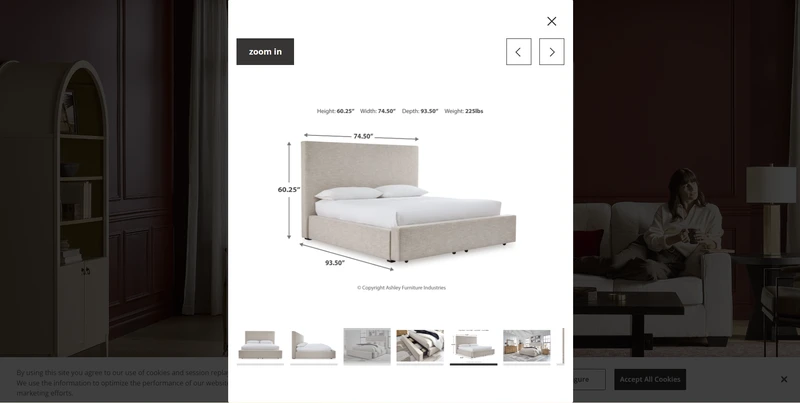
Why is it important to your store?
Whether you own a multiple-product or one-product store, your product images are more than just pretty pictures – they’re a powerful tool for building trust, reducing risk, and increasing sales. Here are some key reasons why they matter:
- Instant first impressions: High-quality images captivate shoppers immediately, helping to convey professionalism, trust, and product quality in a split second.
- Increase sales: Clear, compelling product images help shoppers visualize ownership and value, making them more likely to add items to their cart and complete the purchase.
- Boost in search visibility: By optimizing your images (alt text, descriptive file names), you help search engines understand and index them, which can improve your product’s SEO.
- Increase conversions, reduce returns: Strong, accurate visuals help customers feel more confident in what they’re buying, which drives sales, and when products look as expected, returns go down.
- Fulfill customer expectation for variety: Shoppers often expect multiple views or angles (or 360°) – more images equals more clarity, which can directly impact purchase decisions.
Popular types of product images
To make your product page visually powerful and persuasive, you should mix different product images Shopify styles. Each type plays a different role – some highlight detail, others tell a story, and some help customers imagine the product in real life.
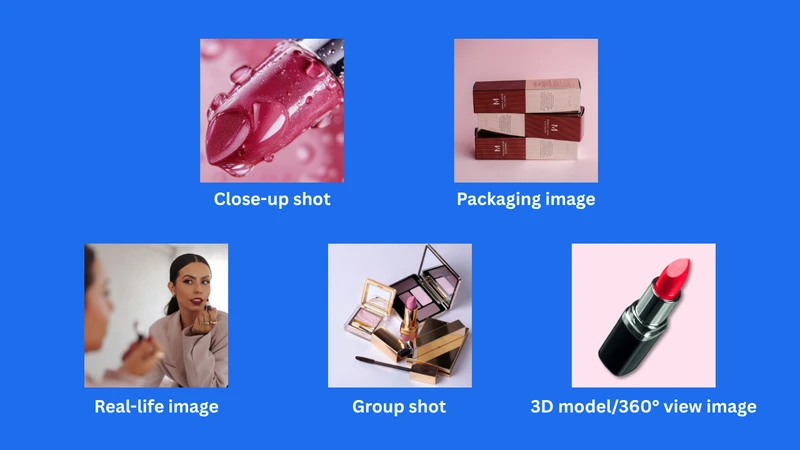
Here are the common types of product images used by stores:
- Close-up shot: Close-up shots zoom in on the small but important details of your product – think stitching, texture, or unique features. These images help customers appreciate the quality and craftsmanship, making them feel more confident in what they’re buying.
- Real-life images: These images show your product in a real-world context. Lifestyle shots help customers imagine how the product would fit into their lives, making the experience more relatable and desirable.
- Packaging images: Packaging images highlight how your product is presented when it arrives – the box, wrapping, or unboxing experience. This is especially useful for premium, giftable, or branded products because great packaging conveys care, quality, and brand story.
- Group shots: Group shots display multiple related products or variations in a single frame – like a bundle, a set, or different color options. They make it easy for shoppers to compare styles or see complementary products together, which can help increase average order value.
- 3D model/360° view photos: These interactive visuals let customers rotate or view your product from every angle, using either a 3D model or a 360° photo. It creates an engaging, hands-on feel online, increasing buyer confidence by letting them inspect every side.
How to Create Professional Shopify Product Images
Creating high-quality product images doesn’t just elevate your store’s look – it builds trust and clarity for your customers. With thoughtful preparation, careful shooting, and smart retouching, you can produce images that look polished and truly reflect your product.
1. Preparation before shooting
First, you should gather all the necessary equipment. You may not need the most expensive camera; a decent DSLR, a good smartphone, or a point-and-shoot will work, but having a tripod helps stabilize your shots. You should also have a table on which to place your product – something around 24-27 inches wide is often recommended for comfort and versatility.
However, not all products can or need to be placed on a table. Larger items like furniture or appliances may need to be photographed in situ, and wearable items such as clothing or accessories often benefit from being displayed on a model. In the end, your choice should depend on what best showcases the product’s unique features.
To control lighting, set up near a large window if you’re using natural light, or use softbox lighting indoors without strong daylight. Using white bounce cards or reflectors helps fill in shadows, making your product appear more evenly lit and detailed.
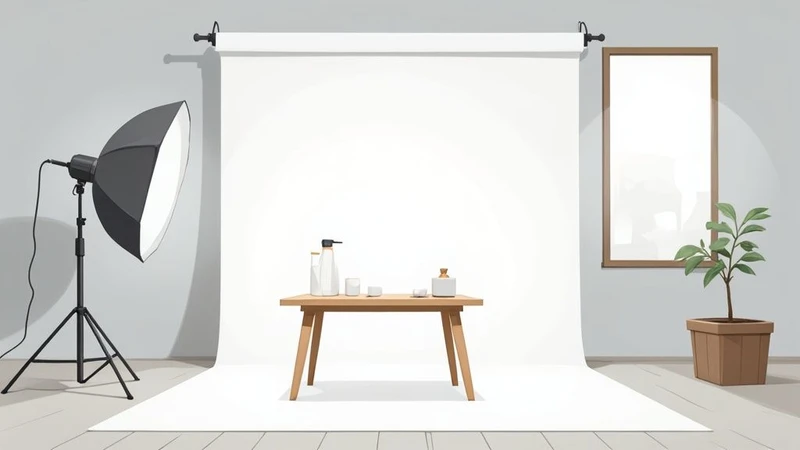
Next, you should prepare your background and your product. A seamless white background is very useful because it makes editing easier and keeps the focus on the product. Use duct tape or clips to secure the backdrop so that it stays smooth and doesn’t shift during the shoot. Finally, make sure your product is clean, free of dust, and positioned neatly.
2. Shooting images for your products
Once your setup is ready, you should begin by positioning your camera on the tripod and framing your product. You should take multiple angles of your product to give customers a comprehensive view. Aim to shoot at least 4 – 5 frames: front, back, side, top, and detail shots. This variety helps customers feel as though they are inspecting the product in real space, increasing confidence.

Lighting is key, so you may want to experiment with your reflector or bounce cards. Move them around slightly to see how they soften or brighten shadows. Take test shots periodically and review them on a larger screen (like your computer) to make sure the lighting, focus, and composition are working well. Adjust as needed, rather than assuming your first shots are final.
3. Retouching your images
After you finish shooting, the retouching phase allows you to polish your shopify product image so they look consistent and professional. You can use a photo-editing tool such as Photoshop, Lightroom, or a more beginner-friendly alternative like Canva, Polarr. Using these apps, you can adjust brightness, sharpness, and contrast so your product stands out but still looks realistic.
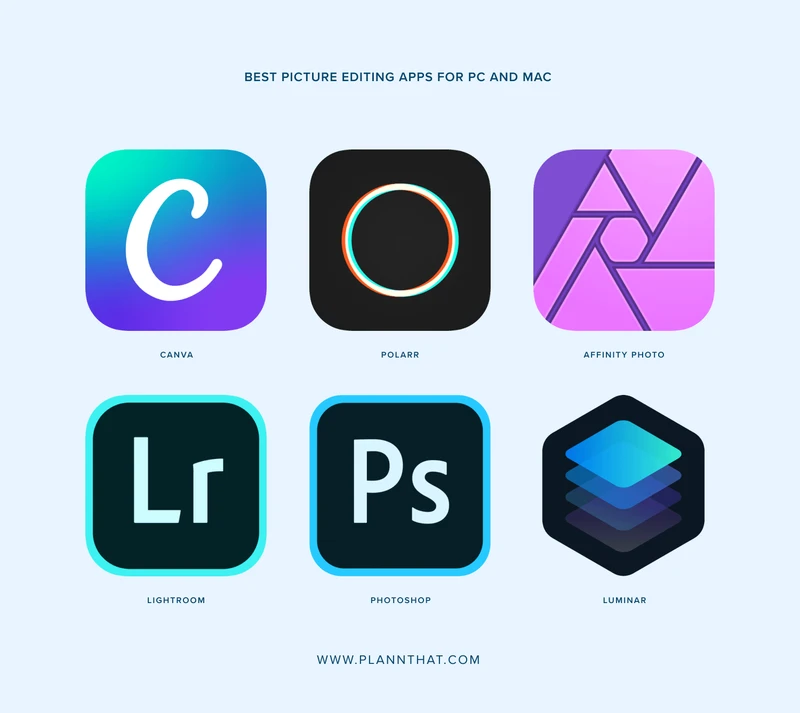
During editing, you should correct the color balance to ensure that your product appears true to life. Over- or under-saturated colors may mislead buyers; gently adjust saturation and contrast so that the materials and textures are accurate and appealing. Also, use your editing software to clean up stray dust, lint, or other imperfections – even small spots can distract or appear unprofessional.
Finally, when your images look consistent and clean, you should export them in appropriate formats and sizes for Shopify. Then, compress them to reduce file size while preserving detail: this helps your pages load faster, which is vital for user experience and conversions.
How to Add Images to Your Shopify Product
Shopify’s product editor allows you to upload and manage multiple Shopify product images for each item, giving you flexibility in how you present your products.
You can start by logging into your Shopify admin dashboard and navigating to Products from the left-hand menu. From there, you might choose an existing product to edit or create a new one by clicking Add product, depending on what you need.
Read more: How to Add Products to Shopify: Every Store Owner Should Know
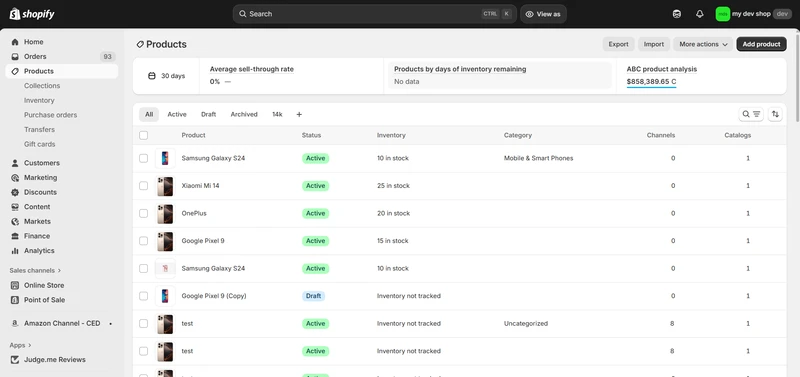
Inside the product, you’ll find a Media section. There, you may click Upload new to add photos from your computer or click Select existing to choose files that were previously uploaded to Shopify.
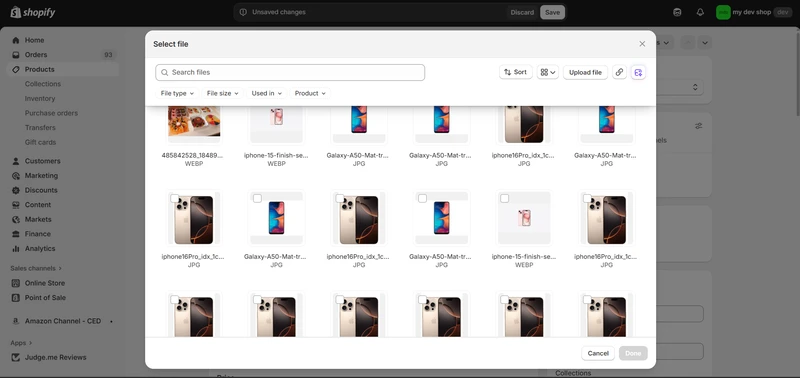
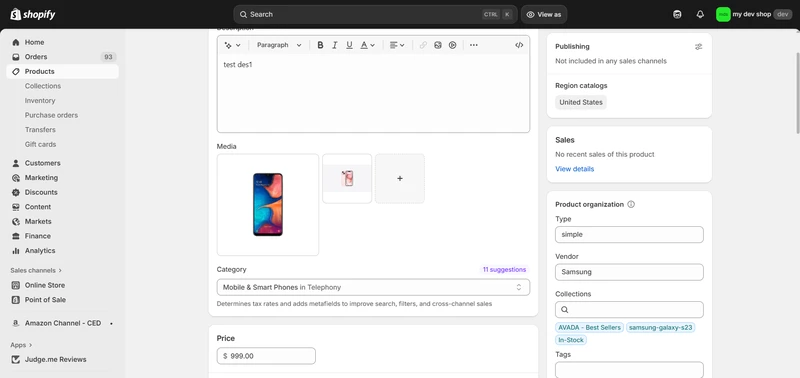
Once your product images Shopify are uploaded, you can drag them into your preferred order. The first image in the sequence becomes the main product image, so you might want to place your best, clearest, or most attractive photo first to capture attention. After that, you can also add variant images, lifestyle photos, or any other visuals that help showcase the product more effectively.
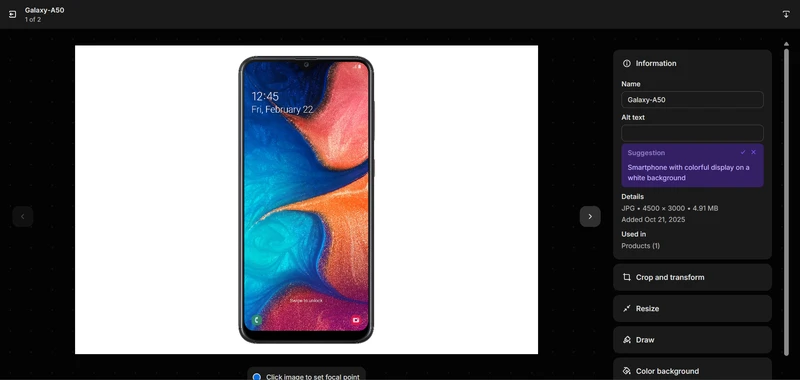
To help improve search engine visibility and accessibility, you can click any uploaded image and add alt text describing the product. Clear, simple descriptions may help Google understand your content better while also assisting customers who use screen readers. You can also make edits to your image: crop, resize, draw, etc.
When everything looks right, you can click Save so the updates apply to your store. It may also be helpful to preview the product page afterward to see how the images appear on both desktop and mobile screens, ensuring that everything loads correctly and looks professional.
Stop wasting time adding images one by one
With BulkFlow, you can bulk upload product photos, update variant images, and manage large catalogs instantly – without repetitive manual uploads.
How to Optimize Product Images Shopify for Your Store?
After importing products and their images to your store, optimizing your Shopify product images is also critical – not just to make them look good, but to make your store fast, SEO‑friendly, and user‑friendly.
Poorly optimized images can slow down your site, hurt rankings, and annoy customers. Here’s how to do it well, with concrete specs.
1. Use the best image sizes
Before you choose the right dimensions for each image type, it helps to understand Shopify’s general limits for product visuals. Shopify supports images up to 5000 × 5000 pixels, which gives you plenty of room to upload large, high-quality photos without losing detail. However, you don’t always need to go that big – it may slow your store down.
Shopify also allows a maximum file size of 20 MB per image, which is generous enough for professional product photography or rich lifestyle visuals. That said, you should usually aim for much smaller files after compression to ensure that your pages load quickly, especially on mobile devices.
For resolution, Shopify recommends 72 DPI, which is the ideal standard for web use. DPI doesn’t affect image quality on screens as much as pixel dimensions do, but keeping your files at 72 DPI ensures they stay lightweight while still looking sharp on all modern devices.
Below is a clearer set of recommended sizes for every image type in your store.
| Image Type | Desktop Image | Mobile Image | Recommended Ratio |
| Background image | 2560 x 1400 px | 360 x 640 px | 16:9 |
| Hero image | 1280 x 720 px | 360 x 200 px | 16:9 |
| Website banner | 1200 x 400 px | 360 x 120 px | 3:1 |
| Blog image | 1200 x 800 px | 360 x 240 px | 3:2 |
| Logo (rectangle) | 400 x 100 px | 160 x 40 px | 4:1 |
| Logo (square) | 100 x 100 px | 60 x 60 px | 1:1 |
| Favicon | 16 x 16 px | 16 x 16 px | 1:1 |
| Social media icons | 32 x 32 px | 48 x 48 px | 1:1 |
| Lightbox images (full screen) | 1920 x 1080 px | 360 x 640 px | 16:9 |
| Thumbnail image | 300 x 300 px | 90 x 90 px | 1:1 |
| Product thumbnails | 150-300 px | 150-300 px | 1:1 (square) |
Using these recommended sizes helps balance performance and clarity. If images are too small, they will look pixelated on retina screens; if too large, they will sharply increase load times. Shopify automatically compresses images on upload, but starting with optimized dimensions gives you the best output quality.
Most merchants should keep product images Shopify around 150-300 KB after compression. Hero images, because they’re wider, can go up to 350-500 KB, but not more unless absolutely necessary.
2. Choose effective product photo formats
Shopify supports several image formats, but each format behaves differently in terms of quality, compatibility, and file size. Picking the correct one ensures fast loading without sacrificing visual accuracy. The list of formats includes: JPEG / JPG, PNG, WEBP, AVIF, GIF, HEIC, SVG.
- JPEG is the best all-purpose option for product images because it provides high quality at small file sizes. You should use it for clothing, home goods, accessories, beauty products, etc. Most JPEGs compress well down to 70-85% quality without visible loss.
- PNG is ideal when transparency matters – such as logos, icons, or product photos requiring a transparent background. PNG files are larger, often 2-5 times heavier than JPEGs, so use them sparingly.
- WEBP and AVIF offer the smallest file sizes and extremely high quality. Shopify already converts images to WEBP for many themes automatically, so you don’t need to upload WEBP yourself – just ensure your source files are high quality. AVIF is even better than WEBP, often 30-50% smaller, but not all browsers support it yet.
3. Optimize image and page loading time
Even with the right formats and sizes, poorly optimized delivery will still slow your store down. These techniques help ensure your pages load quickly and rank better on search engines.
- Compress images before uploading: Although Shopify compresses images automatically, pre-compressing them helps keep file size under control. You can use tools like TinyPNG or ImageOptim to reduce file size while maintaining image quality and detail.
- Include lazy loading: Lazy loading ensures that images load only when they appear in the customer’s viewport. Most Shopify 2.0 themes include this by default using the loading=”lazy” attribute. This can reduce initial page load time by 20–40%, especially on product pages with many images.
- Use Content Delivery Networks (CDNs): Shopify already serves all images through Fastly CDN, which distributes content globally. This means your product images load from the geographically closest server, reducing load time by up to 200–400 ms depending on the location. Make sure your custom apps or theme customizations don’t override CDN delivery.
- Enable responsive images: Shopify themes automatically generate multiple image sizes using the “srcset” image attribute, ensuring each device receives the most appropriate version. Ensure your theme utilizes responsive image tags, particularly for hero banners.
Shopify Product Images – FAQs
What is the best file format for product images?
Shopify supports several formats, but JPEG is generally the best choice for product photos because it balances high quality with small file sizes. PNG may be useful when you need transparency, but it usually results in heavier files. WebP offers excellent compression, though not all editing tools support it yet.
What can I do to prevent others from stealing my images?
While you can’t fully stop image theft, you may reduce it by using subtle watermarks or branded elements that don’t harm visual quality. Compressing images to web-optimized sizes also makes them less appealing for reuse elsewhere. Additionally, you could use apps or scripts that disable right-clicking, although this isn’t foolproof.
What product image mistakes do most sellers make?
Many sellers upload inconsistent image sizes, leading to messy-looking product grids and uneven layouts. Others use unoptimized, heavy images that slow down the store and hurt conversions. Another common mistake is relying on poor lighting or blurry photos, which can reduce customer trust.
How many images can I upload for each Shopify product?
Shopify allows you to upload up to 250 images per product. While this gives you plenty of flexibility, you might consider only uploading images that genuinely help customers make a decision. Too many visuals may slow down the page or overwhelm shoppers, so selecting your best photos is often the smarter approach.
Wrapping Up
High-quality Shopify product images are one of the strongest drivers of engagement, trust, and conversions. When your visuals are sharp, consistent, and optimized for performance, your store instantly feels more professional – and customers feel more confident buying from you.
But maintaining great images across a growing catalog can be time-consuming. If you want to update product photos or manage bulk listings without the manual work, BulkFlow can help streamline everything. With just a few simple steps, you can bulk upload, edit, or replace product images at scale – saving hours while keeping your store polished and up to date.
Start working smarter with BulkFlow and keep your product images looking their best.