When customizing a Shopify store, metafields give you flexibility – but it’s the Shopify metafield types that determine how your data is structured, validated, and displayed. These types define the format of every metafield, from text and numbers to dates, measurements, media files, and more.
Understanding metafield types is critical because choosing the right type affects data accuracy, theme compatibility, filtering, automation, and bulk management. In this guide, we’ll explore each metafield type in depth and show how to use them effectively across your store.
Stop Updating Metafields One by One
With BulkFlow, you can import thousands of metafield values in minutes using a simple CSV file. Stay organized, consistent, and efficient across your entire catalog.
What are Shopify Metafield Types?
Shopify metafields are custom fields that let merchants store extra information about products, collections, customers, orders, or other store resources beyond Shopify’s standard data fields. They act as flexible data containers, allowing you to manage specialized content without altering Shopify’s core structure.
Metafield types Shopify are predefined data formats that determine what kind of information a metafield can store – such as text, numbers, measurements, dates, files, or references. Instead of treating all data as plain text, metafield types ensure every value follows a consistent structure, making it easier for your store and theme to read, display, and manage that data accurately.
Using metafield types helps keep your store cleaner, more scalable, and less error-prone. Here are the key advantages:
- Consistent data: Each Shopify metafield type has its own rules – dates must be actual calendar dates, numbers must be numeric – so errors are caught before they’re saved. This prevents inconsistent or malformed data from ever entering your store.
- Better theme compatibility: Themes can detect the metafield’s data type and automatically format it. This reduces the need for custom code and ensures the storefront always renders information cleanly.
- Cleaner product information management: Using the correct metafield type keeps your product data structured and predictable, making it easier to review, bulk-edit, or automate updates.
- Consistency across your catalog: Every product follows the same data structure, which is especially valuable for large catalogs, stores with many variants, or marketplaces requiring standardized formats.
Metafields play a crucial role in how Shopify stores manage and display custom data. By defining the right metafield types, you ensure that this data stays structured, consistent, and easy to manage.
Shopify admin offers built-in tools that let you manage metafields directly and customize how your product data is displayed. Apart from that, you can also import and export metafield values by using a product importing tool, such as BulkFlow. It allows you to deal with a large amount of metafield data without having to edit each product individually.
7 Different Shopify Metafield Types
Understanding the 7 main Shopify metafield types is the key to unlocking structured data across your store. Each type handles a specific kind of information – knowing when to use them ensures your data displays correctly, remains consistent, and can be reliably used by apps, themes, and automations.
Below is a table summarizing all the types:
| Types | Sub-types | Purpose | Example | |
| Date & Time | Date and time- Date | Hold temporal data in ISO 8601 format | Product availability date: 2025-04-20 | |
| Measurement | Dimension- Volume- Weight | Store numerical values tied to specific units (metric or imperial) | Package size: 6 cm x 5 cm x 15 cm | |
| Number | Decimal- Integer | For pure numerical values, either whole or fractional | Bundle quantity: 5 | |
| Text | Single-line text- Multi-line text- Rich text | Textual data with different formatting capabilities | Step-by-step care instructions. | |
| Reference | Product- Collection- Customer- Variant- File- Metaobject- Page | Create links/relations to other Shopify objects | Link a product to “Holiday Gift Sets” collection | |
| Other | True/false- Color- Rating- ID- URL- Money | A mix of useful types for flexible data that doesn’t fit neatly into others | Color hex code: #AABBCC | |
| Advanced | JSON- Mixed Reference | For structured or highly flexible data | Specs JSON for electronics | |
Date and time metafields
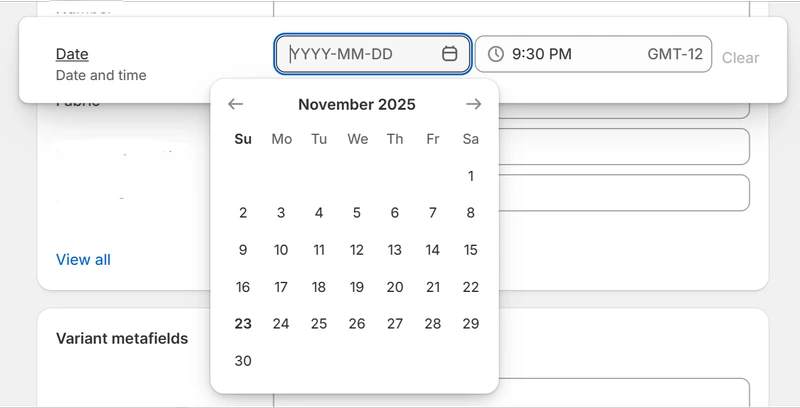
Date and time metafields let you store and display time-based information clearly using the ISO 8601 format. Because these values are validated in Shopify, they help prevent inconsistent or invalid date entries. You’ll choose between two sub-types depending on how precise your data needs to be: Date or Date and time.
Date and time metafield type
- Date: Use this when only the day matters – ideal for release dates, warranty periods, deadlines, or expiration dates. Example: Mark the official release day of a new item (e.g., 2025-04-20).
- Date and time: Use this when the specific time of day matters – such as flash-sale schedules, restock times, appointments, or logging exact update moments. Example: Track when a product was last updated (e.g., 2025-02-01T09:30:00Z).
Measurement metafields
Measurement metafields let you store values that represent physical properties of a product. They’re especially useful for items where size, capacity, or weight matters – such as furniture, cosmetics, and packaging.
It also makes it easier to display measurements in a clean, consistent way on your product pages.Shopify also validates these values, ensuring consistency and preventing errors.
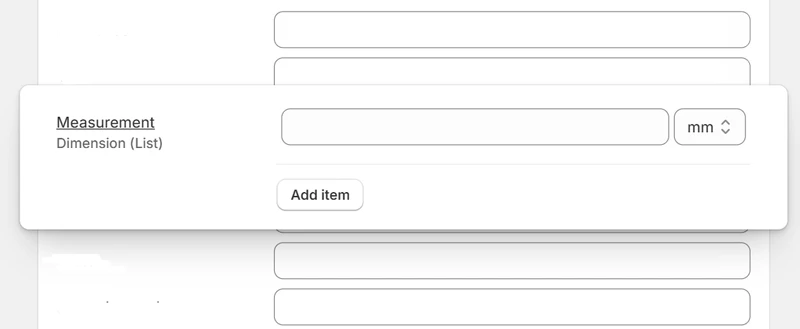
There are three measurement sub-types you can use:
- Dimension: Use this for storing length, width, height, or overall size. This helps customers understand the exact physical space a product occupies. Units often include centimeters, millimeters, or inches. Example: Display exact product dimensions (e.g., 6 cm × 6 cm × 15 cm).
- Volume: Use this when describing how much a product can contain or hold. Typical units include milliliters, liters, or fluid ounces. Example: Show a container capacity (e.g., 50 ml).
- Weight: Use this to show how heavy a product is – helpful for shipping, packaging, and customer expectations. Common units include grams, kilograms, or pounds. Example: Show product weight (e.g., 1.2 kg).
Number metafields
Number metafields store numeric values without attached units and support both integers and decimals. These fields work well for quantities, counts, ratings, pricing-related values, and any numbers used in calculations or conditional logic across your storefront.
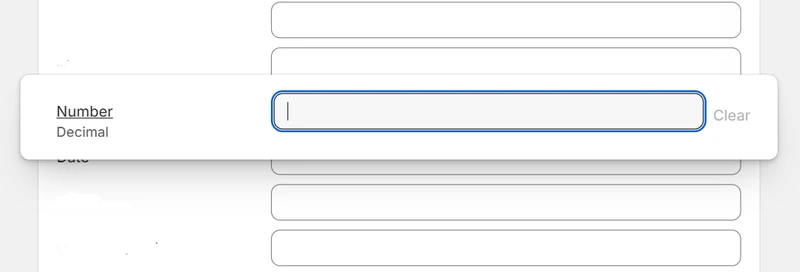
Number metafields support both integers and decimals.
- Integer: Use integers for whole-number values such as counts or discrete options (e.g., stock quantity, number of items in a bundle). Example: Number of items included in a bundle (e.g., 5)
- Decimal: Use decimals for fractional or highly precise values, like measurements, concentrations, or price-related figures that require cents or partial units. Example: Contact lens degree (e.g, -3.75)
Shopify also allows you to define validation rules for these metafields, such as minimum, maximum, or increment steps, ensuring the data remains clean, consistent, and within acceptable bounds. This helps prevent errors before they’re ever saved.
Text metafields
Text metafields let you add and manage written content beyond standard product fields. They’re useful for everything from short labels to detailed explanations, giving you flexibility without needing HTML.
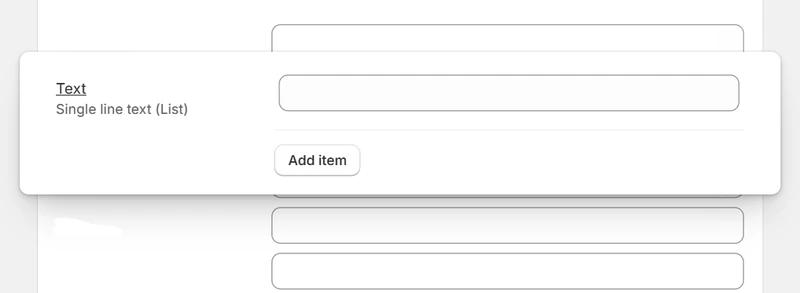
There are 3 main text metafields:
Multi-line text: Use this for longer, plain-text content such as instructions, descriptions, or ingredient lists. Example: Step-by-step care instructions.
Rich text: Use this when you need formatting – headings, bold text, links, or bullet points – ideal for structured content like product stories or guides. Example: A formatted brand introduction with bold headings.
Single-line text: Use this for short, concise information like labels, tags, or product codes. Example: A compact product identifier (e.g., “Model X-2025”).
Reference metafields
Reference metafields allow you to connect one Shopify item to another existing object – such as a product, page, collection, file, company, metaobject, and more. Instead of manually recreating information, you “link” the original source, which reduces duplication, keeps data consistent, and ensures updates automatically carry over. They’re ideal for organizing relationships across your storefront.
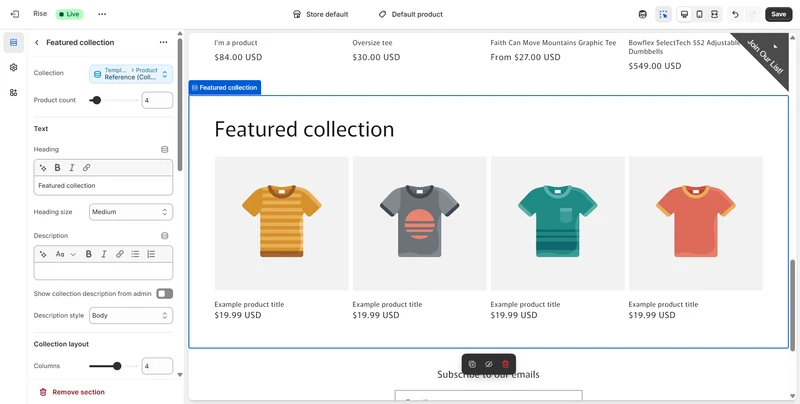
Example use-cases
- Product: Attach a matching accessory as a recommended product.
- Collection: Link a product to a curated “Holiday Gift Sets” collection.
- File: Reference a PDF manual that customers can download from the product page.
Read more: What Are Shopify Product Images? Full Guide on How to Create, Upload & Optimize
Other metafields
These metafields don’t fall under the usual preset categories, but they’re still valuable for holding different kinds of information. For example, you can store true or false, color, rating, ID, URL, etc.
Example use-cases:
- Color: Store the exact color of a product swatch (e.g., “#FFFFFF” – white).
- Rating: Save customer review scores (e.g., “4.7/5”).
- ID: Provide a unique identifier for an item (e.g., “7971005235254”)
Advanced metafields
Advanced metafields give you more flexibility when your data doesn’t fit into simple fields. The two advanced types are JSON and mixed reference.
- JSON: Use this when you need to store structured data with multiple attributes. Perfect for technical specifications, feature tables, or integration data. Example: Save detailed specifications like battery life, material composition, or a full feature list.
- Mixed reference: Use this when you want a single field that can link to any Shopify object – products, pages, blog posts, files, PDF manuals, or collections – without being restricted to one type.
Example: Link to either a blog post, a product, or a file, depending on the content you want to display.
How to Add Metafields with Specific Shopify Metafield Types
When creating metafields in Shopify, choosing Shopify metafield value types is a crucial decision. Here are the steps to add metafields with specific types for your Shopify store:
- Step 1. Create a new metafield definition
- Step 2. Add content to metafields
- Step 3. Publish metafields to your storefront
Step 1. Create a new metafield definition
Creating a metafield definition is the first step because it tells Shopify what kind of data you want to store. When you set up a definition, the most important setting is the metafield type.
To start, go to Settings > Metafield and Metaobjects. In the Metafield definitions sections, choose the resource you want to add a metafield to (such as Product, Variant, Collection, or Order). Then click Add definition to open the metafield settings.
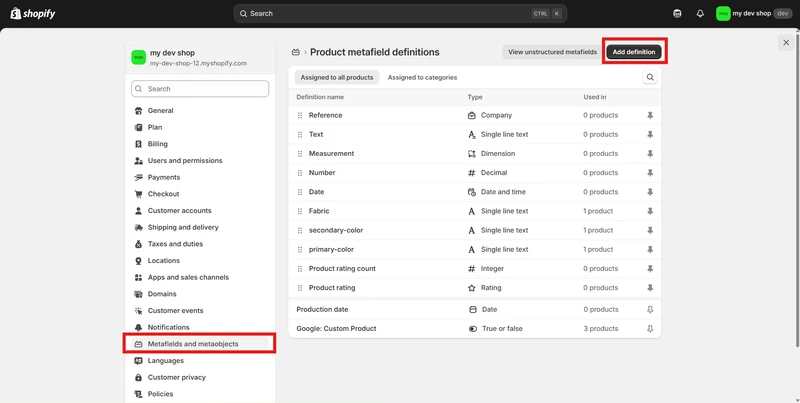
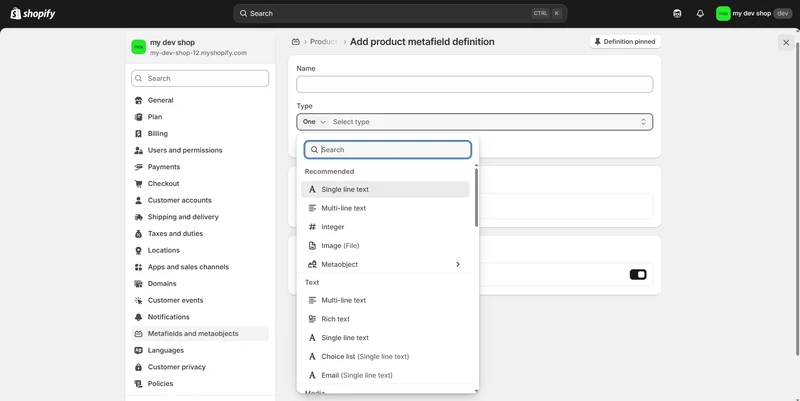
Here, give your field a clear name, set the namespace/key, description, and – most importantly – select the content type. You can choose to add a type with one value or a list of values.
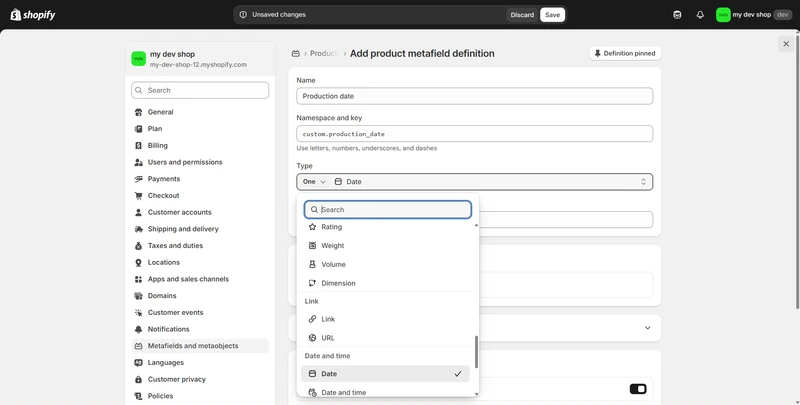
For each option, Shopify provides a list of metafield types for you to choose from. Shopify also lets you set optional validations, such as allowed units or character limits.
Once everything is set, click Save, and your metafield schema is ready.
Step 2. Add content to metafields
Once your metafield definition is created, you can start adding actual. Each metafield will only accept the type of data you defined earlier, so the input fields you see will automatically match the metafield type: text boxes for text values, pickers for dates, upload buttons for files, or dropdown selectors for references. This ensures clean, consistent data across your store.
To add content, open the resource you want to add and scroll down to the Metafields section. You’ll see all metafields tied to that resource. From here, click into the field and enter your value. If the value doesn’t match the metafield type (e.g., text in a number field), Shopify will prevent you from entering a value. This ensures your metafields stay clean and consistent.
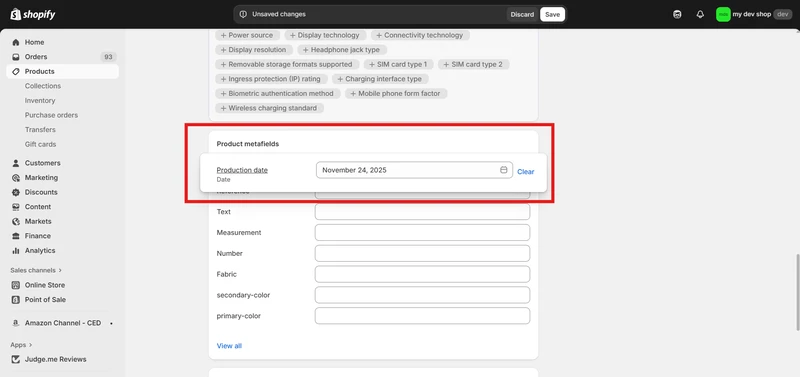
After filling in the value, click Save.
Step 3. Publish metafields to your storefront
Adding metafields to your theme is what makes them visible to customers.
To publish a metafield, open Online Store > Themes > Edit Theme. Inside the editor, choose the page and section where you want the metafield to appear.
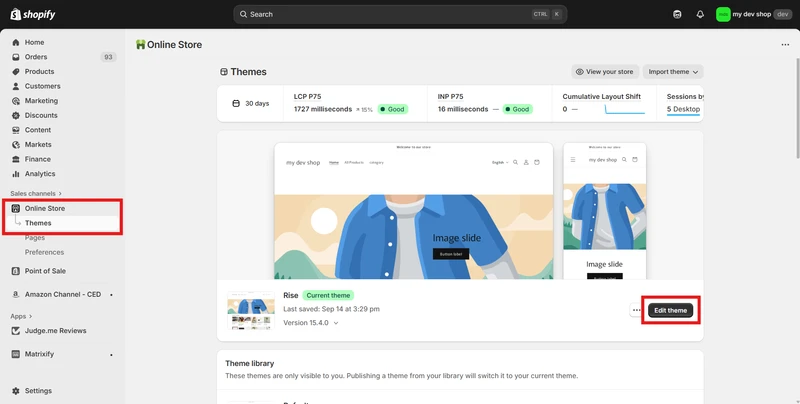
Then, click to add a block or modify an existing one, and look for the Dynamic source icon. This lets you connect your metafield directly to the theme component. Shopify will show a list of metafields available for that resource, and you can select the one you created.
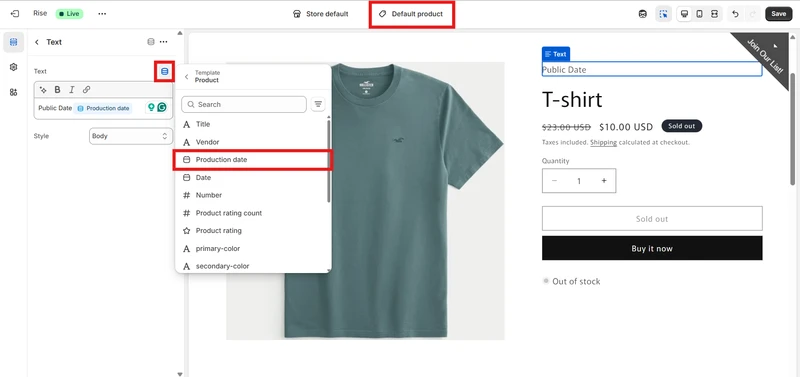
After inserting the dynamic source, Shopify will preview the metafield value immediately. If the type is supported by the theme, Shopify formats it automatically.
Click Save, and the metafield becomes live on your storefront. If the theme does not support dynamic sources, you may need to insert it manually using Liquid.
Common Mistakes and Best Practices for Managing Shopify Metafield Types
Even experienced Shopify users can make mistakes when working with metafield types. These errors can lead to broken layouts, inconsistent data, or difficulty in managing your store. Below are some of the most common pitfalls and how to avoid them.
Choosing the wrong metafield type
Many merchants accidentally select a type that doesn’t match the data they intend to store, such as using text instead of a number or using a simple text field instead of a file reference. This creates validation errors and makes the metafields in Shopify incompatible with theme blocks.
Best practice: Always confirm the data format you need before creating the definition, and review the full metafield type list to choose the most suitable option.
Mixing measurement units or formats
When using measurement types (like weight, volume, or dimensions), inconsistent units can lead to inaccurate product details and break filtering or comparison features. This often happens when different team members enter values manually.
Best practice: Set a single, standardized unit for the metafield type and communicate it clearly to anyone managing product data.
Overusing text fields instead of structured types
Some stores use text for everything – dates, numbers, colors, or file names – which causes messy data and prevents Shopify from validating or formatting it properly. This limits how themes can display information dynamically.
Best practice: Use typed metafields (date, number, file, reference, color) whenever possible so Shopify can format and validate the data automatically.
Not marking metafields as “available to your storefront”
A metafield won’t appear in the theme editor if it’s not set to be available to the storefront. Many users think metafields are broken when in reality, they’re simply not exposed to the theme.
Best practice: Always check the metafield definition settings and enable “Storefront API access” before connecting it in the theme.
Metafields vs Metaobjects: What’s the Difference?
Shopify metafields and metaobjects are both tools for storing custom data, but they serve different purposes.
Metafields add extra information to an existing resource, while metaobjects let you create entirely new structured data models. Understanding the difference helps you choose the right tool and avoid overcomplicating your store setup.
Metafields
Metafields are used when you want to attach a specific piece of information to a specific Shopify resource. For example, if only one product has a “Release date,” you add a metafield directly to that product. Metafields are simple, lightweight, and perfect for unique attributes or small pieces of data that vary item by item.
They work best when the information is not shared across multiple products and doesn’t require multiple data points (such as title, description, and image). Because each metafield stores only one type of value, they remain clean and easy to manage.
Metaobjects
On the other hand, metaobjects are like creating custom mini-databases inside Shopify. Instead of storing just one value, a metaobject entry can contain multiple fields: name, image, description, and more.
Once you create a metaobject, you can create unlimited entries and use them across products or pages. This makes metaobjects far more powerful when you have information that must stay consistent and reusable.
| Feature | Metafields | Metaobjects |
| Purpose | Add extra fields to existing Shopify resources (products, variants, collections, orders, blogs, customers). | Create brand-new, standalone data models with multiple fields. |
| Best for | Storing additional attributes like size charts, material details, release dates, and technical specs. | Building reusable data sets such as ingredient lists, lookbooks, testimonials, FAQs, size charts, store policies. |
| Structure | Single field per definition; each metafield stores one value (or one list). | Multi-field “entries” with their own templates, like mini databases. |
| Complexity | Simple, quick, ideal for single pieces of data. | More advanced – ideal for structured, repeatable content models. |
Shopify Metafield Types: FAQs
Which types of information can be stored in metafields?
Metafields can store many types of information, including text, numbers, dates, files, colors, measurements, and references to other Shopify resources. Each value must match the metafield type you selected when creating the definition. This helps Shopify validate and format the data consistently across your store.
Can Shopify metafields store image data?
Yes, Shopify metafields can store image data, but not directly as an uploaded image. To store image data, you must use a file reference metafield, which links to images uploaded in Shopify Files. Once connected, the image can be displayed on your product pages or theme sections through dynamic sources.
What are the differences between rich text metafields and plain text?
The key difference between rich text and plain text metafields is the level of formatting they support.
– Rich text metafields allow for styled content such as bold, italics, lists, links, and line breaks, making them ideal for detailed product descriptions, structured content, or any information that benefits from formatting.
– Plain text stores simple, unformatted text – perfect for short labels, tags, or basic descriptions where formatting isn’t needed.
Is there a limit for Shopify metafield types?
Yes, Shopify does set several limits for metafield types. In your Shopify admin, you can add up to 250 metafield definitions of all types, and all list metafield types allow a maximum of 128 items per list.
Conclusion
Shopify metafields play a crucial role in how your store manages and displays custom data. Choosing the right Shopify metafield types ensures your information stays structured, accurate, and compatible with your theme. When used correctly, metafield types give you the power to create richer, more dynamic product pages without complicated coding.
Once your metafield types are set up, the next challenge is keeping your data updated, especially if you manage a large product catalog. Instead of editing metafields one by one, you can add, update, or replace metafield values in bulk with a tool like BulkFlow, saving hours of manual work and reducing the risk of errors.
If you want to streamline your metafield workflows, improve data accuracy, and speed up product management, try BulkFlow today. It’s built to make metafield imports and updates fast, reliable, and effortless – so you can focus on growing your store, not managing spreadsheets.