Adding products is one of the first and most important steps to bringing your Shopify store to life. Before your customers can browse or buy, you need to upload your products – complete with details, images, and pricing – so your storefront is ready to sell.
That’s why you need to know how to add products to Shopify the right way. This guide will break down exactly for store owners on Shopify how to add products through simple step-by-step methods, both manually and in bulk.
Simplify How You Manage Shopify Products
BulkFlow gives you one unified platform to import, edit, and export thousands of your products at once. You can finally keep your workflow clean, organized, and efficient.
How to Add Products to Shopify – Manual Method
Uploading products directly through your Shopify Admin is the most straightforward approach when you only have a few items to list or want complete control over each new product page. Shopify’s intuitive interface gives merchants the flexibility to build highly informative and conversion-focused listings.
Here is how to add products to Shopify store manually:
- Step 1: Click Add product
- Step 2: Fill in the product title and description
- Step 3: Upload product media
- Step 4: Complete other product settings
- Step 5: Publish your product
Step 1: Click Add product
To begin, log in to your Shopify dashboard. On the left-hand navigation menu, select Products. This will take you to a list of all current product entries.
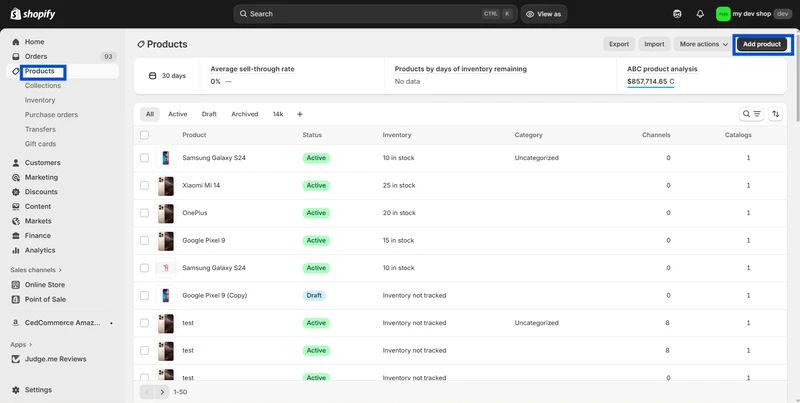
From here, click the Add product button located at the upper right corner. Shopify will open a clean, structured form where you can input all relevant product information.
While not every field is mandatory, you should complete the essential ones (title, description, pricing, images, etc) to ensure your listing looks professional and gives customers enough details to make a confident purchase.
Step 2: Fill in the product title and description
In the next step, you will start filling in the most necessary details for your product: title and description.
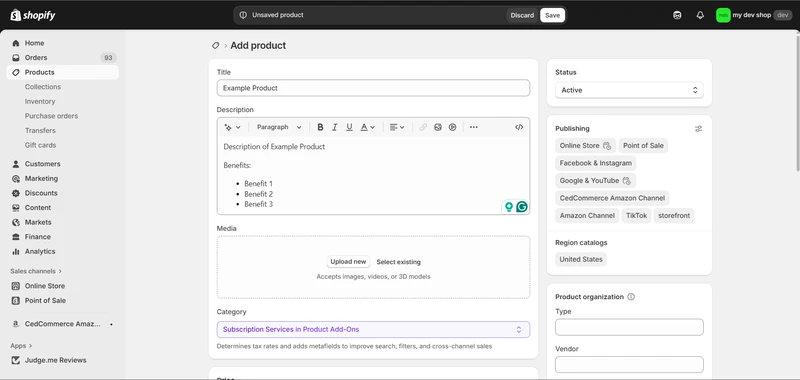
Start with a clear and engaging product title. This is one of the most visible elements on your storefront and a key factor in search engine ranking. You should incorporate descriptive and keyword-rich language so customers understand exactly what they are buying.
Follow this with a detailed description that presents the product’s features, benefits, and specifications persuasively. A strong description not only reduces returns and product questions but also influences conversions.
Step 3: Upload product media
To add media to your product, in the Media section, click on the Upload new button and upload the media directly from your file. You can add more or remove these media according to your needs.
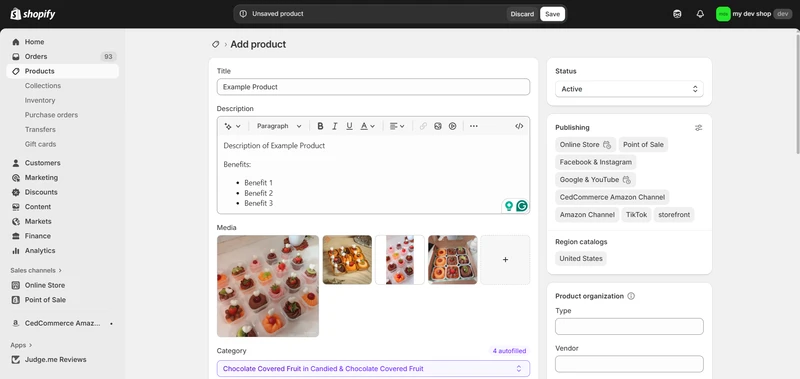
Based on all the information you enter previously – including your product’s title, description, and media – Shopify will automatically suggest a suitable Category for your product. You can still adjust or change it anytime if the suggested one does not match your product perfectly.
Step 4: Complete other product details
After adding media, you can continue with other product details.
Pricing
In the Pricing section, enter the amount your customers will pay under Price.If this item is discounted, use the ‘Compareatprice’ field to display the original, higher price. For example, if the standard retail price is $49 and you set the price to $29, Shopify displays it as a $20 discount.
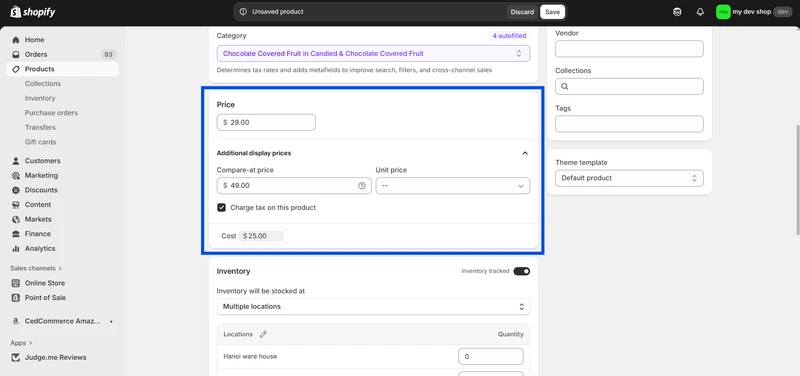
If the product is taxable, check Charge tax on this product to ensure taxes are applied correctly.
Also, fill in Cost if you wish to track profit margins. This field helps you monitor profitability when using Shopify’s analytics tools.
Inventory
In the Inventory section, you can set how Shopify tracks, stores, and manages the stock levels of your product – ensuring accurate inventory control and smooth fulfillment as orders come in.
First, you need to define how inventory is managed. Under Inventory will be stocked at, select your location(s) where this item is held, this might be your warehouse or a fulfillment center.
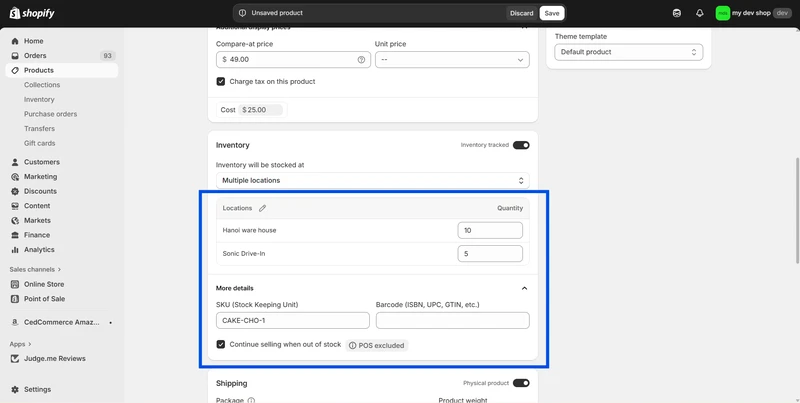
Next, for each location, enter the number of units in stock under Quantity.
You also need to assign a unique Shopify SKU (stock keeping unit) to enable tracking and fulfillment efficiency. This code is a compilation of alphabetical letters and numbers that contain the necessary information about your specific product.
If not SKU, another option is to assign a barcode to your product. While barcodes are optional for many online sellers, they can be important if you integrate with external logistics or marketplaces.
Don’t forget to enable Inventory tracked to ensure Shopify reduces stock levels when orders come in, thus avoiding overselling items you don’t actually have. Optionally, you can select Continue selling when out of stock if you’re comfortable fulfilling backorders.
Read more: Shopify Variant Inventory Policy Explained: Settings & Best Uses
Shipping
Next, under the Shipping section, enable Physical product if the item is tangible and needs delivery. If you’re selling a digital product or service, disable it.
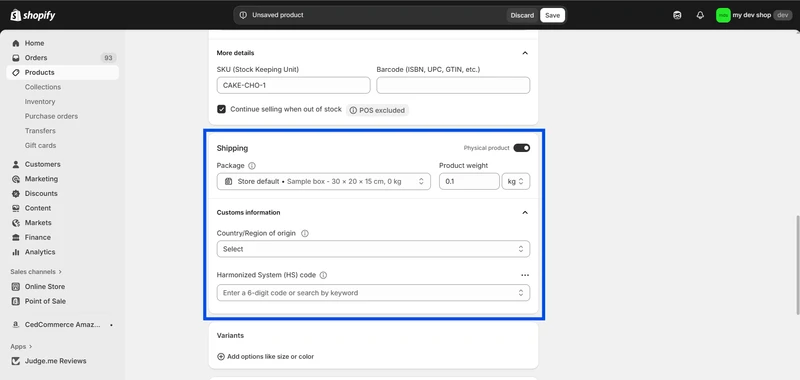
Then, enter the product’s weight, choosing appropriate units (kg, lb, oz, etc). This enables shipping rates to calculate correctly and provide an accurate cost to the customer.
If you plan to ship internationally, fill in Country/Region of origin and the HS code (Harmonized System code) under Customs Information so customs duties or tariffs can be calculated when required.
Variants
You can also add variants to your product. It can be size, color, material, etc. Remember, there are variant limits on Shopify: no more than 3 variant options and 100 total variants per product.
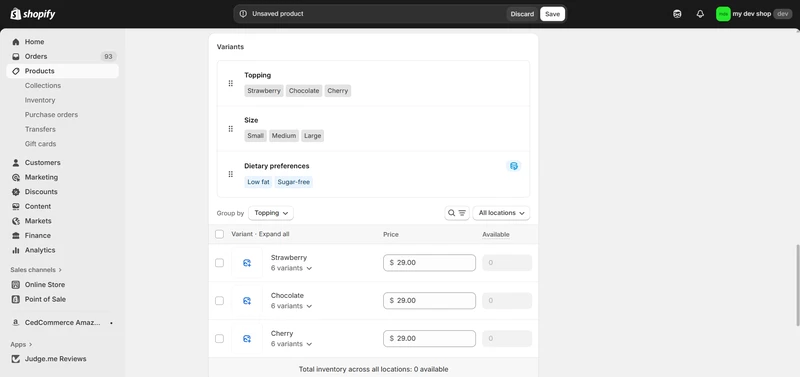
To further customize your variant, you can click it and add the necessary details.
Metafields
Metafields let you store extra information about your products beyond the default Shopify fields. They are especially useful if you want to display custom details on your storefront or keep internal product data organized for your team.
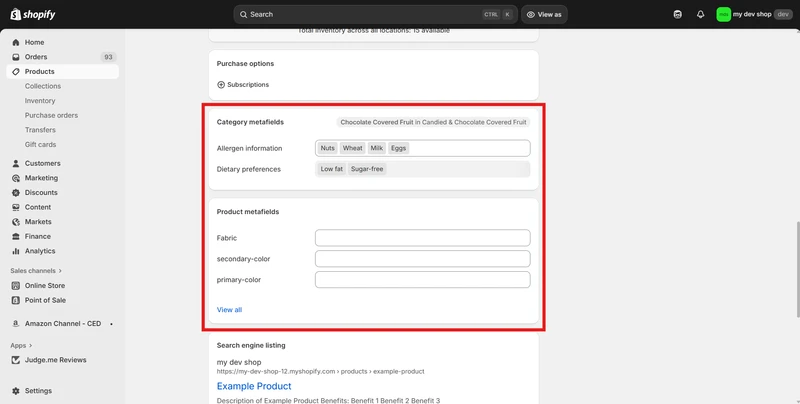
Category metafields define specific attributes shared by products within the same group. For example, if you sell clothing, a category metafield might include “Material,” “Care instructions,” or “Fit type.” Shopify uses these attributes to standardize information and help customers compare similar items easily.
Product metafields add extra information that doesn’t fit into Shopify’s default product fields. They are especially useful if you want to display unique details such as fabric type, care instructions, or compatibility notes. In other words, metafields help you create a more customized and informative shopping experience.
Search engine listing
The search engine listing section helps improve how your product appears on search engines like Google. In the top right corner of this section, click the Edit icon to customize your Page title, Meta description, and URL handle.
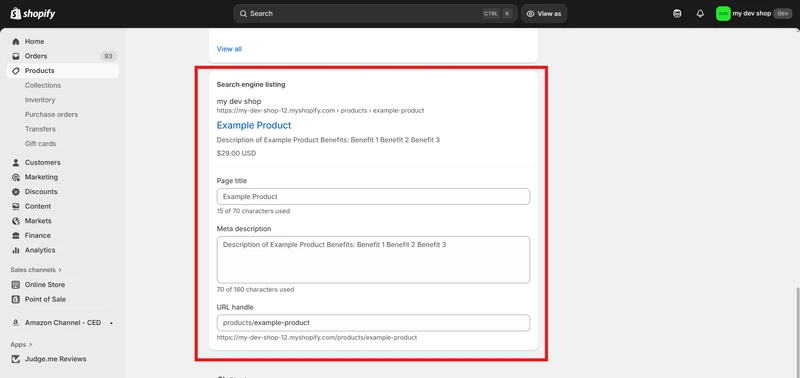
You should include the main keyword or product name naturally in the title and description to make your listing more visible in search results. Keep the page title concise and write a clear, benefit-driven meta description that encourages clicks.
Shopify automatically generates a handle for your URL, but you can edit it to make it cleaner and more descriptive. A well-optimized search listing not only improves SEO but also makes your product appear more credible and click-worthy.
Step 5: Organize and publish your product
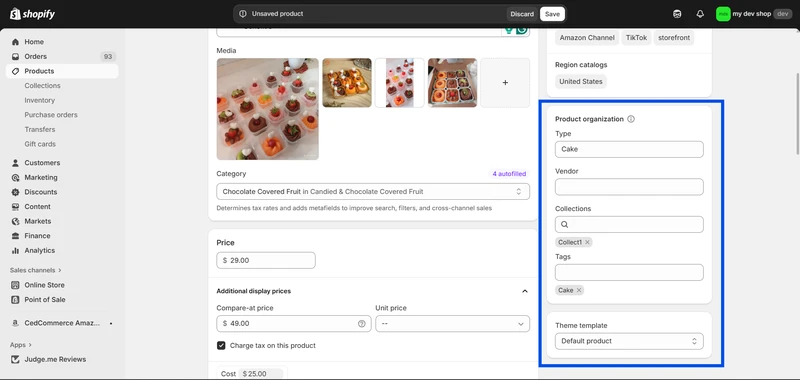
Toward the right of the product page, you can assign Type, Vendor, Collections, and Tags to your product.
- Type is a category you define (e.g., “Men’s T-Shirts”, “Home Décor”) so you can later filter or group products easily.
- Vendor refers to the manufacturer or brand. If you are the creator of the product, you might still fill in your business name here for future reporting.
- Collections allow you to group products into logical storefront categories (for example, “Summer Sale”, “New Arrivals”) so users can navigate smoothly.
- Tags are free-format keywords or labels you assign for internal organization and search filtering (e.g., “eco-friendly”, “made-in-Vietnam”).
Next, at the top right of the same section, set the product Status to Active if you are ready to publish it on your store. If you are still drafting or want to delay launch, set it as Draft.
You also choose which Sales channels & apps the product should be available on (for example, Online Store, Point of Sale, Facebook Shop). This ensures you control where the product appears and keeps marketing consistent.
Shopify gives you the flexibility to preview the product page before publishing to ensure everything looks polished on both desktop and mobile. To do it, simply click More action > Preview.
When your product is ready, click Save to finalize the listing. Your product is now live and available to customers. Every update you make moving forward is tracked, providing the agility to optimize over time as you collect insights about customer behavior.
How to Bulk Add Products to Shopify – 2 Methods
When your product catalog begins to scale, uploading items one by one can be inefficient and error-prone. Fortunately, there are two reliable bulk import methods for Shopify: using a third-party app like BulkFlow or directly via a CSV file. Let’s explore how to add products on Shopify with these methods.
#1: Import products to Shopify via BulkFlow
BulkFlow is a third-party app designed to simplify large-scale product imports, updates, and exports. It supports multiple file formats (CSV, Excel, Google Sheets, etc.) and a variety of connection methods (upload, URL, FTP/SFTP, etc.), so you will not have to restructure if you use your supplier’s format.
BulkFlow lets you add products to Shopify faster while giving you greater flexibility, fewer formatting constraints, and the option to automate scheduled imports. You can also track every update through a clean activity log that records both successes and errors for full visibility.
Here is how to add products to your Shopify store with BulkFlow:
- Install BulkFlow from the Shopify App Store or website, then connect it to your Shopify store.
- In the dashboard, choose Create new feed > Import to create a new import feed, name it, and select Products as the data entity.
- Choose your data source, either upload your own file or use BulkFlow’s Shopify template, and select a connection method.
- Connect your file based on your chosen method and map its fields to Shopify product attributes manually or with AI mapping suggestions.
Run the import and review the results in the Activity Log. You can enable Automate feed for scheduled updates.
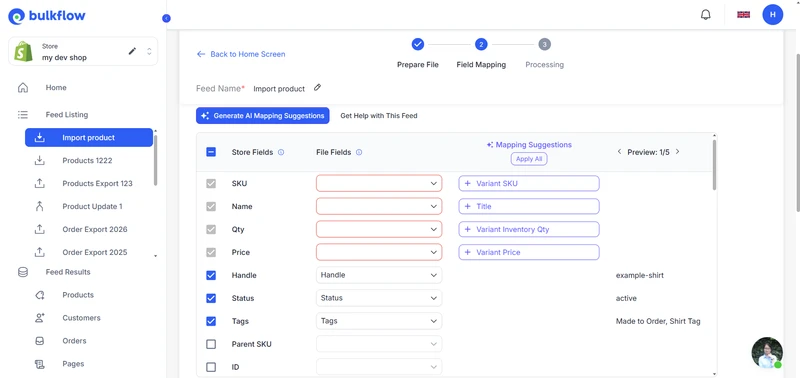
Add Thousands of Products to Shopify in Minutes with BulkFlow
BulkFlow lets you add products to Shopify in bulk using multiple formats, including CSV, Excel, Google Sheets, and more, giving you flexibility in how you manage product data. You can upload files without converting anything manually.
#2: Import products to Shopify via CSV files
Another method is Shopify’s native import feature. It is useful when you have a structured spreadsheet of product data and you’re comfortable with Shopify’s required CSV format. It is less flexible than BulkFlow but does not require installing a third-party app.
Here is how to add products in Shopify with its import tool:
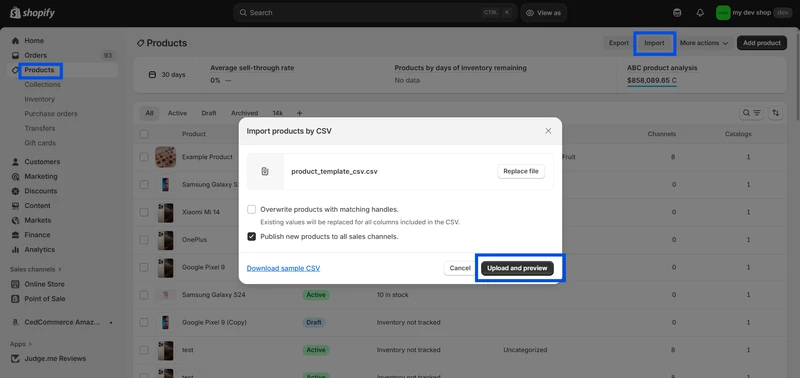
- In Shopify Admin, navigate to Products > Import. Click download sample CSV to get the Shopify product template.
- Fill in product data in the CSV, ensuring required columns (e.g., Handle, Title, Price, etc) are correctly written.
- Return to Products > Import, upload the completed CSV file, and choose Upload and preview to check for errors.
- Once you finish checking the preview, run the import. Shopify processes the file and creates or updates the products.
- Review your products afterward in Shopify to verify that product information was imported correctly.
Best Practices to Optimize Shopify Products
Knowing how do you add products to your Shopify store is only the first step in building a successful store. Optimizing each listing strengthens search rankings, increases product discoverability, and improves conversion rates.
Here are some best practices to enhance your products:
Write a clear product title
Your product title is often the first element shoppers notice, so it should clearly state what the item is and highlight its key attribute or use. Keep it concise, descriptive, and relevant to what customers actually search for. A strong title improves both SEO visibility and click-through rates on your Shopify store.
For example, instead of simply “Running Shoes,” using “Men’s Lightweight Running Shoes – Breathable Mesh” as the title can hugely enhance your product.
Create an engaging description
You should write descriptions that clearly communicate the product’s value and help customers understand how it solves their needs. Focus on benefits first, then include key features and specifications in a scannable format, such as short sentences or bullet points. You can also integrate relevant keywords naturally to support SEO while keeping the tone appealing and easy to read.
Use attractive media
Attractive media go beyond high resolution; they capture attention and help customers visualize owning the product. Use bright, well-lit images, consistent backgrounds, and lifestyle photos or videos that show your product in use. Visually cohesive and engaging media not only look professional but also make your Shopify store more memorable and persuasive.
Bonus: Further Actions with Shopify Products
Once products are set up correctly, ongoing catalog management becomes essential. BulkFlow supports efficient, large-scale updates and product lifecycle actions that save time and reduce operational risk.
Update Shopify products with BulkFlow
Merchants often need to adjust pricing, inventory, tags, or descriptions for hundreds or thousands of items at once. BulkFlow enables secure and accurate bulk updates using flexible file formats. Here are the steps to update products:
- Prepare a data file containing product identifiers and the data that needs updating.
- Go to your BulkFlow dashboard and create a new update feed by clicking Create new feed > Update. Give it a name, choose the product entity, and select your file template and connection methods
- Connect your file and map the fields from the file to the corresponding Shopify product attributes.
- Run the update process and verify the result. You can set up an automatic schedule for future updates.
Export Shopify products with BulkFlow
You can also use BulkFlow to export your product catalog data for review, backup, or migration purposes. Here are the steps to export products
- Navigate to your BulkFlow dashboard and click Create new feed > Export.
- Give your feed a name and choose your preferred export destination (email or FTP/SFTP server)
- Choose the export format (Excel or CSV) and select the product as the data entity.Customize the dataset by using filters to narrow down your list of items and selecting only the fields you need.
- Set up the schedule to automate for future exports. Execute the export and download the completed file in your chosen destination.
Archive or delete Shopify products with BulkFlow
When products become obsolete, discontinued, or seasonal, it’s essential to clean up your store to maintain optimal performance and a seamless customer experience. BulkFlow can help you set multiple products to “archived” status or delete them in bulk. Here are the steps to archive or delete products.
- Prepare a data file that lists the identifier of the product you wish to archive or delete (you only need one type of identifier).
- In the BulkFlow dashboard, create a new delete feed by clicking Create new feed > Delete, assign a name, select the product entity, and pick your file template and connection options.
- Connect the file to BulkFlow and match your product identifiers to the corresponding Shopify product fields.
- Execute the delete and check your outcome afterward. You can also enable a schedule for ongoing deletion.
FAQ: How to Add Products to Shopify
How to add your own products to Shopify?
You can add products directly through the Shopify admin by going to Product > Add product and entering key details such as title, description, pricing, images, etc. Once saved and assigned to sales channels, the product becomes visible to customers. Bulk import using CSV or tools like BulkFlow is advisable when managing large catalogs.
How to add products to Shopify website from other websites?
Products can be imported from third-party platforms by exporting their product data into a compatible file format, such as CSV, and then importing it into Shopify. Automated tools like BulkFlow can help streamline data mapping and updates to ensure accuracy when migrating from another source.
How to add products to my Shopify store without limits?
Shopify does not restrict the total number of products you can have in your store. However, once your store contains more than 50,000 products or variants, you will face a daily import limit of 1,000 products. To efficiently manage large catalogs and bypass manual upload constraints, you can use bulk management tools like BulkFlow.
How can I make my products stand out on Shopify?
To make your products stand out, you should optimize product pages with high-resolution images, persuasive copy, and comprehensive information that addresses customer needs. You can also organize items with relevant tags and collections to improve navigation and search visibility
How do I add products to my Shopify store collection?
With Shopify feature, you can assign products to a collection manually or through automation rules. Here is how to add new products on Shopify collection:
1. Go to Products › Collections and create a collection. Set up collection details.
2. Choose Manual (add products yourself) or Automated (set rules to automatically add products)
3. Assign products to the collection. Add the collection to your store navigation if needed
Final Words
Knowing how to add products to Shopify is a critical part of setting up any Shopify business, and mastering the process helps you deliver new listings faster and more consistently. Whether you are uploading a single handcrafted item or managing thousands of SKUs across categories, the right workflow will save valuable time and reduce costly errors.BulkFlow provides the automation and flexibility that many merchants need once their catalog grows. You can import, update, delete, and export product data with just a few clicks, all while keeping your store clean and accurate. If you are ready to upgrade your product management process, start exploring BulkFlow from today!